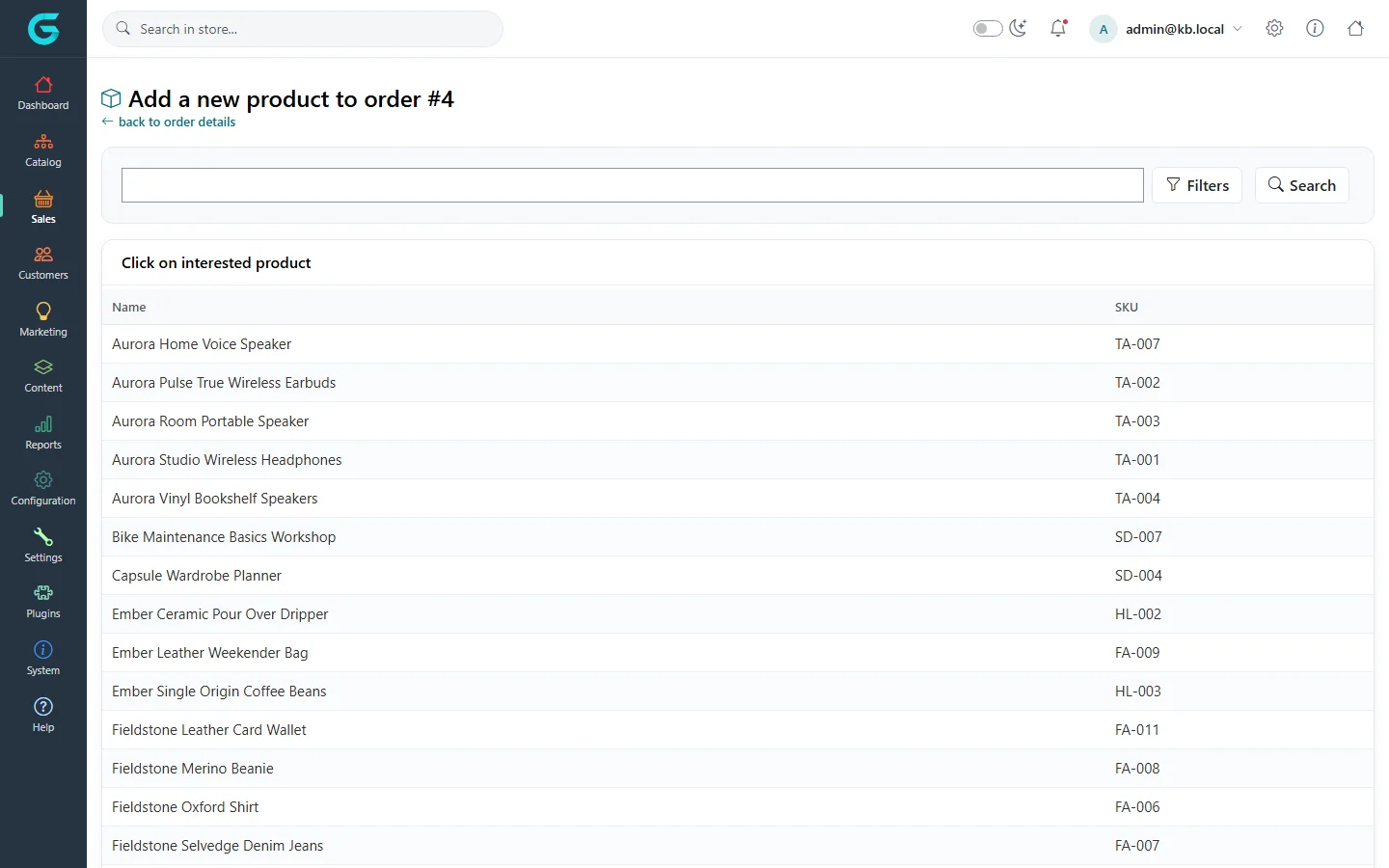
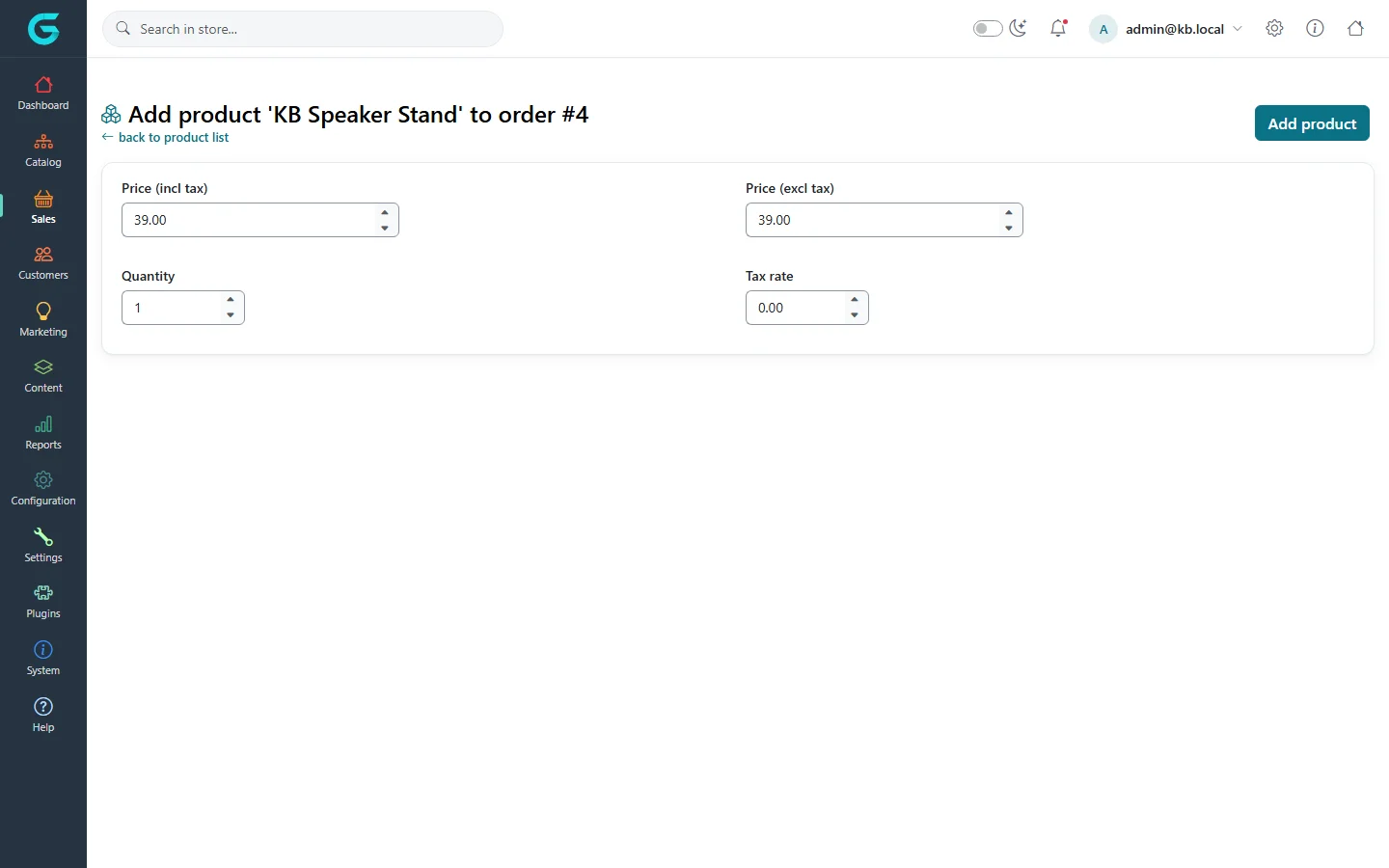
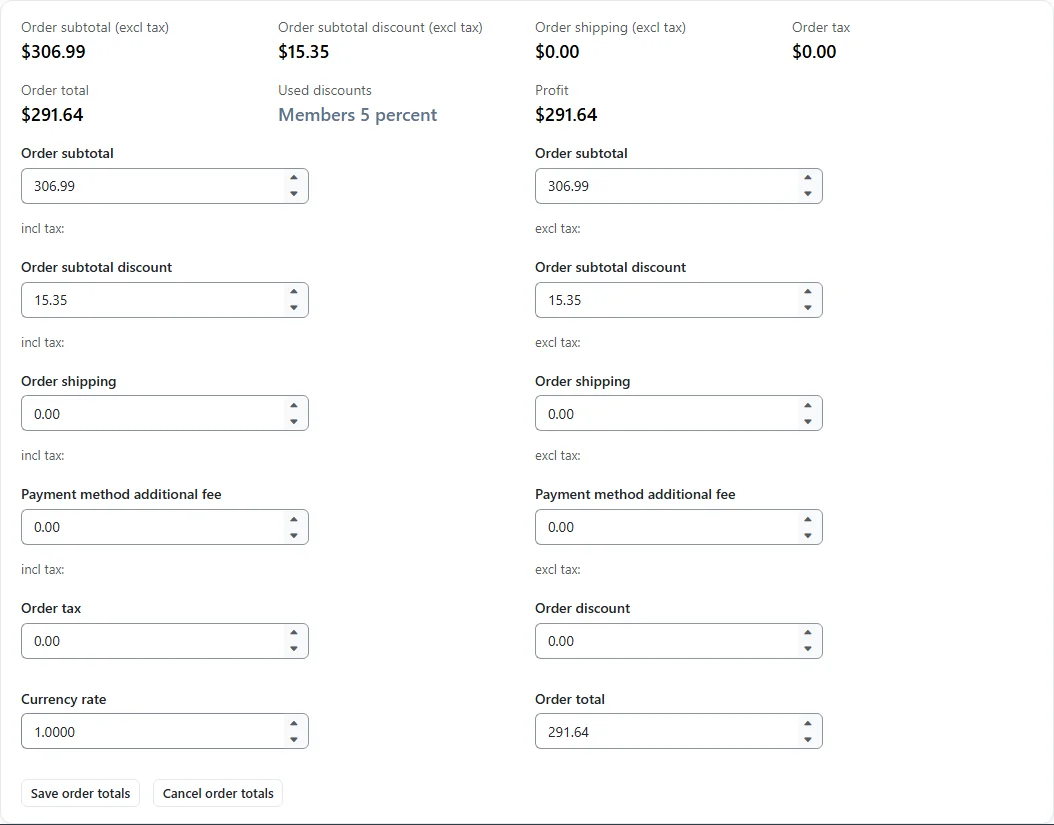
{"ArticleId":null,"Name":"Editing an order","Content":"\n\u003Cp\u003ECustomers change their minds and phone in corrections: one more item, a different size, a goodwill discount. GrandNode lets staff edit an order after checkout. This article shows how to add a product, change an order line and correct the totals, and what the system does and does not recalculate for you.\u003C/p\u003E\n\n\u003Ch2 id=\u0022before-you-start\u0022\u003EBefore you start\u003C/h2\u003E\n\u003Cul\u003E\n\u003Cli\u003EOpen the order under \u003Cstrong\u003ESales \u2192 Orders\u003C/strong\u003E.\u003C/li\u003E\n\u003Cli\u003EA cancelled order cannot be edited; its product lines are read only.\u003C/li\u003E\n\u003Cli\u003EPayment is not changed by an edit. If the new total is higher, collect the difference outside the order (a payment link, an invoice) and record it on the payment transaction; if it is lower, refund the difference. See \u003Ca href=\u0022/sales-payments\u0022\u003EPayments and payment transactions\u003C/a\u003E.\u003C/li\u003E\n\u003C/ul\u003E\n\n\u003Ch2 id=\u0022add-product\u0022\u003EAdd a product to an order\u003C/h2\u003E\n\u003Col\u003E\n\u003Cli\u003EOpen the \u003Cstrong\u003EProducts\u003C/strong\u003E tab of the order and click \u003Cstrong\u003EAdd product\u003C/strong\u003E.\u003C/li\u003E\n\u003Cli\u003ESearch for the product by name or SKU and click it in the list.\u003C/li\u003E\n\u003Cli\u003EOn the next screen enter the \u003Cstrong\u003EPrice (incl tax)\u003C/strong\u003E, \u003Cstrong\u003EPrice (excl tax)\u003C/strong\u003E, \u003Cstrong\u003EQuantity\u003C/strong\u003E and \u003Cstrong\u003ETax rate\u003C/strong\u003E, choose attribute values if the product has any, and click \u003Cstrong\u003EAdd product\u003C/strong\u003E.\u003C/li\u003E\n\u003C/ol\u003E\n\u003Cfigure\u003E\u003Cimg src=\u0022/Plugins/Theme.GrandNodeCom/Content/kb/sales/order-add-product-search.webp\u0022 alt=\u0022Add a new product to order #4: a searchable list of products with name and SKU\u0022 width=\u00221440\u0022 height=\u0022900\u0022 loading=\u0022lazy\u0022\u003E\u003Cfigcaption\u003EStep 2: pick the product.\u003C/figcaption\u003E\u003C/figure\u003E\n\u003Cfigure\u003E\u003Cimg src=\u0022/Plugins/Theme.GrandNodeCom/Content/kb/sales/order-add-product.webp\u0022 alt=\u0022Add product KB Speaker Stand to order #4 with price incl and excl tax 39.00, quantity 1 and tax rate 0\u0022 width=\u00221440\u0022 height=\u0022900\u0022 loading=\u0022lazy\u0022\u003E\u003Cfigcaption\u003EStep 3: price, quantity and tax rate are entered by hand.\u003C/figcaption\u003E\u003C/figure\u003E\n\u003Cp\u003EThe line is added with the prices you entered, not with the current catalog price. That lets you honour a quoted price, but it also means you must enter the correct tax yourself.\u003C/p\u003E\n\n\u003Ch2 id=\u0022edit-line\u0022\u003EChange or remove a line\u003C/h2\u003E\n\u003Cp\u003EOn the \u003Cstrong\u003EProducts\u003C/strong\u003E tab each line has \u003Cstrong\u003EEdit\u003C/strong\u003E and \u003Cstrong\u003EDelete\u003C/strong\u003E. Edit lets you change the unit price (incl and excl tax), the discount, the quantity and the total of that line. Delete removes the line from the order.\u003C/p\u003E\n\n\u003Ch2 id=\u0022edit-totals\u0022\u003EEdit order totals\u003C/h2\u003E\n\u003Cp\u003EThe totals on the \u003Cstrong\u003EInfo\u003C/strong\u003E tab are stored values. Adding or changing lines does not rewrite them automatically, so after an edit click \u003Cstrong\u003EEdit order totals\u003C/strong\u003E and correct them.\u003C/p\u003E\n\u003Cfigure\u003E\u003Cimg src=\u0022/Plugins/Theme.GrandNodeCom/Content/kb/sales/order-edit-totals.webp\u0022 alt=\u0022The order totals editor with order subtotal, subtotal discount, shipping, payment method additional fee, tax, discount, currency rate and order total, each incl and excl tax\u0022 width=\u00221440\u0022 height=\u0022900\u0022 loading=\u0022lazy\u0022\u003E\u003Cfigcaption\u003EEdit order totals: every amount, including and excluding tax.\u003C/figcaption\u003E\u003C/figure\u003E\n\u003Ctable\u003E\n\u003Cthead\u003E\u003Ctr\u003E\u003Cth\u003EField\u003C/th\u003E\u003Cth\u003EWhat it is\u003C/th\u003E\u003C/tr\u003E\u003C/thead\u003E\n\u003Ctbody\u003E\n\u003Ctr\u003E\u003Ctd\u003EOrder subtotal\u003C/td\u003E\u003Ctd\u003EThe sum of the product lines, including and excluding tax.\u003C/td\u003E\u003C/tr\u003E\n\u003Ctr\u003E\u003Ctd\u003EOrder subtotal discount\u003C/td\u003E\u003Ctd\u003EDiscounts applied to the subtotal.\u003C/td\u003E\u003C/tr\u003E\n\u003Ctr\u003E\u003Ctd\u003EOrder shipping\u003C/td\u003E\u003Ctd\u003EThe shipping charge.\u003C/td\u003E\u003C/tr\u003E\n\u003Ctr\u003E\u003Ctd\u003EPayment method additional fee\u003C/td\u003E\u003Ctd\u003EA fee some payment methods add.\u003C/td\u003E\u003C/tr\u003E\n\u003Ctr\u003E\u003Ctd\u003EOrder tax\u003C/td\u003E\u003Ctd\u003EThe tax total.\u003C/td\u003E\u003C/tr\u003E\n\u003Ctr\u003E\u003Ctd\u003EOrder discount\u003C/td\u003E\u003Ctd\u003EA discount on the order total (after the subtotal).\u003C/td\u003E\u003C/tr\u003E\n\u003Ctr\u003E\u003Ctd\u003ECurrency rate\u003C/td\u003E\u003Ctd\u003EThe rate from the store currency to the currency the customer paid in.\u003C/td\u003E\u003C/tr\u003E\n\u003Ctr\u003E\u003Ctd\u003EOrder total\u003C/td\u003E\u003Ctd\u003EWhat the customer owes. It is what payments and refunds work against.\u003C/td\u003E\u003C/tr\u003E\n\u003C/tbody\u003E\n\u003C/table\u003E\n\u003Cp\u003EClick \u003Cstrong\u003ESave order totals\u003C/strong\u003E when done, or \u003Cstrong\u003ECancel order totals\u003C/strong\u003E to discard.\u003C/p\u003E\n\n\u003Ch2 id=\u0022notes\u0022\u003ETell the customer\u003C/h2\u003E\n\u003Cp\u003EAdd an order note on the \u003Cstrong\u003EOrder notes\u003C/strong\u003E tab and tick \u003Cstrong\u003EDisplay to customer\u003C/strong\u003E; the note appears in the customer\u0027s order details and can be e-mailed. Keep internal remarks in notes that are not displayed.\u003C/p\u003E\n\n\u003Ch2 id=\u0022tips\u0022\u003ETips and common mistakes\u003C/h2\u003E\n\u003Cul\u003E\n\u003Cli\u003EEdit the totals right after changing lines, so the invoice (PDF) and the customer\u0027s view agree.\u003C/li\u003E\n\u003Cli\u003EStock is managed per product; check the product\u0027s stock after adding or removing lines by hand.\u003C/li\u003E\n\u003Cli\u003EFor a larger change it is often cleaner to cancel the order and let the customer order again.\u003C/li\u003E\n\u003C/ul\u003E\n\n\u003Ch2 id=\u0022related\u0022\u003ERelated\u003C/h2\u003E\n\u003Cul\u003E\n\u003Cli\u003E\u003Ca href=\u0022/sales-order-details\u0022\u003EOrder details\u003C/a\u003E\u003C/li\u003E\n\u003Cli\u003E\u003Ca href=\u0022/sales-order-statuses\u0022\u003EOrder, payment and shipping statuses\u003C/a\u003E\u003C/li\u003E\n\u003C/ul\u003E\n","ParentCategoryId":"6abdec6c83d2816248229ec5","SeName":"sales-editing-orders","MetaKeywords":null,"MetaDescription":"Change an order after checkout in GrandNode: add or edit products, correct the order totals, and keep the customer informed with order notes.","MetaTitle":null,"AllowComments":false,"Captcha":{"ReCaptchaChallengeField":null,"ReCaptchaResponseField":null,"ReCaptchaResponseValue":null,"ReCaptchaResponse":null},"RelatedArticles":[],"CategoryBreadcrumb":[{"Name":"Sales and orders","Description":null,"IsCurrent":false,"Children":null,"Parent":null,"SeName":"docs-sales","Id":"6abdec6c83d2816248229ec5","UserFields":[]}],"AddNewComment":{"CommentText":null,"DisplayCaptcha":false,"Id":null,"UserFields":[]},"Comments":[],"Id":"6abdec6c83d2816248229ecf","UserFields":[]}