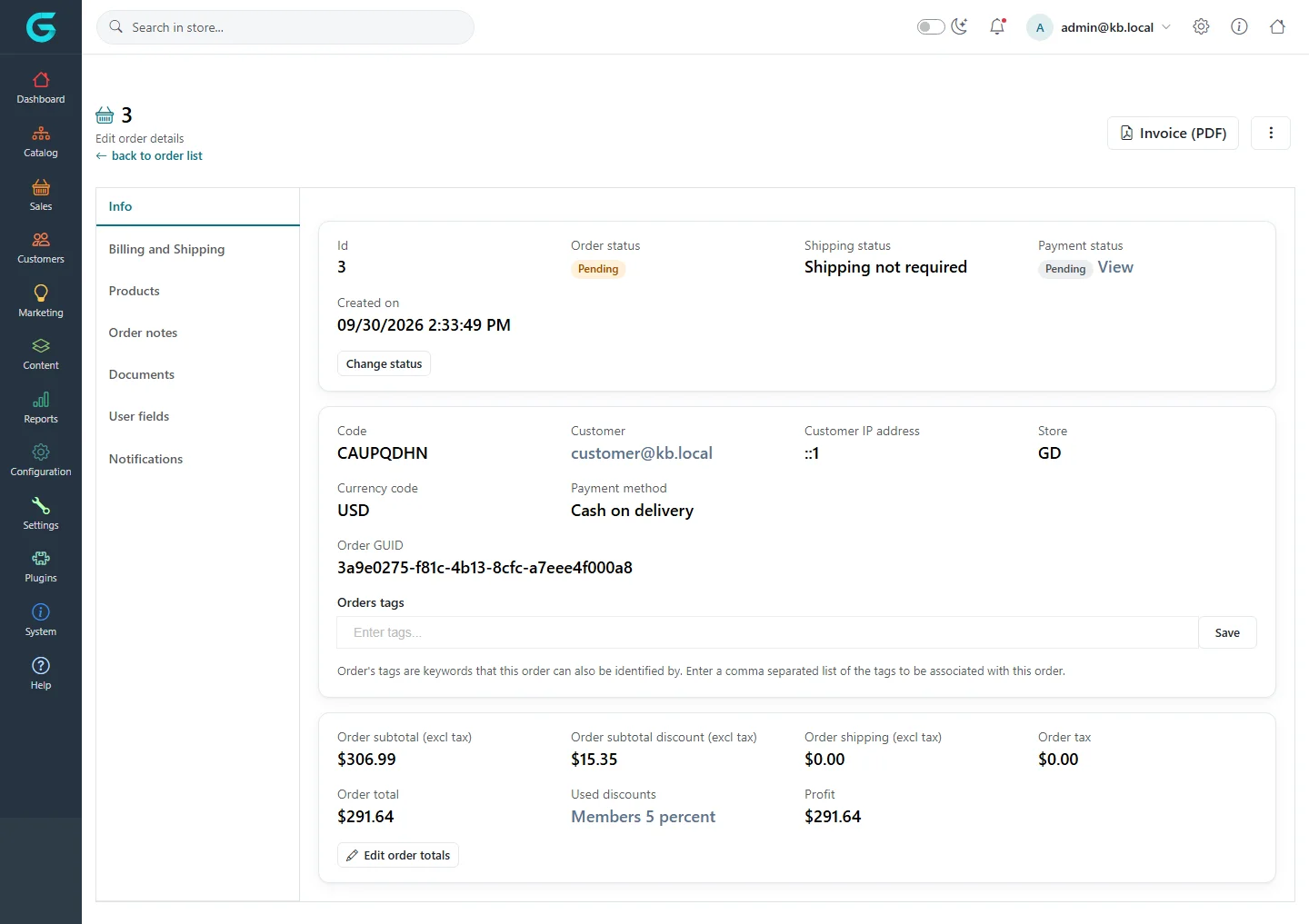
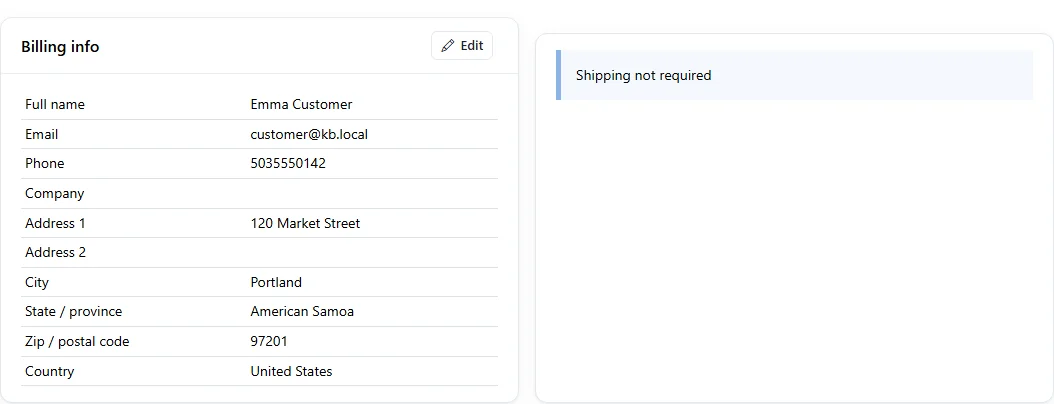
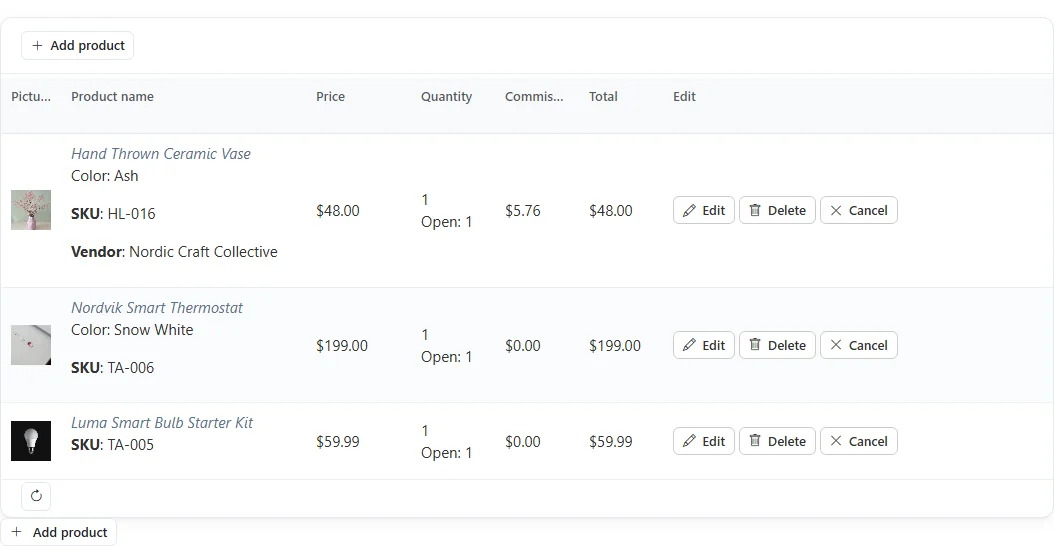
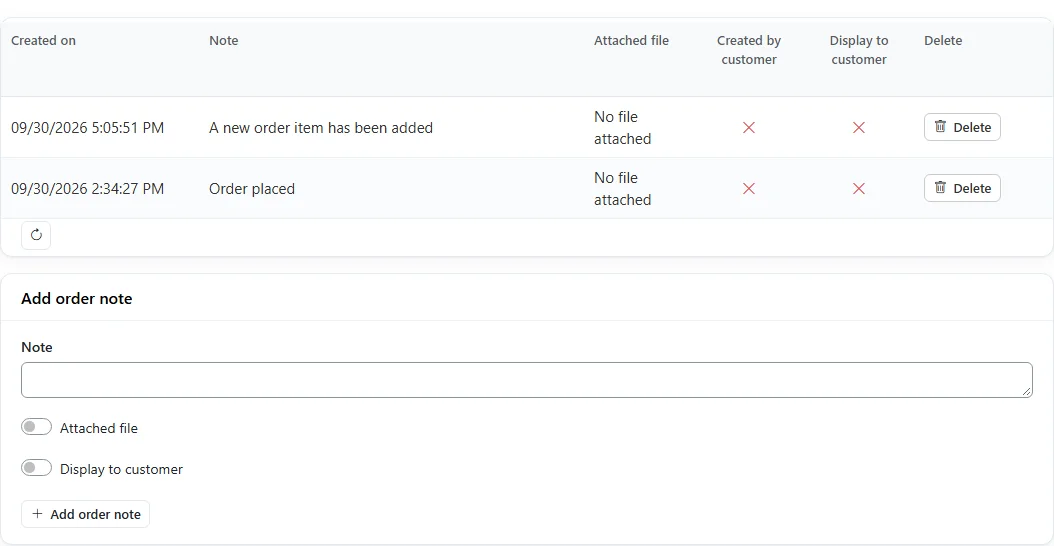
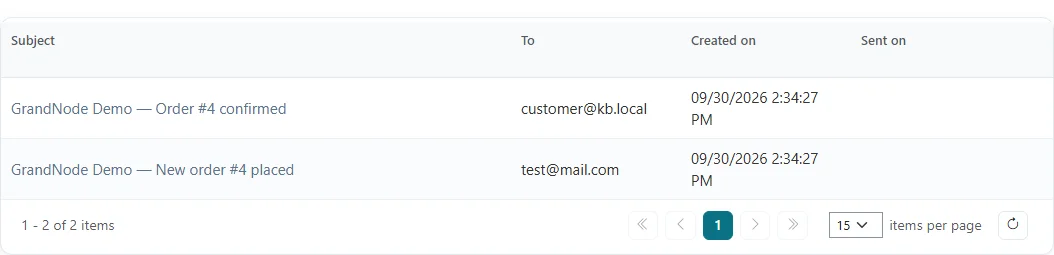
{"ArticleId":null,"Name":"Order details: the order screen tab by tab","Content":"\n\u003Cp\u003EOpening an order from \u003Cstrong\u003ESales \u2192 Orders\u003C/strong\u003E takes you to the order screen. It has no single \u003Cstrong\u003ESave\u003C/strong\u003E button: an order is a record of what was sold, and each tab changes only its own part \u2013 the status, the tags, the totals, an address, an item or a note. This article walks through the tabs so you know where to look when a customer calls.\u003C/p\u003E\n\n\u003Ch2 id=\u0022where-to-find-it\u0022\u003EWhere to find it\u003C/h2\u003E\n\u003Cp\u003EGo to \u003Cstrong\u003ESales \u2192 Orders\u003C/strong\u003E and click an order number. The header shows the order number, a \u003Cstrong\u003Eback to order list\u003C/strong\u003E link, the \u003Cstrong\u003EInvoice (PDF)\u003C/strong\u003E button, and a menu (three dots) with \u003Cstrong\u003ECancel order\u003C/strong\u003E and \u003Cstrong\u003EDelete\u003C/strong\u003E. The tabs are on the left.\u003C/p\u003E\n\n\u003Cfigure\u003E\u003Cimg src=\u0022/Plugins/Theme.GrandNodeCom/Content/kb/sales/order-info.webp\u0022 alt=\u0022The Info tab of order 3: statuses, customer, store, payment method, order GUID, tags and totals\u0022 width=\u00221440\u0022 height=\u00221017\u0022 loading=\u0022lazy\u0022\u003E\u003Cfigcaption\u003EThe Info tab: statuses on top, then the order facts, then the totals.\u003C/figcaption\u003E\u003C/figure\u003E\n\n\u003Ch2 id=\u0022info\u0022\u003EInfo\u003C/h2\u003E\n\u003Cp\u003EThe first card shows the \u003Cstrong\u003EOrder status\u003C/strong\u003E, \u003Cstrong\u003EShipping status\u003C/strong\u003E, \u003Cstrong\u003EPayment status\u003C/strong\u003E and \u003Cstrong\u003ECreated on\u003C/strong\u003E. The \u003Cstrong\u003EView\u003C/strong\u003E link next to the payment status opens the payment transaction, where payments are taken and refunded (see \u003Ca href=\u0022/sales-payments\u0022\u003EPayments and refunds\u003C/a\u003E). \u003Cstrong\u003ECancel order\u003C/strong\u003E appears here while the order is still \u003Cem\u003EPending\u003C/em\u003E, and \u003Cstrong\u003EChange status\u003C/strong\u003E lets you set the order status by hand (see \u003Ca href=\u0022/sales-order-statuses\u0022\u003EOrder, payment and shipping status\u003C/a\u003E).\u003C/p\u003E\n\u003Cp\u003EThe second card holds the facts of the order: the \u003Cstrong\u003ECode\u003C/strong\u003E (a short reference the customer can quote), \u003Cstrong\u003ECustomer\u003C/strong\u003E, \u003Cstrong\u003ECustomer IP address\u003C/strong\u003E, \u003Cstrong\u003EStore\u003C/strong\u003E, \u003Cstrong\u003ECurrency code\u003C/strong\u003E (with the rate if the customer paid in another currency), \u003Cstrong\u003EPayment method\u003C/strong\u003E, the VAT number, affiliate and sales employee when present, and the \u003Cstrong\u003EOrder GUID\u003C/strong\u003E. Below them is \u003Cstrong\u003EOrders tags\u003C/strong\u003E: type keywords separated by commas and click \u003Cstrong\u003ESave\u003C/strong\u003E; the tags then appear in the order list filter.\u003C/p\u003E\n\u003Cp\u003EThe third card lists the money: subtotal, subtotal discount, shipping, payment method fee, tax, order discount, gift vouchers and loyalty points used, \u003Cstrong\u003EOrder total\u003C/strong\u003E, refunded amount, the \u003Cstrong\u003EUsed discounts\u003C/strong\u003E and the \u003Cstrong\u003EProfit\u003C/strong\u003E. \u003Cstrong\u003EEdit order totals\u003C/strong\u003E opens editable fields for all of these \u2013 see \u003Ca href=\u0022/sales-editing-orders\u0022\u003EEditing, cancelling and deleting orders\u003C/a\u003E.\u003C/p\u003E\n\n\u003Ch2 id=\u0022billing-and-shipping\u0022\u003EBilling and Shipping\u003C/h2\u003E\n\u003Cp\u003ETwo cards, the billing address and the shipping address, each with an \u003Cstrong\u003EEdit\u003C/strong\u003E button. For shippable orders the tab also shows the \u003Cstrong\u003EShipping method\u003C/strong\u003E the customer chose (editable, for example when you switch carrier) and whether the customer picks the order up in store. Orders with nothing to ship show \u003Cem\u003EShipping not required\u003C/em\u003E instead of a shipping address.\u003C/p\u003E\n\n\u003Cfigure\u003E\u003Cimg src=\u0022/Plugins/Theme.GrandNodeCom/Content/kb/sales/order-addresses.webp\u0022 alt=\u0022Billing info card with name, email, phone, address and country; the order needs no shipping\u0022 width=\u00221054\u0022 height=\u0022404\u0022 loading=\u0022lazy\u0022\u003E\u003Cfigcaption\u003EBilling and Shipping for an order of non-shippable products.\u003C/figcaption\u003E\u003C/figure\u003E\n\n\u003Ch2 id=\u0022shipments\u0022\u003EShipments\u003C/h2\u003E\n\u003Cp\u003EShown only when at least one item requires shipping. It lists the shipments of this order with tracking number, total weight, shipped and delivered dates, and has the \u003Cstrong\u003EAdd shipment\u003C/strong\u003E button. See \u003Ca href=\u0022/sales-shipments\u0022\u003EShipments and tracking\u003C/a\u003E.\u003C/p\u003E\n\n\u003Ch2 id=\u0022products\u0022\u003EProducts\u003C/h2\u003E\n\u003Cp\u003EOne row per ordered item: picture, name with the chosen attributes (colour, size), SKU, vendor, unit price, quantity, the \u003Cstrong\u003EOpen\u003C/strong\u003E quantity (not yet shipped or cancelled), the vendor commission when the item belongs to a vendor, and the total. \u003Cstrong\u003EEdit\u003C/strong\u003E, \u003Cstrong\u003EDelete\u003C/strong\u003E and \u003Cstrong\u003ECancel\u003C/strong\u003E act on one item, and \u003Cstrong\u003EAdd product\u003C/strong\u003E adds a new one. Downloadable products also show download controls, gift voucher products a link to the created voucher, and returned items a link to the merchandise return.\u003C/p\u003E\n\n\u003Cfigure\u003E\u003Cimg src=\u0022/Plugins/Theme.GrandNodeCom/Content/kb/sales/order-products.webp\u0022 alt=\u0022Products tab with three items, their attributes, SKU, vendor, price, quantity, commission and total, plus Edit, Delete and Cancel buttons\u0022 width=\u00221054\u0022 height=\u0022546\u0022 loading=\u0022lazy\u0022\u003E\u003Cfigcaption\u003EThe Products tab. The Commission column appears when the order has vendor items.\u003C/figcaption\u003E\u003C/figure\u003E\n\n\u003Ch2 id=\u0022order-notes\u0022\u003EOrder notes\u003C/h2\u003E\n\u003Cp\u003EThe order\u0027s history. GrandNode writes a note for every important event \u2013 order placed, marked as paid, item added or cancelled, shipment sent \u2013 and you can add your own. Fill in \u003Cstrong\u003ENote\u003C/strong\u003E, optionally switch on \u003Cstrong\u003EAttached file\u003C/strong\u003E to upload a document, and switch on \u003Cstrong\u003EDisplay to customer\u003C/strong\u003E if the customer should read it. Then click \u003Cstrong\u003EAdd order note\u003C/strong\u003E. A note displayed to the customer appears on their order page and is also emailed to them (message template \u003Cem\u003ECustomer.NewOrderNote\u003C/em\u003E).\u003C/p\u003E\n\n\u003Cfigure\u003E\u003Cimg src=\u0022/Plugins/Theme.GrandNodeCom/Content/kb/sales/order-notes.webp\u0022 alt=\u0022Order notes grid with system notes and the Add order note form with Attached file and Display to customer switches\u0022 width=\u00221054\u0022 height=\u0022546\u0022 loading=\u0022lazy\u0022\u003E\u003Cfigcaption\u003ESystem notes and the form for your own notes.\u003C/figcaption\u003E\u003C/figure\u003E\n\n\u003Ch2 id=\u0022documents-user-fields-notifications\u0022\u003EDocuments, User fields and Notifications\u003C/h2\u003E\n\u003Cul\u003E\n\u003Cli\u003E\u003Cstrong\u003EDocuments\u003C/strong\u003E \u2013 business documents from \u003Cstrong\u003EMarketing \u2192 Documents\u003C/strong\u003E linked to this order. Visible to staff allowed to manage documents.\u003C/li\u003E\n\u003Cli\u003E\u003Cstrong\u003EUser fields\u003C/strong\u003E \u2013 free key/value pairs stored on the order, used mostly by plugins and integrations.\u003C/li\u003E\n\u003Cli\u003E\u003Cstrong\u003ENotifications\u003C/strong\u003E \u2013 every email queued for this order, with subject, recipient, creation and sent dates. Use it to answer \u0022did the customer get the confirmation?\u0022. Visible to staff allowed to manage the message queue.\u003C/li\u003E\n\u003C/ul\u003E\n\n\u003Cfigure\u003E\u003Cimg src=\u0022/Plugins/Theme.GrandNodeCom/Content/kb/sales/order-notifications.webp\u0022 alt=\u0022Notifications tab listing the order confirmation to the customer and the new order email to the store owner\u0022 width=\u00221054\u0022 height=\u0022255\u0022 loading=\u0022lazy\u0022\u003E\u003Cfigcaption\u003EEmails queued for this order.\u003C/figcaption\u003E\u003C/figure\u003E\n\n\u003Ch2 id=\u0022invoice\u0022\u003EPrinting the invoice\u003C/h2\u003E\n\u003Cp\u003E\u003Cstrong\u003EInvoice (PDF)\u003C/strong\u003E in the header downloads the invoice for this order. To print many at once, use the \u003Cstrong\u003EExport\u003C/strong\u003E menu on the order list.\u003C/p\u003E\n\n\u003Ch2 id=\u0022tips\u0022\u003ETips and common mistakes\u003C/h2\u003E\n\u003Cul\u003E\n\u003Cli\u003EUse notes, not the order status, to record what you told the customer \u2013 notes are timestamped and can be shown to the customer.\u003C/li\u003E\n\u003Cli\u003EEditing the billing or shipping address changes only this order, not the customer\u0027s address book.\u003C/li\u003E\n\u003Cli\u003EIf a tab you expect is missing, check permissions: Documents and Notifications depend on them, and Shipments appears only for shippable orders.\u003C/li\u003E\n\u003C/ul\u003E\n\n\u003Ch2 id=\u0022related\u0022\u003ERelated\u003C/h2\u003E\n\u003Cul\u003E\n\u003Cli\u003E\u003Ca href=\u0022/sales-editing-orders\u0022\u003EEditing, cancelling and deleting orders\u003C/a\u003E\u003C/li\u003E\n\u003Cli\u003E\u003Ca href=\u0022/sales-payments\u0022\u003EPayments and refunds\u003C/a\u003E\u003C/li\u003E\n\u003Cli\u003E\u003Ca href=\u0022/sales-shipments\u0022\u003EShipments and tracking\u003C/a\u003E\u003C/li\u003E\n\u003C/ul\u003E\n","ParentCategoryId":"6abdec6c83d2816248229ec5","SeName":"sales-order-details","MetaKeywords":null,"MetaDescription":"What each tab of a GrandNode order shows: info and totals, billing and shipping, shipments, products, notes and notifications.","MetaTitle":null,"AllowComments":false,"Captcha":{"ReCaptchaChallengeField":null,"ReCaptchaResponseField":null,"ReCaptchaResponseValue":null,"ReCaptchaResponse":null},"RelatedArticles":[],"CategoryBreadcrumb":[{"Name":"Sales and orders","Description":null,"IsCurrent":false,"Children":null,"Parent":null,"SeName":"docs-sales","Id":"6abdec6c83d2816248229ec5","UserFields":[]}],"AddNewComment":{"CommentText":null,"DisplayCaptcha":false,"Id":null,"UserFields":[]},"Comments":[],"Id":"6abdec6c83d2816248229ecb","UserFields":[]}