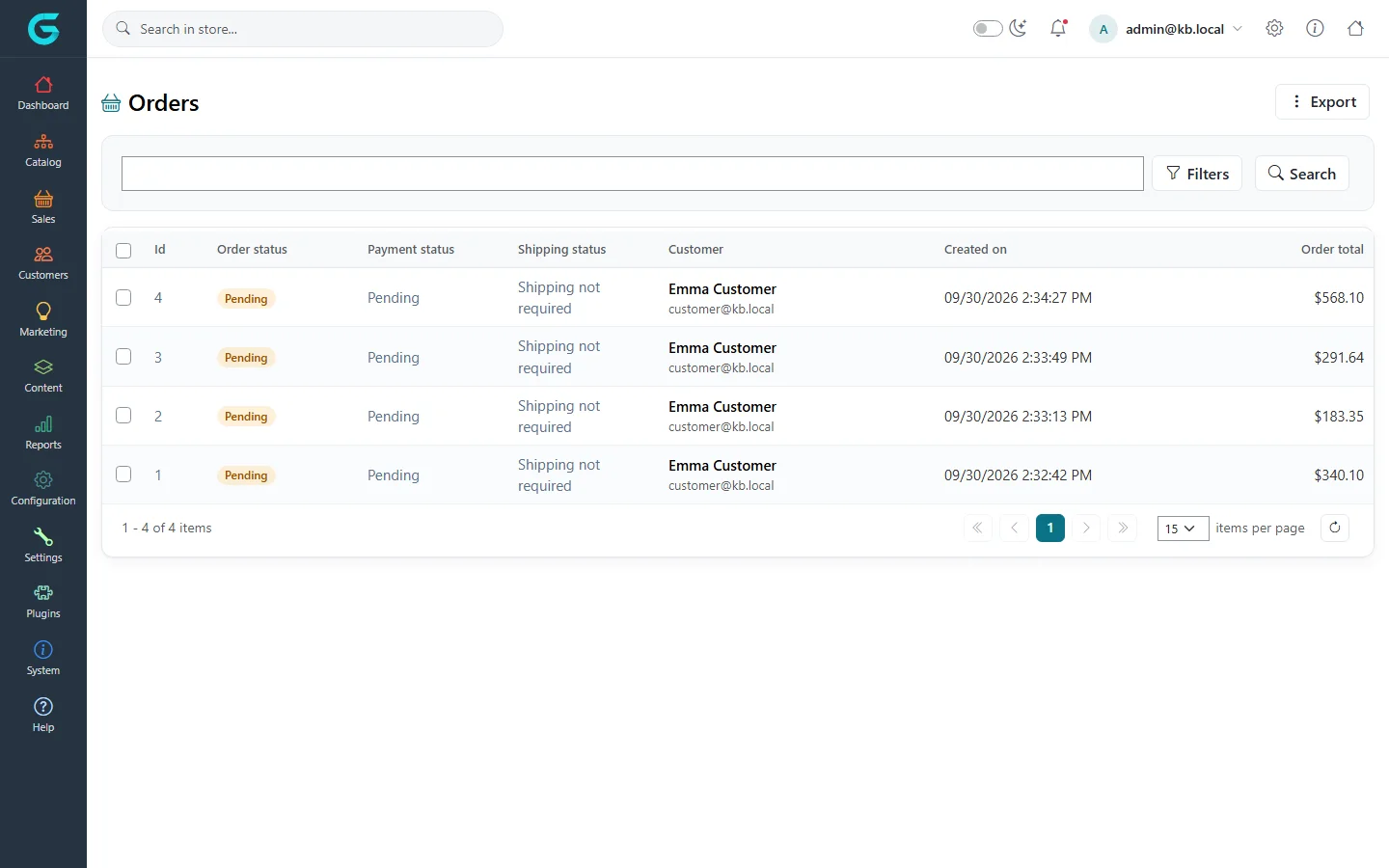
{"ArticleId":null,"Name":"Sales and orders: an overview","Content":"\n\u003Cp\u003EEverything that happens after a customer clicks \u003Cstrong\u003EConfirm\u003C/strong\u003E at checkout is handled in the \u003Cstrong\u003ESales\u003C/strong\u003E menu of the admin panel. An order is created with its items, prices, addresses and payment method frozen at that moment. From then on your staff take payment, ship the goods, answer questions in order notes and, when needed, accept merchandise returns or refund money. This article maps the screens involved and explains the life of an order, so the rest of this module is easier to follow.\u003C/p\u003E\n\n\u003Ch2 id=\u0022where-to-find-it\u0022\u003EWhere to find it\u003C/h2\u003E\n\u003Cp\u003EOpen the admin panel (\u003Ccode\u003E/admin\u003C/code\u003E) and click \u003Cstrong\u003ESales\u003C/strong\u003E in the left bar. The menu contains:\u003C/p\u003E\n\u003Ctable\u003E\n\u003Cthead\u003E\u003Ctr\u003E\u003Cth\u003EMenu item\u003C/th\u003E\u003Cth\u003EWhat you do there\u003C/th\u003E\u003C/tr\u003E\u003C/thead\u003E\n\u003Ctbody\u003E\n\u003Ctr\u003E\u003Ctd\u003E\u003Cstrong\u003EOrders\u003C/strong\u003E\u003C/td\u003E\u003Ctd\u003ESearch and open orders; change statuses, edit items and totals, print invoices. See \u003Ca href=\u0022/sales-orders-list\u0022\u003EFinding orders\u003C/a\u003E and \u003Ca href=\u0022/sales-order-details\u0022\u003EOrder details\u003C/a\u003E.\u003C/td\u003E\u003C/tr\u003E\n\u003Ctr\u003E\u003Ctd\u003E\u003Cstrong\u003EShipments\u003C/strong\u003E\u003C/td\u003E\u003Ctd\u003EAll shipments across orders; mark them shipped or delivered, print packaging slips. See \u003Ca href=\u0022/sales-shipments\u0022\u003EShipments\u003C/a\u003E.\u003C/td\u003E\u003C/tr\u003E\n\u003Ctr\u003E\u003Ctd\u003E\u003Cstrong\u003EMerchandise returns\u003C/strong\u003E\u003C/td\u003E\u003Ctd\u003EReturn requests submitted by customers. See \u003Ca href=\u0022/sales-merchandise-returns\u0022\u003EMerchandise returns\u003C/a\u003E.\u003C/td\u003E\u003C/tr\u003E\n\u003Ctr\u003E\u003Ctd\u003E\u003Cstrong\u003EPayment Transactions\u003C/strong\u003E\u003C/td\u003E\u003Ctd\u003EOne record per payment attempt: mark as paid, capture, refund or void. See \u003Ca href=\u0022/sales-payments\u0022\u003EPayments and refunds\u003C/a\u003E.\u003C/td\u003E\u003C/tr\u003E\n\u003Ctr\u003E\u003Ctd\u003E\u003Cstrong\u003EOrder\u0027s tags\u003C/strong\u003E\u003C/td\u003E\u003Ctd\u003EKeywords you attach to orders to group them (for example \u003Cem\u003Ewholesale\u003C/em\u003E or \u003Cem\u003Epriority\u003C/em\u003E).\u003C/td\u003E\u003C/tr\u003E\n\u003Ctr\u003E\u003Ctd\u003E\u003Cstrong\u003ECheckout Attributes\u003C/strong\u003E\u003C/td\u003E\u003Ctd\u003EExtra questions asked at checkout, such as gift wrapping. See \u003Ca href=\u0022/sales-checkout-attributes\u0022\u003ECheckout attributes\u003C/a\u003E.\u003C/td\u003E\u003C/tr\u003E\n\u003Ctr\u003E\u003Ctd\u003E\u003Cstrong\u003EOrder status\u003C/strong\u003E\u003C/td\u003E\u003Ctd\u003EThe names of the order statuses and any extra statuses you add. See \u003Ca href=\u0022/sales-order-statuses\u0022\u003EOrder, payment and shipping status\u003C/a\u003E.\u003C/td\u003E\u003C/tr\u003E\n\u003C/tbody\u003E\n\u003C/table\u003E\n\u003Cp\u003EThree related screens live in other menus: \u003Cstrong\u003EDashboard \u2192 Active carts and wishlists\u003C/strong\u003E (what customers have in their carts right now), \u003Cstrong\u003EMarketing \u2192 Gift vouchers\u003C/strong\u003E, and the sales reports under \u003Cstrong\u003EReports\u003C/strong\u003E. Behaviour such as \u0022complete the order only after delivery\u0022 or \u0022allow merchandise returns\u0022 is set in \u003Cstrong\u003ESettings \u2192 Sales settings\u003C/strong\u003E.\u003C/p\u003E\n\n\u003Cfigure\u003E\u003Cimg src=\u0022/Plugins/Theme.GrandNodeCom/Content/kb/sales/orders-list.webp\u0022 alt=\u0022The Orders list in the GrandNode admin panel with four orders, their order, payment and shipping statuses, customer and total\u0022 width=\u00221440\u0022 height=\u0022900\u0022 loading=\u0022lazy\u0022\u003E\u003Cfigcaption\u003ESales \u2192 Orders: every order with its three statuses at a glance.\u003C/figcaption\u003E\u003C/figure\u003E\n\n\u003Ch2 id=\u0022life-of-an-order\u0022\u003EThe life of an order\u003C/h2\u003E\n\u003Cp\u003EEvery order carries three independent statuses. Keeping them apart is the key to understanding GrandNode:\u003C/p\u003E\n\u003Cul\u003E\n\u003Cli\u003E\u003Cstrong\u003EOrder status\u003C/strong\u003E \u2013 where the order stands as a whole: \u003Cem\u003EPending\u003C/em\u003E, \u003Cem\u003EProcessing\u003C/em\u003E, \u003Cem\u003EComplete\u003C/em\u003E or \u003Cem\u003ECancelled\u003C/em\u003E.\u003C/li\u003E\n\u003Cli\u003E\u003Cstrong\u003EPayment status\u003C/strong\u003E \u2013 whether the money has arrived: \u003Cem\u003EPending\u003C/em\u003E, \u003Cem\u003EAuthorized\u003C/em\u003E, \u003Cem\u003EPaid\u003C/em\u003E, \u003Cem\u003EPartially paid\u003C/em\u003E, \u003Cem\u003EPartially refunded\u003C/em\u003E, \u003Cem\u003ERefunded\u003C/em\u003E, \u003Cem\u003EVoided\u003C/em\u003E.\u003C/li\u003E\n\u003Cli\u003E\u003Cstrong\u003EShipping status\u003C/strong\u003E \u2013 whether the goods have left: \u003Cem\u003EShipping not required\u003C/em\u003E, \u003Cem\u003EPending\u003C/em\u003E, \u003Cem\u003EPrepared to shipped\u003C/em\u003E, \u003Cem\u003EPartially shipped\u003C/em\u003E, \u003Cem\u003EShipped\u003C/em\u003E, \u003Cem\u003EDelivered\u003C/em\u003E.\u003C/li\u003E\n\u003C/ul\u003E\n\u003Cp\u003EYou normally change only the payment and shipping side; GrandNode derives the order status from them. A typical order goes like this:\u003C/p\u003E\n\u003Col\u003E\n\u003Cli\u003EThe customer places the order. Order status \u003Cem\u003EPending\u003C/em\u003E, payment status \u003Cem\u003EPending\u003C/em\u003E (or \u003Cem\u003EAuthorized\u003C/em\u003E/\u003Cem\u003EPaid\u003C/em\u003E if an online payment method already charged the card), shipping status \u003Cem\u003EPending\u003C/em\u003E if any item needs shipping, otherwise \u003Cem\u003EShipping not required\u003C/em\u003E.\u003C/li\u003E\n\u003Cli\u003EPayment arrives \u2013 automatically from a payment plugin, or you click \u003Cstrong\u003EMark as paid\u003C/strong\u003E for cash on delivery or bank transfer. The order moves to \u003Cem\u003EProcessing\u003C/em\u003E.\u003C/li\u003E\n\u003Cli\u003EYou create a shipment for the items and mark it shipped, later delivered. The shipping status follows.\u003C/li\u003E\n\u003Cli\u003EWhen the order is paid and shipped (or delivered, depending on the \u003Cstrong\u003EComplete order when delivered\u003C/strong\u003E setting), GrandNode sets it to \u003Cem\u003EComplete\u003C/em\u003E and emails the customer.\u003C/li\u003E\n\u003Cli\u003EAfter delivery the customer may request a merchandise return from their account, and you may refund all or part of the payment.\u003C/li\u003E\n\u003C/ol\u003E\n\u003Cp\u003EThe exact rules are in \u003Ca href=\u0022/sales-order-statuses\u0022\u003EOrder, payment and shipping status\u003C/a\u003E.\u003C/p\u003E\n\n\u003Ch2 id=\u0022who-sees-what\u0022\u003EWho sees which orders\u003C/h2\u003E\n\u003Cp\u003EAdministrators see all orders of all stores. A store manager working in the store panel (\u003Ccode\u003E/store\u003C/code\u003E) sees only the orders of their store, and a vendor in the vendor panel (\u003Ccode\u003E/vendor\u003C/code\u003E) sees only orders containing their products, with only their own items. Those panels are described in \u003Ca href=\u0022/docs-store-panel\u0022\u003EStore panel\u003C/a\u003E and \u003Ca href=\u0022/docs-vendor-panel\u0022\u003EVendor panel\u003C/a\u003E; this module describes the full admin panel.\u003C/p\u003E\n\n\u003Ch2 id=\u0022tips\u0022\u003ETips and common mistakes\u003C/h2\u003E\n\u003Cul\u003E\n\u003Cli\u003EDo not use \u003Cstrong\u003EChange status\u003C/strong\u003E on the order to \u0022mark it paid\u0022 \u2013 it changes only the label. Use \u003Cstrong\u003EMark as paid\u003C/strong\u003E on the payment transaction so the paid date, notifications and loyalty points are handled.\u003C/li\u003E\n\u003Cli\u003EAn order whose products all have shipping disabled shows \u003Cem\u003EShipping not required\u003C/em\u003E and has no \u003Cstrong\u003EShipments\u003C/strong\u003E tab; it becomes \u003Cem\u003EComplete\u003C/em\u003E as soon as it is paid.\u003C/li\u003E\n\u003Cli\u003EOrders are never really removed: \u003Cstrong\u003EDelete\u003C/strong\u003E hides the order and returns stock, but an order with shipments cannot be deleted or cancelled.\u003C/li\u003E\n\u003C/ul\u003E\n\n\u003Ch2 id=\u0022related\u0022\u003ERelated\u003C/h2\u003E\n\u003Cul\u003E\n\u003Cli\u003E\u003Ca href=\u0022/sales-orders-list\u0022\u003EFinding orders: list, filters and export\u003C/a\u003E\u003C/li\u003E\n\u003Cli\u003E\u003Ca href=\u0022/sales-order-details\u0022\u003EOrder details\u003C/a\u003E\u003C/li\u003E\n\u003Cli\u003E\u003Ca href=\u0022/sales-customer-orders\u0022\u003EWhat the customer sees\u003C/a\u003E\u003C/li\u003E\n\u003C/ul\u003E\n","ParentCategoryId":"6abdec6c83d2816248229ec5","SeName":"sales-overview","MetaKeywords":null,"MetaDescription":"Where orders, shipments, payments and returns live in the GrandNode admin panel, and how an order moves from checkout to complete.","MetaTitle":null,"AllowComments":false,"Captcha":{"ReCaptchaChallengeField":null,"ReCaptchaResponseField":null,"ReCaptchaResponseValue":null,"ReCaptchaResponse":null},"RelatedArticles":[],"CategoryBreadcrumb":[{"Name":"Sales and orders","Description":null,"IsCurrent":false,"Children":null,"Parent":null,"SeName":"docs-sales","Id":"6abdec6c83d2816248229ec5","UserFields":[]}],"AddNewComment":{"CommentText":null,"DisplayCaptcha":false,"Id":null,"UserFields":[]},"Comments":[],"Id":"6abdec6c83d2816248229ec7","UserFields":[]}