Run an online store without a database server: GrandNode on LiteDB
Most e-commerce platforms want a database server before you see a single product page. With GrandNode you can skip that. The open-source store can run on LiteDB, a database that is just one file on your disk. You get a complete online store - products, cart, checkout, customer accounts and the admin panel - without installing, configuring or paying for a database server.
This guide is for anyone who wants to try GrandNode on their own computer, show a store to a client, or build a plugin or a theme. It walks through the setup step by step, with screenshots from a real installation, and tells you honestly when you should use MongoDB instead.
In short
- Get GrandNode 2.4.1 or newer.
- In
App_Data/appsettings.jsonsetDatabase:UseLiteDbtotrue. - Start GrandNode, open it in the browser and choose LiteDB as the data provider in the installation wizard.
- Restart the application when the installation finishes.
The whole store then lives in one file, App_Data/database.db. On our test machine the installation with demo products took about 30 seconds.
Why run a store without a database server?
A regular GrandNode installation uses MongoDB, a database server that runs next to the store. That is the right choice for a live shop, but it is one more thing to install, secure and keep running. When you only want to see how the store works, it gets in the way. With LiteDB:
- There is nothing extra to install. No database server, no accounts, no connection strings to type in.
- The whole store is one file. To back it up, copy the file. To give the store to a colleague, send it.
- It costs nothing. GrandNode and LiteDB are both free and open source.
- It is the same GrandNode. The storefront, the admin panel, the themes and the plugins are identical; only the storage underneath changes.
Good uses for it:
- trying GrandNode on a laptop before you decide anything;
- building or testing a plugin or a theme;
- demos, workshops and training, where each person gets a store in a single file;
- a quick copy of a store layout to show a client.
What LiteDB is
LiteDB is an embedded NoSQL document database for .NET, released under the MIT license. It has no server process: the application opens a file and reads and writes documents in it, much like SQLite does for SQL databases. GrandNode stores its data as documents, and every query goes through one repository layer with two implementations, MongoDB and LiteDB. That is why the same store can run on either.
Step 1: get GrandNode 2.4.1
Download the release package from the download page or clone the repository from GitHub, then build and run it as described in Installing GrandNode. You need the .NET 10 SDK. You do not need MongoDB, and you do not need Node.js.
If this is a fresh copy, do not open the store in a browser yet: the database is chosen once, during the installation, so switch on LiteDB first.
Step 2: switch on LiteDB in appsettings.json
Open App_Data/appsettings.json and find the Database section. Set UseLiteDb to true:
"Database": {
  //This setting is required to use LiteDB database
  "UseLiteDb": true,
  //LiteDB database as a singleton service in the application
  "Singleton": true,
  //Init connection string - it's required only for the installation process!
  "LiteDbConnectionString": "Filename=App_Data/database.db"
},UseLiteDbtells GrandNode to use the LiteDB repositories. The installer checks it: choosing LiteDB in the wizard while it isfalsestops with a message telling you to enable it, and so does choosing MongoDB while it istrue.LiteDbConnectionStringis the file the installer creates. The default puts it next to the other application data. A path relative to the application folder or an absolute path both work.- Leave
Singletonattrue. LiteDB locks its file, so the whole application has to share one open database.
You can set the same value with an environment variable instead of editing the file, which is handy for containers and CI: Database__UseLiteDb=true.
Step 3: run the installation wizard
Start GrandNode and open it in a browser. A fresh copy redirects to /install. Fill in the administrator's e-mail and password, and in Data provider choose LiteDB. There are no server, database name or credential fields to fill in: the file comes from LiteDbConnectionString.
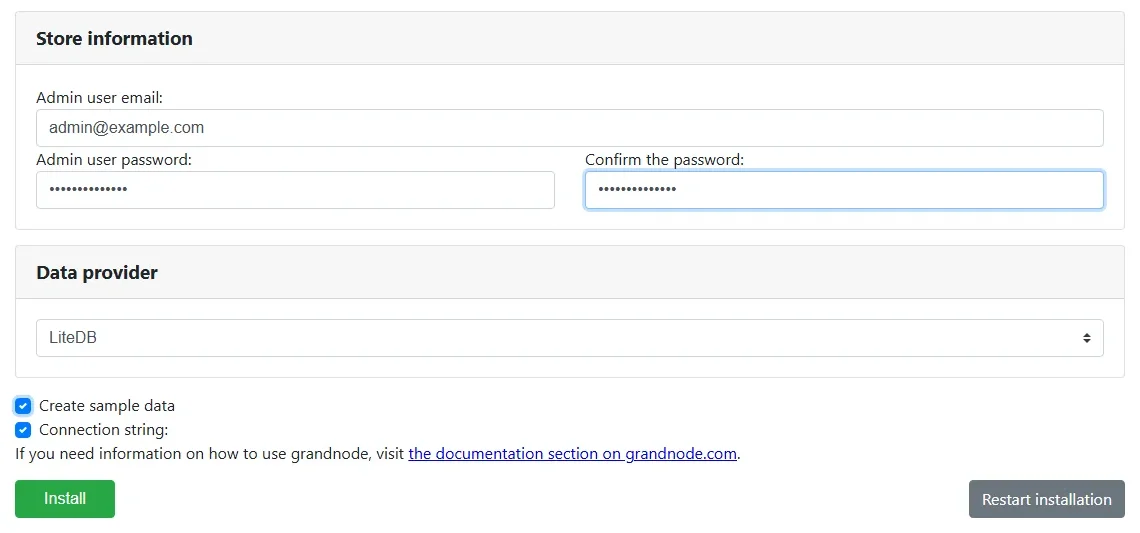
Tick Create sample data if you want a demo shop with products, categories, brands, blog posts and a theme to click through. Leave it unticked for an empty store. Then click Install. On our test machine the installation with sample data took about 30 seconds and produced a 22 MB database file.
When the wizard reports success, restart the application. Some parts, such as the friendly product and category URLs, are registered only at start-up, and they need the installed database to be there. The success message also recommends switching the installer off: set Grand.Module.Installer to false under FeatureManagement in appsettings.json.
Step 4: use the store
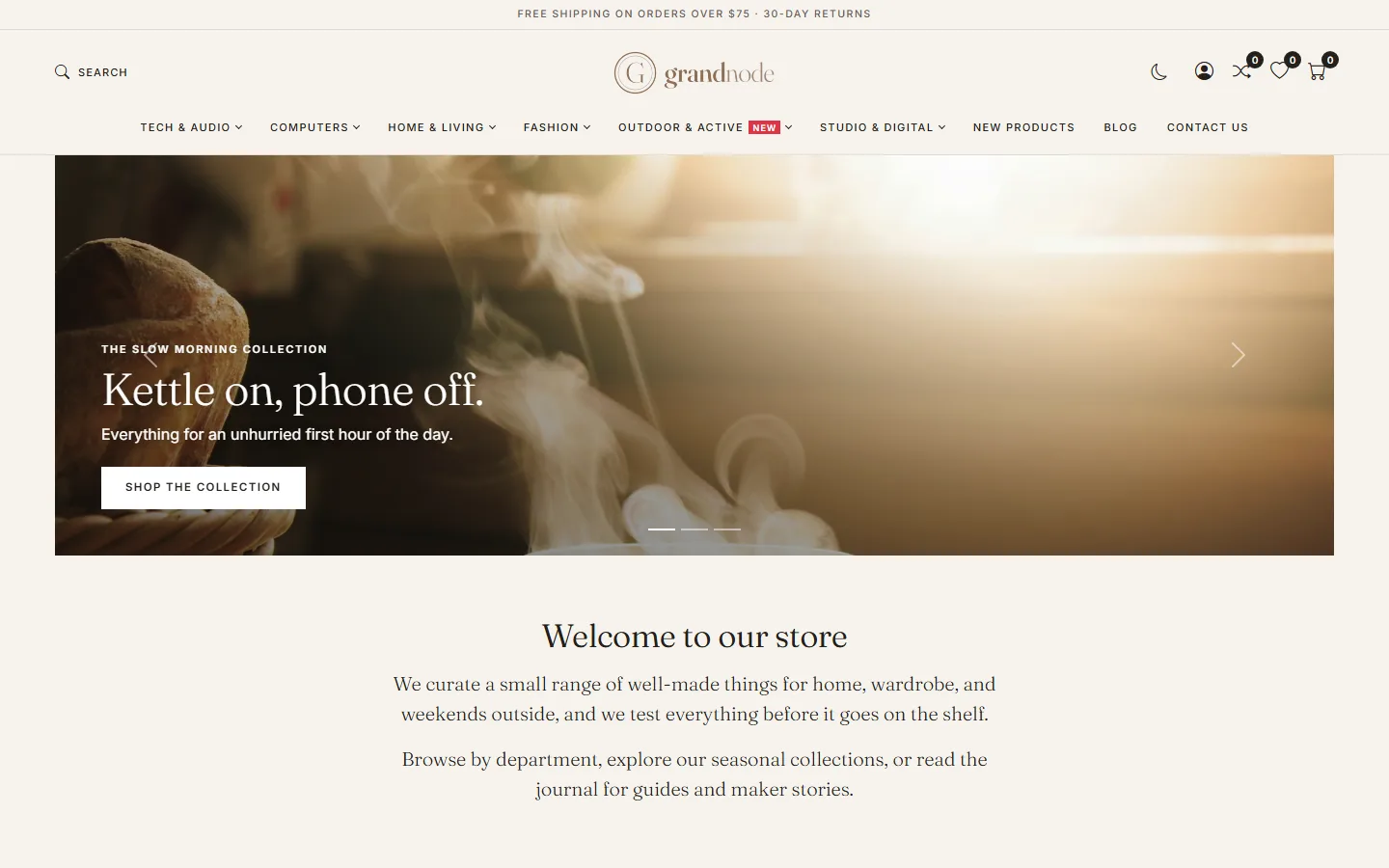
After the restart the storefront works as it does on MongoDB. With sample data you get the demo store with its catalog, cart, checkout and customer account:
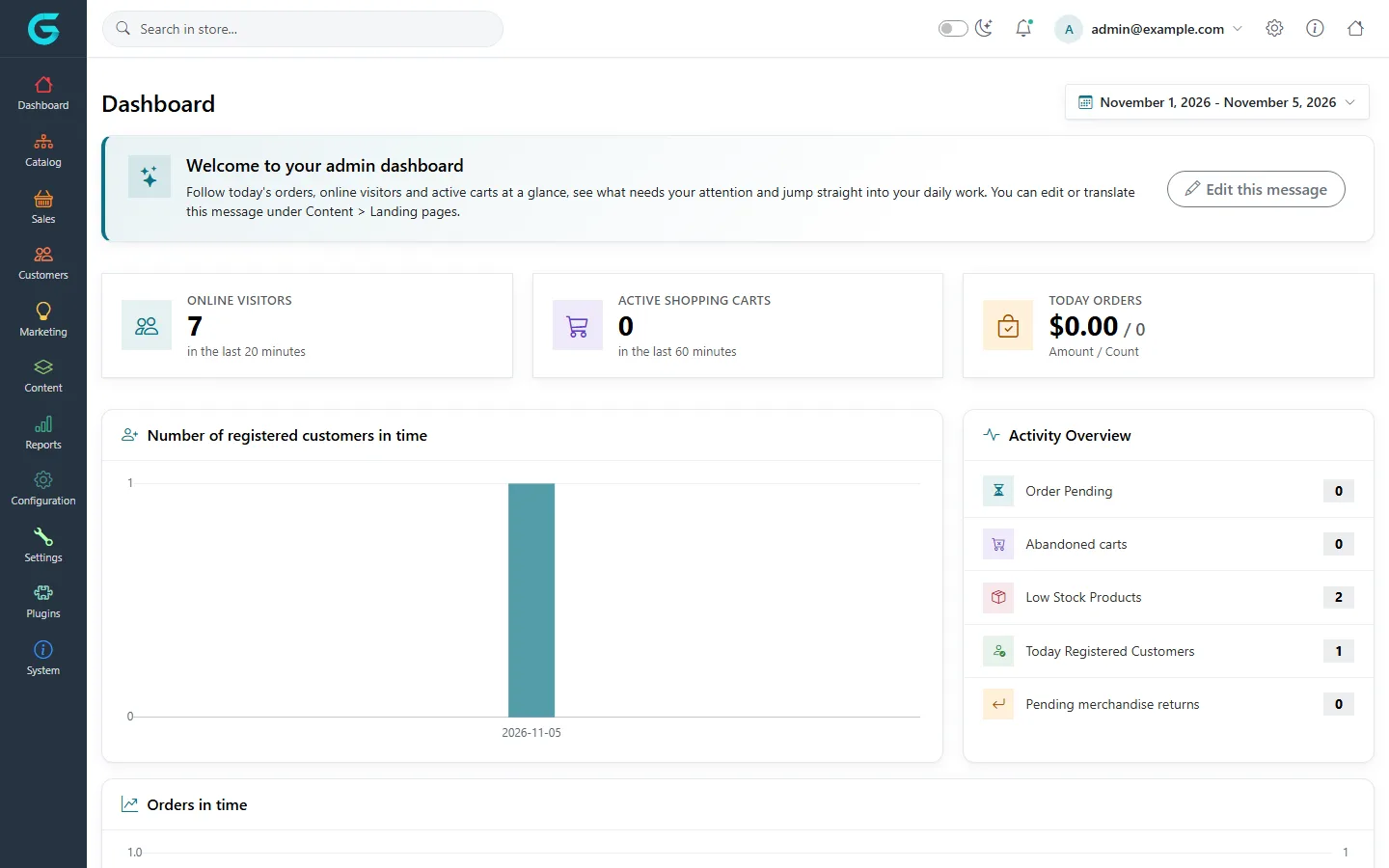
Sign in with the administrator account and open /admin. The dashboard, the catalog, orders, customers, settings and plugins are all there:
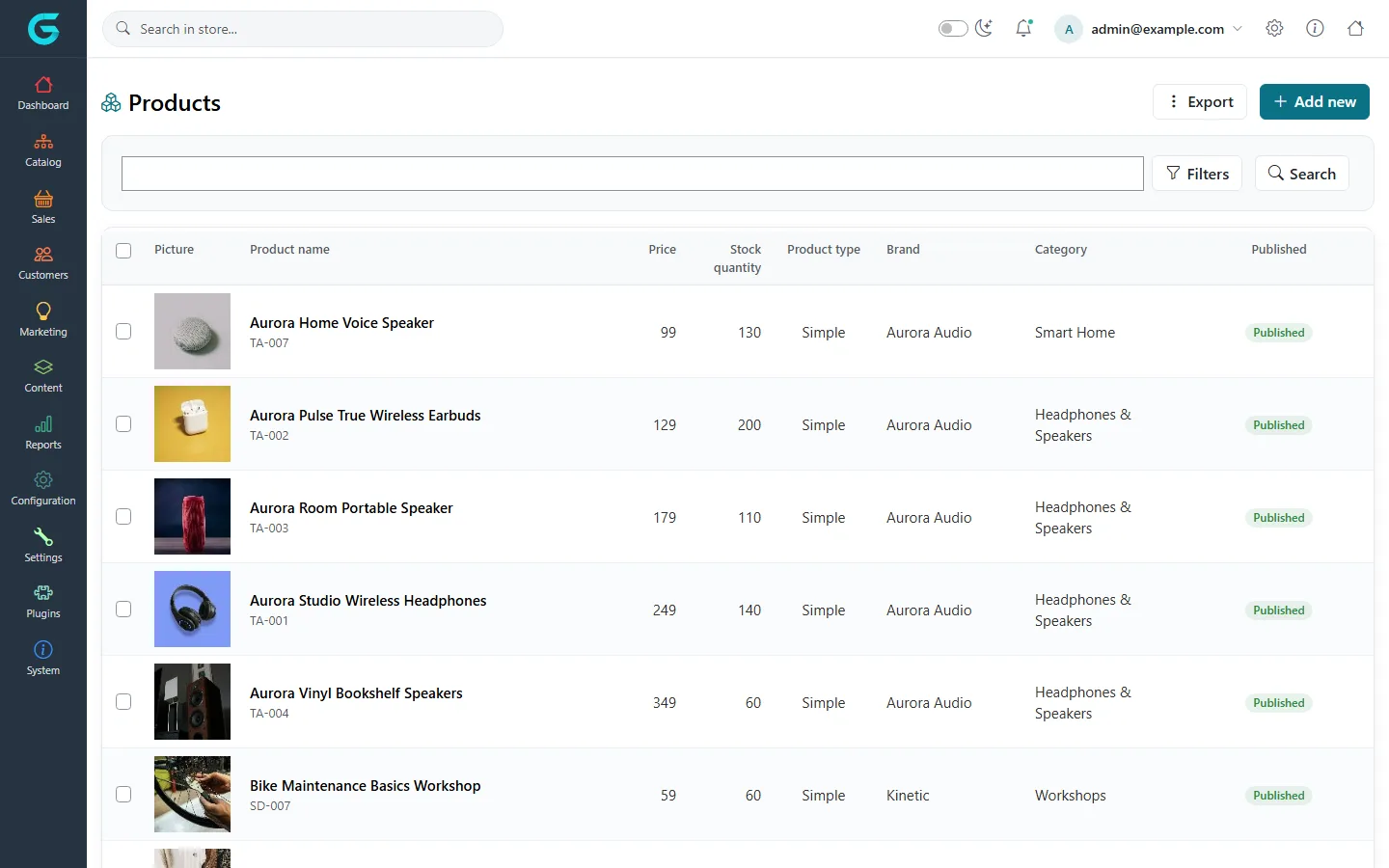
By default product pictures are stored in the database too, so the file holds them. The resized copies GrandNode serves are written to wwwroot/assets/images/thumbs, as on MongoDB, and are created again when they are missing.
Where the data lives
After the installation App_Data holds three files that matter:
| File | What it is |
|---|---|
database.db | The LiteDB database: the whole store. |
database-log.db | LiteDB's write log. Recent changes sit here until LiteDB copies them into database.db. |
Settings.cfg | Written by the installer. It tells GrandNode which provider and which file to open. |
Settings.cfg on a LiteDB installation looks like this:
{
  "ConnectionString": "Filename=App_Data/database.db",
  "DbProvider": 3
}
From now on GrandNode reads the connection string from Settings.cfg, not from LiteDbConnectionString. To move the database file somewhere else later, stop the application, move the file and change the path in Settings.cfg. Keep UseLiteDb set to true for as long as the store runs on LiteDB.
Back up and restore
A backup is a copy of the files. Stop the application, copy database.db together with database-log.db if it exists, and keep Settings.cfg and appsettings.json with them. To restore, stop the application and put the files back. A copy taken while the store is running can miss the latest changes, because they may still be in the log.
The copy is also the quickest way to share a store: hand a colleague the App_Data files and a build of the same version, and they have your catalog and settings.
Run it in Docker
The grandnode/grandnode2 image works the same way. Pass the setting as an environment variable and keep App_Data in a volume, because the database file and Settings.cfg are written there:
docker run -d -p 80:8080 --name grandnode2 \
  -e Database__UseLiteDb=true \
  -v grandnode_images:/app/wwwroot/assets/images \
  -v grandnode_appdata:/app/App_Data \
  grandnode/grandnode2:2.4.1
No MongoDB container is needed. Open http://localhost/, choose LiteDB in the wizard, and restart the container when it finishes: docker restart grandnode2. If you remove the container, the store survives in the volumes. Run one container per database file; see the limits below.
Limits: when to use MongoDB instead
LiteDB keeps GrandNode simple to start, and the same simplicity sets its limits. We recommend MongoDB for a store that takes real orders, for these reasons:
- One application process. LiteDB locks its file, so only one GrandNode instance can use a database. You cannot run several replicas behind a load balancer.
- Queries run in the application. On MongoDB a product search or an order filter runs on the database server, with indexes. On LiteDB GrandNode reads the documents of the collection and filters them in memory. That is fine for a demo catalog and gets slower as products, customers and orders grow.
- No built-in move to MongoDB. GrandNode has no tool to copy a store from LiteDB to MongoDB. If the store may grow into a real business, install it on MongoDB from the start; MongoDB Atlas has a free tier, and the
mongoDocker image takes one command. - Backups need a stop, as described above, while MongoDB can be backed up while the store runs.
MongoDB, Azure Cosmos DB and Amazon DocumentDB are covered in System requirements, and the production setup for containers in Running in production: Docker and Kubernetes.
Common problems
- "The installation process for LiteDB database requires enabling a setting UseLiteDb in Appsettings" - you chose LiteDB in the wizard but
Database:UseLiteDbis stillfalse. Change it and restart the application before installing. - "The installation process for MongoDB database requires disabling a setting UseLiteDb in Appsettings" - the opposite:
UseLiteDbis on and the wizard is set to MongoDB. - The database file is used by another process - a second GrandNode instance, or another program, has the same file open. Only one application can use the file at a time.
- Product and category pages return 404 right after the installation - restart the application.
- The application cannot write the file - the process needs write access to
App_Data, where the database, its log andSettings.cfgare created.
Frequently asked questions
Can I run an online store without a database server?
Yes. GrandNode can keep the whole store in a single LiteDB file, so you do not need MongoDB or any other database server to install and use it. For a store that takes real orders we still recommend MongoDB, for the reasons listed above.
Is LiteDB free?
Yes. LiteDB is open source under the MIT license, and GrandNode is open source too. Running GrandNode on LiteDB costs nothing beyond the computer it runs on.
Do I need to be a developer?
You need to be comfortable editing one setting in a text file and starting an application. With Docker it is a single command and you do not build anything. The rest happens in the browser: the installation wizard and the admin panel.
Can I switch from LiteDB to MongoDB later?
Not with a built-in tool. The database is chosen during the installation, so if you expect the store to grow into a real business, install it on MongoDB from the start and keep LiteDB for trials and development.
Does GrandNode work with SQLite, SQL Server or MySQL?
No. GrandNode stores its data as documents and supports MongoDB and MongoDB-compatible services (Azure Cosmos DB, Amazon DocumentDB), plus LiteDB for small and local setups.
How big is the database file?
A fresh installation with the demo products was 22 MB on our test machine. It grows with your catalog, pictures, customers and orders, because product pictures are stored in the same file by default.
Summary
To run GrandNode on LiteDB: use 2.4.1 or newer, set Database:UseLiteDb to true, choose LiteDB in the installation wizard, and restart once it finishes. You get a complete online store in a single file, with no database server to install. Use it to try GrandNode, to develop for it and to show it to others. When the store starts taking real orders, put it on MongoDB. Questions? Ask in GitHub Discussions.
Question not answered here? Ask the community on GitHub Discussions ↗