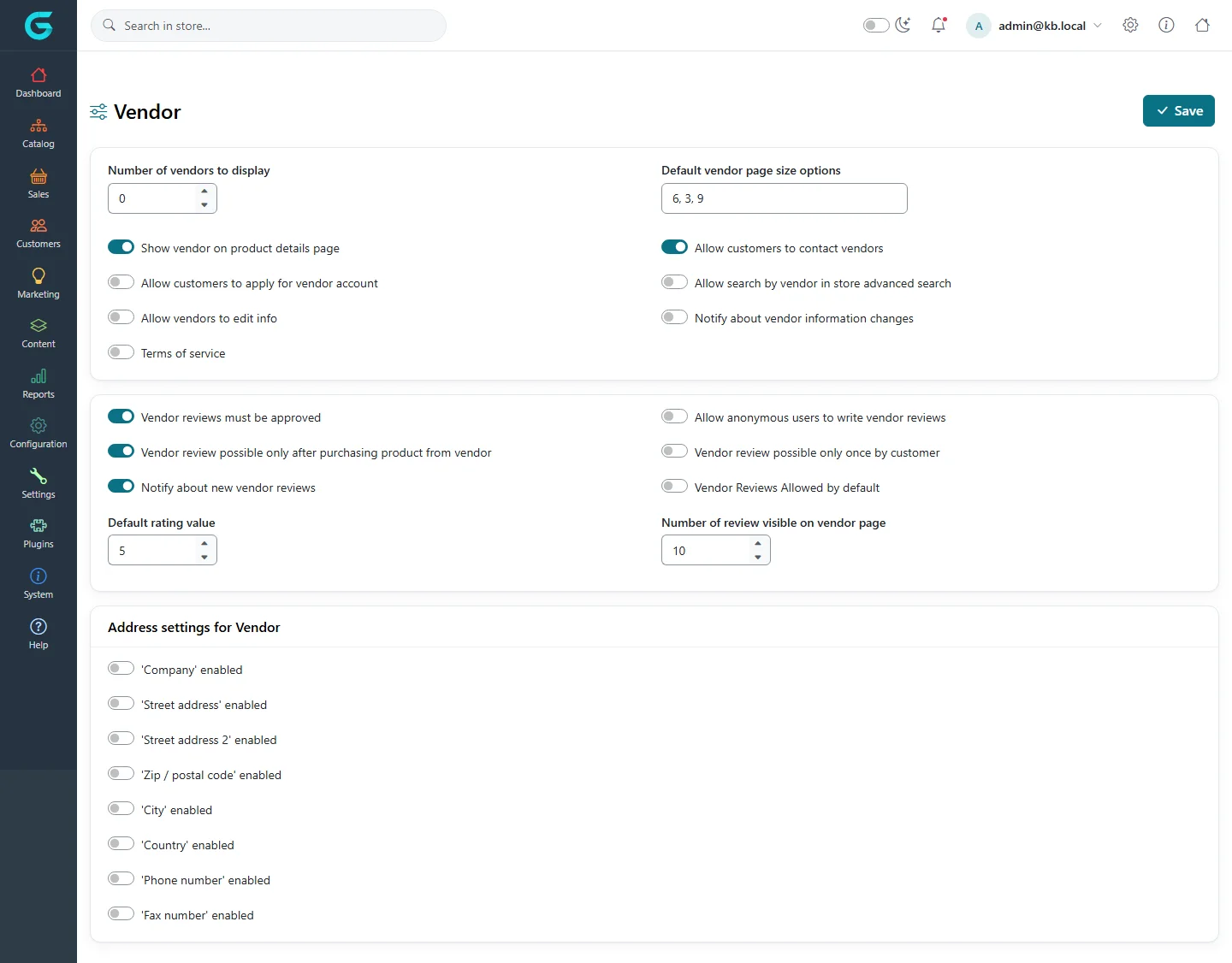
{"ArticleId":null,"Name":"Vendor settings","Content":"\n\u003Cp\u003EThe \u003Cstrong\u003EVendor\u003C/strong\u003E settings page holds every store-wide switch for the marketplace: whether customers may apply to become vendors, whether vendors can edit their own public profile, how vendor reviews work, and which address fields a vendor fills in. Individual vendors (name, commission, active or not) are managed separately, see \u003Ca href=\u0022/vendor-panel-create-and-approve-vendors\u0022\u003ECreate, approve and activate vendors\u003C/a\u003E. Only administrators can open this page.\u003C/p\u003E\n\n\u003Ch2 id=\u0022where-to-find-it\u0022\u003EWhere to find it\u003C/h2\u003E\n\u003Cp\u003EIn the admin panel go to \u003Cstrong\u003ESettings \u2192 Vendor settings\u003C/strong\u003E (address \u003Ccode\u003E/admin/Setting/Vendor\u003C/code\u003E). Change the switches you need and click \u003Cstrong\u003ESave\u003C/strong\u003E in the top right corner. Like other settings pages, it can be saved for all stores or, with a store selected, for one store only.\u003C/p\u003E\n\u003Cfigure\u003E\u003Cimg src=\u0022/Plugins/Theme.GrandNodeCom/Content/kb/vendor-panel/admin-vendor-settings.webp\u0022 alt=\u0022The Vendor settings page with switches for vendor applications, contact, profile editing, reviews and the vendor address fields\u0022 width=\u00221440\u0022 height=\u00221126\u0022 loading=\u0022lazy\u0022\u003E\u003Cfigcaption\u003ESettings \u2192 Vendor settings: general switches, review rules and the vendor address form.\u003C/figcaption\u003E\u003C/figure\u003E\n\n\u003Ch2 id=\u0022general-settings\u0022\u003EGeneral settings\u003C/h2\u003E\n\u003Ctable\u003E\n\u003Cthead\u003E\u003Ctr\u003E\u003Cth\u003EField\u003C/th\u003E\u003Cth\u003EWhat it does\u003C/th\u003E\u003C/tr\u003E\u003C/thead\u003E\n\u003Ctbody\u003E\n\u003Ctr\u003E\u003Ctd\u003ENumber of vendors to display\u003C/td\u003E\u003Ctd\u003EHow many vendors the storefront\u0027s vendor block lists. \u003Cstrong\u003E0\u003C/strong\u003E hides the block and also turns off the vendor list page \u003Ccode\u003E/vendor/all/\u003C/code\u003E (it redirects to the home page). Individual vendor pages still work.\u003C/td\u003E\u003C/tr\u003E\n\u003Ctr\u003E\u003Ctd\u003EDefault vendor page size options\u003C/td\u003E\u003Ctd\u003EThe comma-separated page sizes (for example \u003Ccode\u003E6, 3, 9\u003C/code\u003E) given to vendors created from the storefront application form. Each vendor can have its own later.\u003C/td\u003E\u003C/tr\u003E\n\u003Ctr\u003E\u003Ctd\u003EShow vendor on product details page\u003C/td\u003E\u003Ctd\u003EShows \u003Cem\u003EVendor: name\u003C/em\u003E with a link to the vendor page on the product page.\u003C/td\u003E\u003C/tr\u003E\n\u003Ctr\u003E\u003Ctd\u003EAllow customers to contact vendors\u003C/td\u003E\u003Ctd\u003EAdds a \u003Cstrong\u003EContact vendor\u003C/strong\u003E tab to the vendor page. The message is emailed to the vendor\u0027s address.\u003C/td\u003E\u003C/tr\u003E\n\u003Ctr\u003E\u003Ctd\u003EAllow customers to apply for vendor account\u003C/td\u003E\u003Ctd\u003ETurns on the application form at \u003Ccode\u003E/vendorapply\u003C/code\u003E for signed-in customers. When off, that address redirects to the home page.\u003C/td\u003E\u003C/tr\u003E\n\u003Ctr\u003E\u003Ctd\u003EAllow search by vendor in store advanced search\u003C/td\u003E\u003Ctd\u003EAdds a vendor drop-down to the storefront\u0027s advanced search.\u003C/td\u003E\u003C/tr\u003E\n\u003Ctr\u003E\u003Ctd\u003EAllow vendors to edit info\u003C/td\u003E\u003Ctd\u003ELets vendors edit their own name, description, picture, SEO fields and address in the vendor panel (user menu \u2192 vendor info). When off, that page shows \u003Cem\u003Eaccess denied\u003C/em\u003E.\u003C/td\u003E\u003C/tr\u003E\n\u003Ctr\u003E\u003Ctd\u003ENotify about vendor information changes\u003C/td\u003E\u003Ctd\u003EIntended to email the store owner when a vendor edits its info. See the tip below.\u003C/td\u003E\u003C/tr\u003E\n\u003Ctr\u003E\u003Ctd\u003ETerms of service\u003C/td\u003E\u003Ctd\u003EAdds a mandatory \u0022I accept the terms of service\u0022 checkbox to the vendor application form.\u003C/td\u003E\u003C/tr\u003E\n\u003C/tbody\u003E\n\u003C/table\u003E\n\n\u003Ch2 id=\u0022review-settings\u0022\u003EVendor review settings\u003C/h2\u003E\n\u003Cp\u003ECustomers can rate a vendor (not only a product) on the vendor page. These switches control who can do it and when reviews appear.\u003C/p\u003E\n\u003Ctable\u003E\n\u003Cthead\u003E\u003Ctr\u003E\u003Cth\u003EField\u003C/th\u003E\u003Cth\u003EWhat it does\u003C/th\u003E\u003C/tr\u003E\u003C/thead\u003E\n\u003Ctbody\u003E\n\u003Ctr\u003E\u003Ctd\u003EVendor reviews must be approved\u003C/td\u003E\u003Ctd\u003ENew reviews stay hidden until someone approves them. The customer sees a message that the review appears after approval.\u003C/td\u003E\u003C/tr\u003E\n\u003Ctr\u003E\u003Ctd\u003EAllow anonymous users to write vendor reviews\u003C/td\u003E\u003Ctd\u003ELets guests review. When off, only registered customers can, and guests also cannot vote on review helpfulness.\u003C/td\u003E\u003C/tr\u003E\n\u003Ctr\u003E\u003Ctd\u003EVendor review possible only after purchasing product from vendor\u003C/td\u003E\u003Ctd\u003EAllows a review only from a customer who has at least one order with status \u003Cem\u003EComplete\u003C/em\u003E containing that vendor\u0027s products. Pending or processing orders do not count.\u003C/td\u003E\u003C/tr\u003E\n\u003Ctr\u003E\u003Ctd\u003EVendor review possible only once by customer\u003C/td\u003E\u003Ctd\u003EOne review per customer per vendor.\u003C/td\u003E\u003C/tr\u003E\n\u003Ctr\u003E\u003Ctd\u003ENotify about new vendor reviews\u003C/td\u003E\u003Ctd\u003EEmails the vendor when a new review is written.\u003C/td\u003E\u003C/tr\u003E\n\u003Ctr\u003E\u003Ctd\u003EVendor Reviews Allowed by default\u003C/td\u003E\u003Ctd\u003ESets \u003Cstrong\u003EAllow customer reviews\u003C/strong\u003E on vendors created through the storefront application form. You can still change it per vendor.\u003C/td\u003E\u003C/tr\u003E\n\u003Ctr\u003E\u003Ctd\u003EDefault rating value\u003C/td\u003E\u003Ctd\u003EThe star rating pre-selected in the review form (1 to 5).\u003C/td\u003E\u003C/tr\u003E\n\u003Ctr\u003E\u003Ctd\u003ENumber of review visible on vendor page\u003C/td\u003E\u003Ctd\u003EHow many reviews the vendor page lists.\u003C/td\u003E\u003C/tr\u003E\n\u003C/tbody\u003E\n\u003C/table\u003E\n\n\u003Ch2 id=\u0022address-settings\u0022\u003EAddress settings for Vendor\u003C/h2\u003E\n\u003Cp\u003EA vendor has one address, shown on the vendor page\u0027s \u003Cstrong\u003EAddress\u003C/strong\u003E tab and filled in on the application form and the vendor info page. The \u003Cstrong\u003E\u0027Company\u0027 enabled\u003C/strong\u003E, \u003Cstrong\u003E\u0027Street address\u0027 enabled\u003C/strong\u003E, \u003Cstrong\u003E\u0027Street address 2\u0027 enabled\u003C/strong\u003E, \u003Cstrong\u003E\u0027Zip / postal code\u0027 enabled\u003C/strong\u003E, \u003Cstrong\u003E\u0027City\u0027 enabled\u003C/strong\u003E, \u003Cstrong\u003E\u0027Country\u0027 enabled\u003C/strong\u003E, \u003Cstrong\u003E\u0027Phone number\u0027 enabled\u003C/strong\u003E and \u003Cstrong\u003E\u0027Fax number\u0027 enabled\u003C/strong\u003E switches decide which fields the form shows. When a field is enabled, a matching \u003Cem\u003Erequired\u003C/em\u003E switch appears next to it so you can make it mandatory. With everything off, as on a fresh install, vendors enter no address at all.\u003C/p\u003E\n\n\u003Ch2 id=\u0022recommended\u0022\u003EA sensible starting configuration\u003C/h2\u003E\n\u003Col\u003E\n\u003Cli\u003ETurn on \u003Cstrong\u003EShow vendor on product details page\u003C/strong\u003E so buyers know who they are buying from.\u003C/li\u003E\n\u003Cli\u003ETurn on \u003Cstrong\u003EAllow customers to apply for vendor account\u003C/strong\u003E and \u003Cstrong\u003ETerms of service\u003C/strong\u003E if you accept new sellers.\u003C/li\u003E\n\u003Cli\u003ETurn on \u003Cstrong\u003EAllow vendors to edit info\u003C/strong\u003E so vendors keep their own description and picture up to date.\u003C/li\u003E\n\u003Cli\u003EKeep \u003Cstrong\u003EVendor reviews must be approved\u003C/strong\u003E and \u003Cstrong\u003EVendor review possible only after purchasing product from vendor\u003C/strong\u003E on to avoid fake reviews.\u003C/li\u003E\n\u003Cli\u003EEnable at least \u003Cstrong\u003E\u0027Country\u0027 enabled\u003C/strong\u003E, \u003Cstrong\u003E\u0027City\u0027 enabled\u003C/strong\u003E and \u003Cstrong\u003E\u0027Street address\u0027 enabled\u003C/strong\u003E if you want vendors\u0027 addresses on their pages.\u003C/li\u003E\n\u003Cli\u003ESet \u003Cstrong\u003ENumber of vendors to display\u003C/strong\u003E above 0 if you want a vendor block and the \u003Ccode\u003E/vendor/all/\u003C/code\u003E page.\u003C/li\u003E\n\u003C/ol\u003E\n\n\u003Ch2 id=\u0022tips\u0022\u003ETips and common mistakes\u003C/h2\u003E\n\u003Cul\u003E\n\u003Cli\u003E\u003Cstrong\u003E\u0022The apply page just goes to the home page.\u0022\u003C/strong\u003E Either \u003Cstrong\u003EAllow customers to apply for vendor account\u003C/strong\u003E is off, or the visitor is not signed in (guests are sent to the login page first).\u003C/li\u003E\n\u003Cli\u003E\u003Cstrong\u003EVendor info link missing in the vendor panel.\u003C/strong\u003E The link in the vendor\u0027s user menu appears only when \u003Cstrong\u003EAllow vendors to edit info\u003C/strong\u003E is on.\u003C/li\u003E\n\u003Cli\u003E\u003Cstrong\u003ENobody can review a vendor.\u003C/strong\u003E With \u003Cem\u003Eonly after purchasing\u003C/em\u003E on, the customer needs a \u003Cem\u003EComplete\u003C/em\u003E order from that vendor. Also check \u003Cstrong\u003EAllow customer reviews\u003C/strong\u003E on the vendor itself: when it is off, the review form is refused for that vendor whatever the settings say.\u003C/li\u003E\n\u003Cli\u003E\u003Cstrong\u003ENotify about vendor information changes\u003C/strong\u003E is stored and shown here, but in the current version saving the vendor info page does not send an email. Do not rely on it for moderation; check vendors\u0027 pages yourself.\u003C/li\u003E\n\u003Cli\u003EEmail texts (new vendor application, vendor review notification, contact vendor) are message templates. See \u003Ca href=\u0022/docs-content\u0022\u003EContent management\u003C/a\u003E.\u003C/li\u003E\n\u003C/ul\u003E\n\n\u003Ch2 id=\u0022related\u0022\u003ERelated\u003C/h2\u003E\n\u003Cul\u003E\n\u003Cli\u003E\u003Ca href=\u0022/vendor-panel-create-and-approve-vendors\u0022\u003ECreate, approve and activate vendors\u003C/a\u003E\u003C/li\u003E\n\u003Cli\u003E\u003Ca href=\u0022/vendor-panel-vendor-profile-and-reviews\u0022\u003EVendor profile, reviews and the vendor page\u003C/a\u003E\u003C/li\u003E\n\u003C/ul\u003E\n","ParentCategoryId":"6abdec6d83d2816248229f55","SeName":"vendor-panel-vendor-settings","MetaKeywords":null,"MetaDescription":"The Vendor settings page in the GrandNode admin: vendor applications, profile editing, contact form, vendor reviews and the vendor address form.","MetaTitle":null,"AllowComments":false,"Captcha":{"ReCaptchaChallengeField":null,"ReCaptchaResponseField":null,"ReCaptchaResponseValue":null,"ReCaptchaResponse":null},"RelatedArticles":[],"CategoryBreadcrumb":[{"Name":"Vendor panel (marketplace)","Description":null,"IsCurrent":false,"Children":null,"Parent":null,"SeName":"docs-vendor-panel","Id":"6abdec6d83d2816248229f55","UserFields":[]}],"AddNewComment":{"CommentText":null,"DisplayCaptcha":false,"Id":null,"UserFields":[]},"Comments":[],"Id":"6abdec6d83d2816248229f59","UserFields":[]}