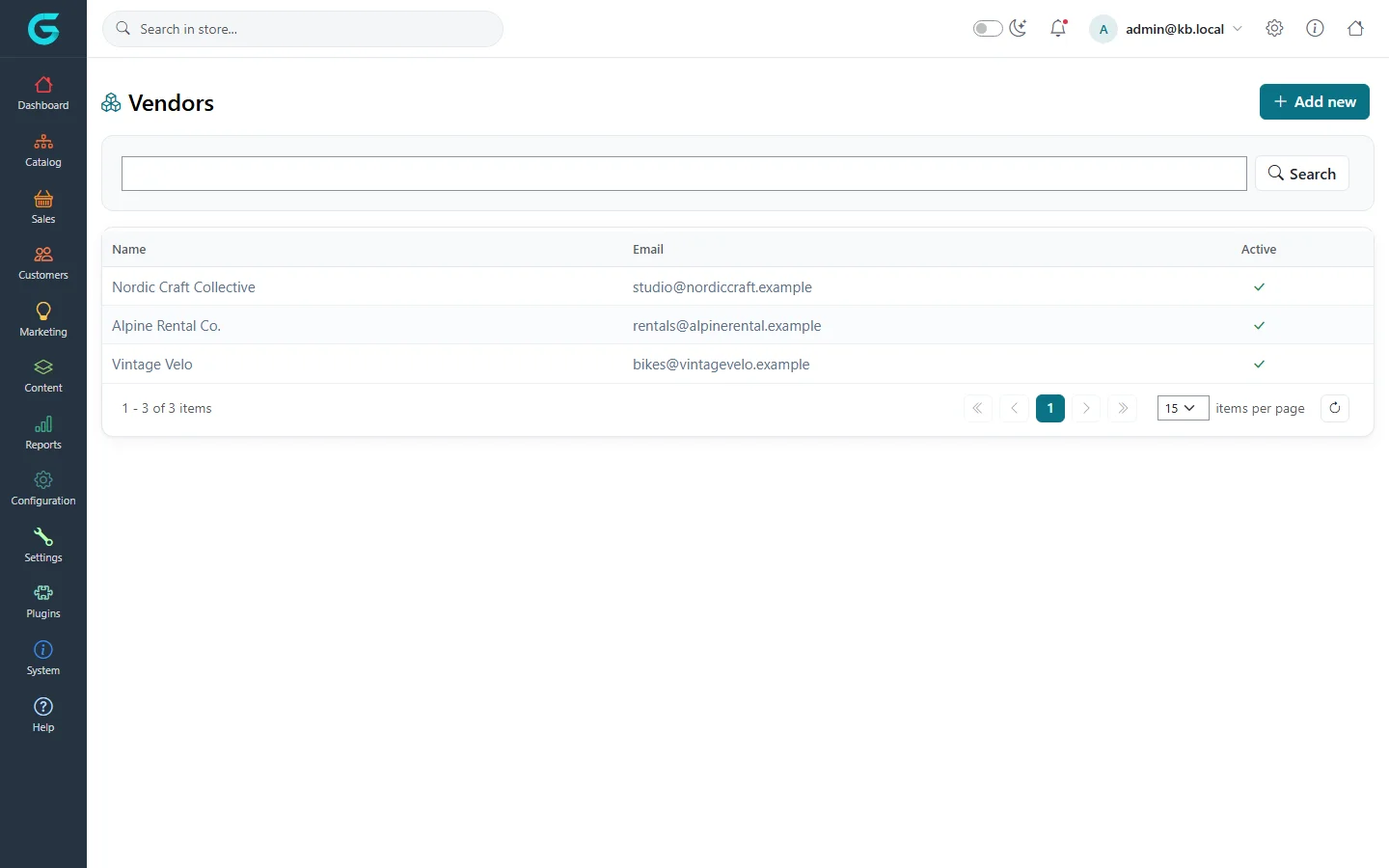
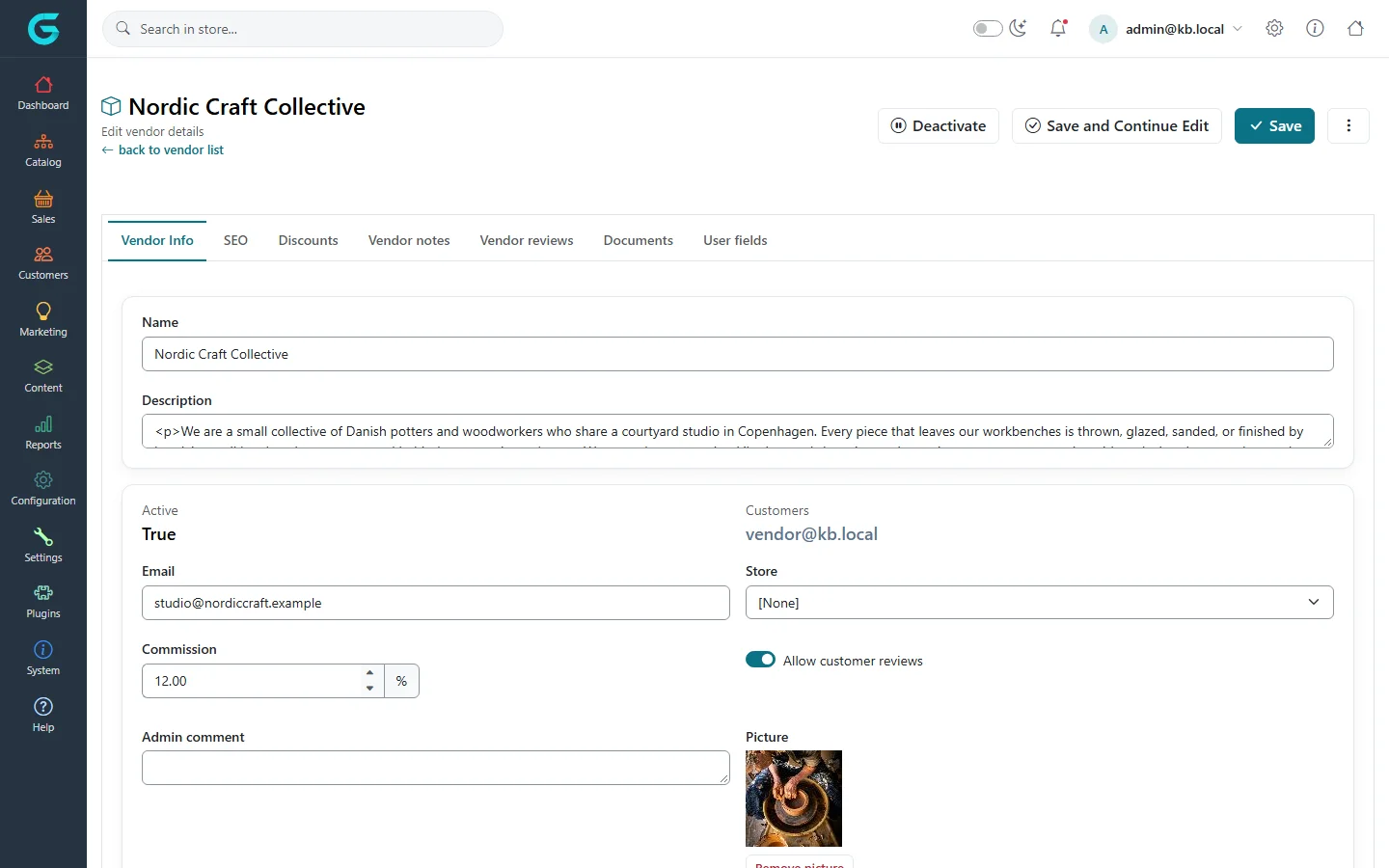
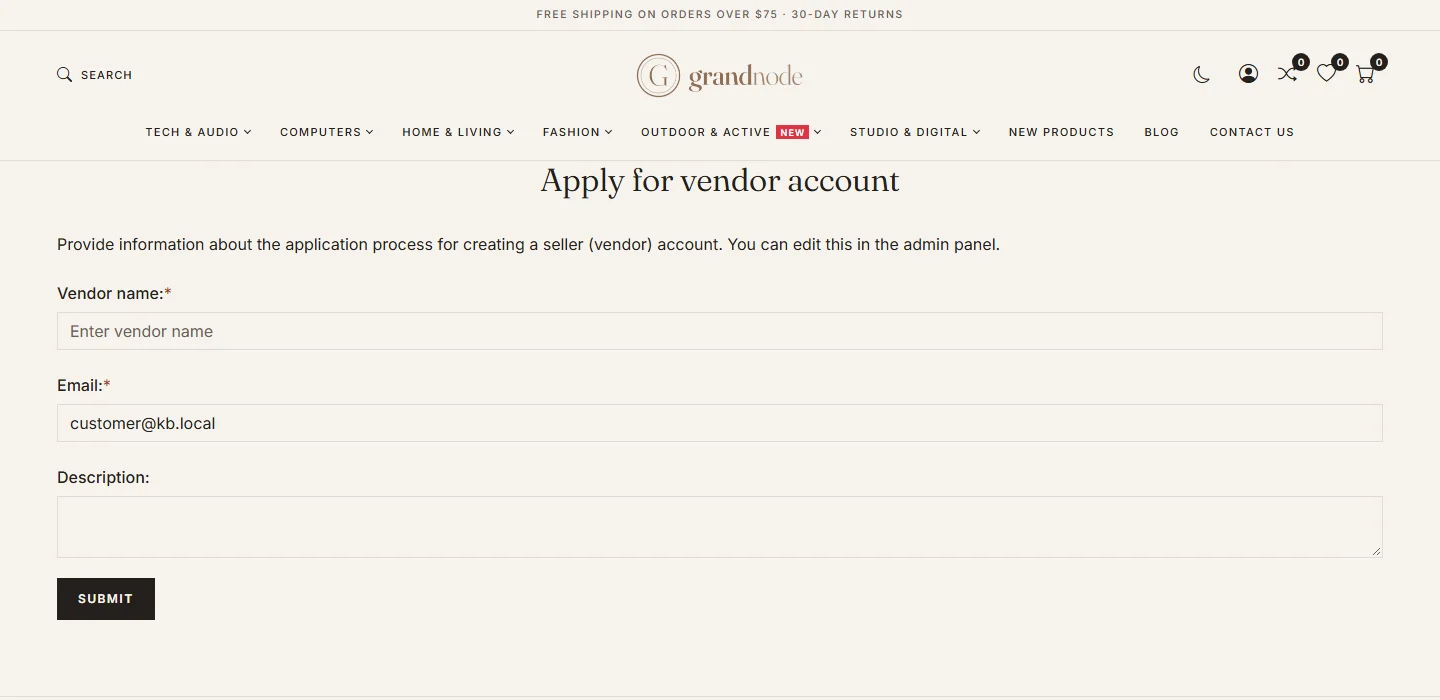
{"ArticleId":null,"Name":"Creating and approving vendors","Content":"\n\u003Cp\u003EA vendor exists in two parts: the \u003Cstrong\u003Evendor\u003C/strong\u003E record (the seller: name, description, e-mail, commission) and one or more \u003Cstrong\u003Ecustomer accounts\u003C/strong\u003E linked to it, which are the people who sign in to the vendor panel. You can create both yourself, or let sellers apply from the storefront and approve them.\u003C/p\u003E\n\n\u003Ch2 id=\u0022admin-create\u0022\u003ECreate a vendor in the admin\u003C/h2\u003E\n\u003Col\u003E\n\u003Cli\u003EOpen \u003Cstrong\u003ECustomers \u2192 Vendors\u003C/strong\u003E and click \u003Cstrong\u003EAdd new\u003C/strong\u003E.\u003C/li\u003E\n\u003Cli\u003EOn \u003Cstrong\u003EVendor info\u003C/strong\u003E enter the \u003Cstrong\u003EName\u003C/strong\u003E, \u003Cstrong\u003EDescription\u003C/strong\u003E (shown on the vendor\u0027s page), \u003Cstrong\u003EEmail\u003C/strong\u003E, a \u003Cstrong\u003EPicture\u003C/strong\u003E and the \u003Cstrong\u003ECommission\u003C/strong\u003E percentage you keep from the vendor\u0027s sales.\u003C/li\u003E\n\u003Cli\u003ETick \u003Cstrong\u003EActive\u003C/strong\u003E and, if you like, \u003Cstrong\u003EAllow customer reviews\u003C/strong\u003E. Fill in the address and the SEO tab.\u003C/li\u003E\n\u003Cli\u003ESave.\u003C/li\u003E\n\u003C/ol\u003E\n\u003Cfigure\u003E\u003Cimg src=\u0022/Plugins/Theme.GrandNodeCom/Content/kb/vendor-panel/admin-vendor-list.webp\u0022 alt=\u0022The admin Vendors list with Nordic Craft Collective, Alpine Rental Co. and Vintage Velo\u0022 width=\u00221440\u0022 height=\u0022900\u0022 loading=\u0022lazy\u0022\u003E\u003Cfigcaption\u003ECustomers \u2192 Vendors in the admin panel.\u003C/figcaption\u003E\u003C/figure\u003E\n\u003Cfigure\u003E\u003Cimg src=\u0022/Plugins/Theme.GrandNodeCom/Content/kb/vendor-panel/admin-vendor-edit.webp\u0022 alt=\u0022Editing the vendor Nordic Craft Collective in the admin: name, description, active, e-mail, commission 10, store, allow customer reviews, admin comment and picture, with tabs for SEO, discounts, notes, reviews and documents\u0022 width=\u00221440\u0022 height=\u0022900\u0022 loading=\u0022lazy\u0022\u003E\u003Cfigcaption\u003EA vendor in the admin panel.\u003C/figcaption\u003E\u003C/figure\u003E\n\n\u003Ch2 id=\u0022link-account\u0022\u003EGive a person access\u003C/h2\u003E\n\u003Col\u003E\n\u003Cli\u003EOpen the person\u0027s customer account under \u003Cstrong\u003ECustomers \u2192 Customers\u003C/strong\u003E (or create it).\u003C/li\u003E\n\u003Cli\u003ESet the \u003Cstrong\u003EVendor\u003C/strong\u003E field to the vendor.\u003C/li\u003E\n\u003Cli\u003EAdd the account to the \u003Cstrong\u003EVendors\u003C/strong\u003E customer group (keep \u003Cstrong\u003ERegistered\u003C/strong\u003E).\u003C/li\u003E\n\u003Cli\u003ESave. The person can now sign in at \u003Ccode\u003E/vendor\u003C/code\u003E.\u003C/li\u003E\n\u003C/ol\u003E\n\u003Cp\u003ESeveral accounts can be linked to one vendor, for example the owner and an employee.\u003C/p\u003E\n\n\u003Ch2 id=\u0022apply\u0022\u003EApplications from the storefront\u003C/h2\u003E\n\u003Cp\u003EWith \u003Cstrong\u003EAllow customers to apply for vendor account\u003C/strong\u003E on in the \u003Ca href=\u0022/vendor-panel-vendor-settings\u0022\u003Evendor settings\u003C/a\u003E, a signed-in customer can apply at \u003Ccode\u003E/vendorapply\u003C/code\u003E.\u003C/p\u003E\n\u003Cfigure\u003E\u003Cimg src=\u0022/Plugins/Theme.GrandNodeCom/Content/kb/vendor-panel/storefront-apply.webp\u0022 alt=\u0022The storefront page Apply for vendor account with vendor name, e-mail and description fields and a Submit button\u0022 width=\u00221440\u0022 height=\u0022700\u0022 loading=\u0022lazy\u0022\u003E\u003Cfigcaption\u003EThe vendor application form.\u003C/figcaption\u003E\u003C/figure\u003E\n\u003Cp\u003EOn submit GrandNode creates the vendor as \u003Cstrong\u003Einactive\u003C/strong\u003E, links it to the applicant\u0027s account and e-mails the store owner. To approve:\u003C/p\u003E\n\u003Col\u003E\n\u003Cli\u003EOpen the new vendor under \u003Cstrong\u003ECustomers \u2192 Vendors\u003C/strong\u003E, check the details and set the commission.\u003C/li\u003E\n\u003Cli\u003ETick \u003Cstrong\u003EActive\u003C/strong\u003E and save.\u003C/li\u003E\n\u003Cli\u003EAdd the applicant\u0027s account to the \u003Cstrong\u003EVendors\u003C/strong\u003E group.\u003C/li\u003E\n\u003C/ol\u003E\n\u003Cp\u003ETo reject, delete the vendor, or leave it inactive with an admin comment.\u003C/p\u003E\n\n\u003Ch2 id=\u0022deactivate\u0022\u003EDeactivate a vendor\u003C/h2\u003E\n\u003Cp\u003E\u003Cstrong\u003EDeactivate\u003C/strong\u003E on the vendor page (or unticking Active) hides the vendor\u0027s page and stops its people from signing in to the vendor panel. Their products and past orders stay.\u003C/p\u003E\n\n\u003Ch2 id=\u0022related\u0022\u003ERelated\u003C/h2\u003E\n\u003Cul\u003E\n\u003Cli\u003E\u003Ca href=\u0022/vendor-panel-tour\u0022\u003EA tour of the vendor panel\u003C/a\u003E\u003C/li\u003E\n\u003Cli\u003E\u003Ca href=\u0022/customers-vendors-and-sales-employees\u0022\u003EVendors and sales employees\u003C/a\u003E\u003C/li\u003E\n\u003C/ul\u003E\n","ParentCategoryId":"6abdec6d83d2816248229f55","SeName":"vendor-panel-create-and-approve-vendors","MetaKeywords":null,"MetaDescription":"Add vendors in the GrandNode admin, link their user accounts, set commission, and approve vendors who applied from the storefront.","MetaTitle":null,"AllowComments":false,"Captcha":{"ReCaptchaChallengeField":null,"ReCaptchaResponseField":null,"ReCaptchaResponseValue":null,"ReCaptchaResponse":null},"RelatedArticles":[],"CategoryBreadcrumb":[{"Name":"Vendor panel (marketplace)","Description":null,"IsCurrent":false,"Children":null,"Parent":null,"SeName":"docs-vendor-panel","Id":"6abdec6d83d2816248229f55","UserFields":[]}],"AddNewComment":{"CommentText":null,"DisplayCaptcha":false,"Id":null,"UserFields":[]},"Comments":[],"Id":"6abdec6d83d2816248229f5b","UserFields":[]}