Store owner panel overview
GrandNode can run many stores from one installation: each store has its own domain, catalog visibility, currencies, languages, settings, payment and shipping configuration. The Admin panel at /admin manages all of them at once. The store owner panel at /store is a second back office built for the person who runs just one of those stores. A store manager logs in, sees the data of their own store only, and can change it without being able to touch any other store or any system-wide configuration.
Use the store owner panel when you operate several stores (brands, countries, franchisees, partner shops) and want each one run by its own team, while the platform owner keeps the Admin panel for global work: installing plugins, creating stores, managing permissions and system settings.
Who it is for
- The store manager — a customer account that belongs to the Store manager customer group and has a store selected in the Manager of store field. This person uses
/storeevery day: products, orders, customers, promotions and the store's own settings. - The administrator — creates the store, creates or promotes the manager account, and decides through Configuration → Permissions which parts of the panel the Store manager group can open. See Give someone access to the store owner panel.
How it differs from the Admin panel
The two panels share most of their screens — the store owner panel reuses the same product, order, customer and settings editors — but every screen is filtered through the manager's store. The differences that matter in practice:
| Area | Admin panel (/admin) | Store owner panel (/store) |
|---|---|---|
| Scope | All stores; a store selector on lists and settings. | One store, fixed. No store picker; new records are assigned to the manager's store automatically. |
| Products, categories, brands, collections | Everything, including items shared by several stores. | Creates items limited to its own store. Items that are global or shared with other stores are visible but open read-only. |
| Orders, shipments, merchandise returns, payment transactions | All orders. | Only orders placed in its own store. |
| Customers | All customers, groups, tags, vendors, sales employees. | Only registered customers of its own store, and only when per-store customer accounts are enabled. |
| Settings | Global values ("All stores") or per-store overrides. | Always saves the store's own override. Some system-wide fields are not shown or cannot be changed. |
| Payment, shipping, tax | Global and per-store. | Activates methods and edits restrictions and settings for its own store only. |
| System | Plugins, stores, permissions, ACL, logs, maintenance, import/export. | Not available. |
A store manager has no access to /admin at all. The Admin panel turns away any account that is in the Store manager group or has a store in Manager of store, even if the Access Admin Panel permission were granted, so a manager cannot step outside their store by that route.
What a store manager sees
After signing in at /store/login (or from the Store portal button in the storefront account menu), the manager lands on the dashboard. The header shows the store name next to a store icon, so it is always clear which store is being managed. The left menu is the same as in the Admin panel, minus everything the manager is not allowed to use.
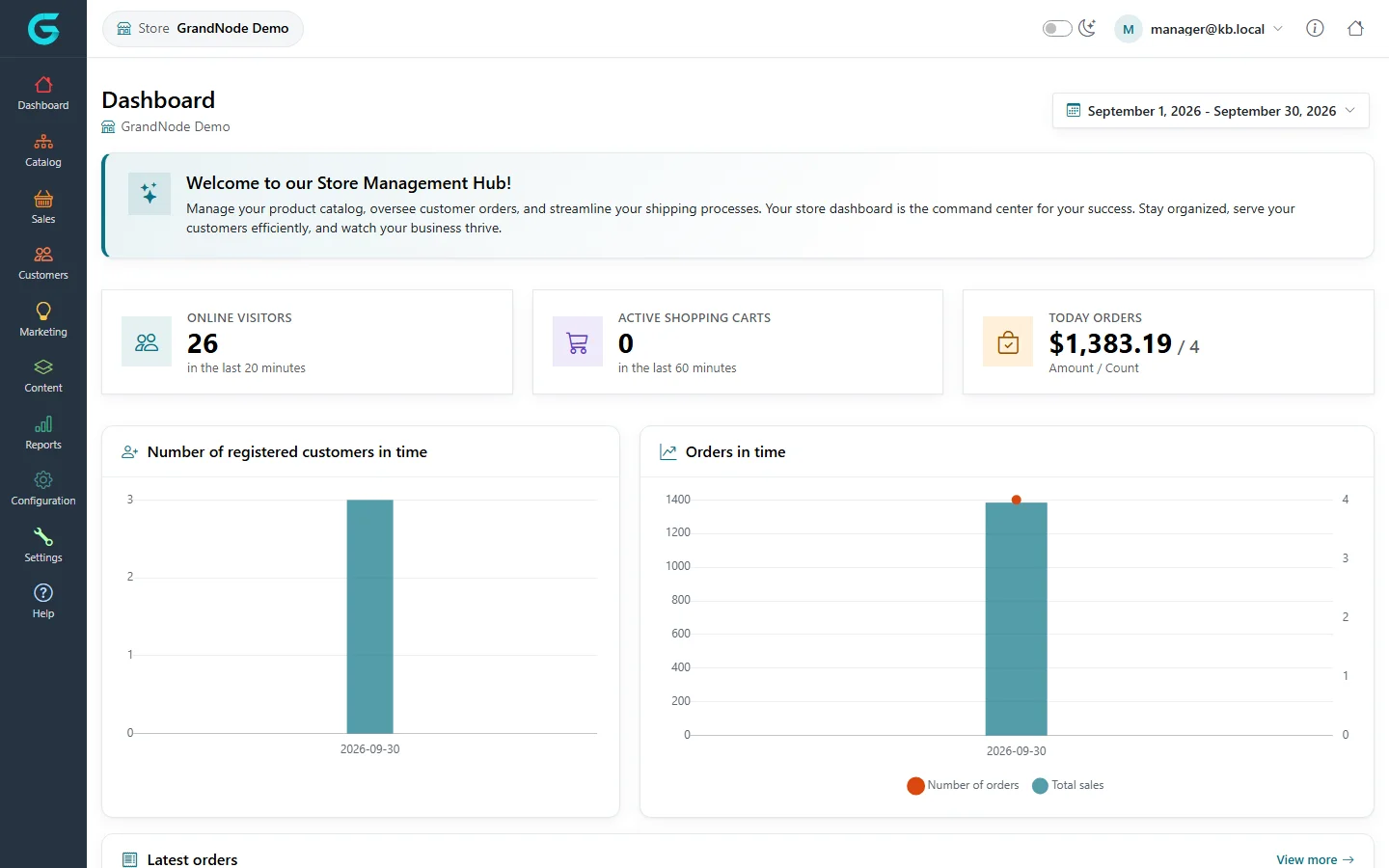
The menu groups are Dashboard, Catalog, Sales, Customers, Marketing, Content, Reports, Configuration and Settings. Which entries appear depends on the permissions of the Store manager group; a fresh installation grants only a basic set (catalog, orders, shipments, merchandise returns, payment transactions, customers, reports), and the administrator adds the rest. The dashboard and navigation article walks through every menu entry.
How the store scope is decided
The panel does not ask which store you want: the store is taken from the Manager of store field of the signed-in customer. Every list is filtered by it, every new record is stamped with it, and every save is checked against it on the server. Changing the value in the request, or opening a URL of another store's order or product, simply sends you back to the list. That is what makes it safe to hand a store to an external partner.
For catalog items and several configuration objects GrandNode uses one rule throughout: the manager may edit an item only when it is limited to exactly one store — theirs. An item that is visible in all stores, or shared by several, belongs to the administrator; the manager can open it to look, copy it, and use it in their own store, but not change or delete it. A yellow warning at the top of the editor says so.
Related
- Give someone access to the store owner panel
- Dashboard and navigation
- Customers — customer groups and customer accounts in the Admin panel
Question not answered here? Ask the community on GitHub Discussions ↗