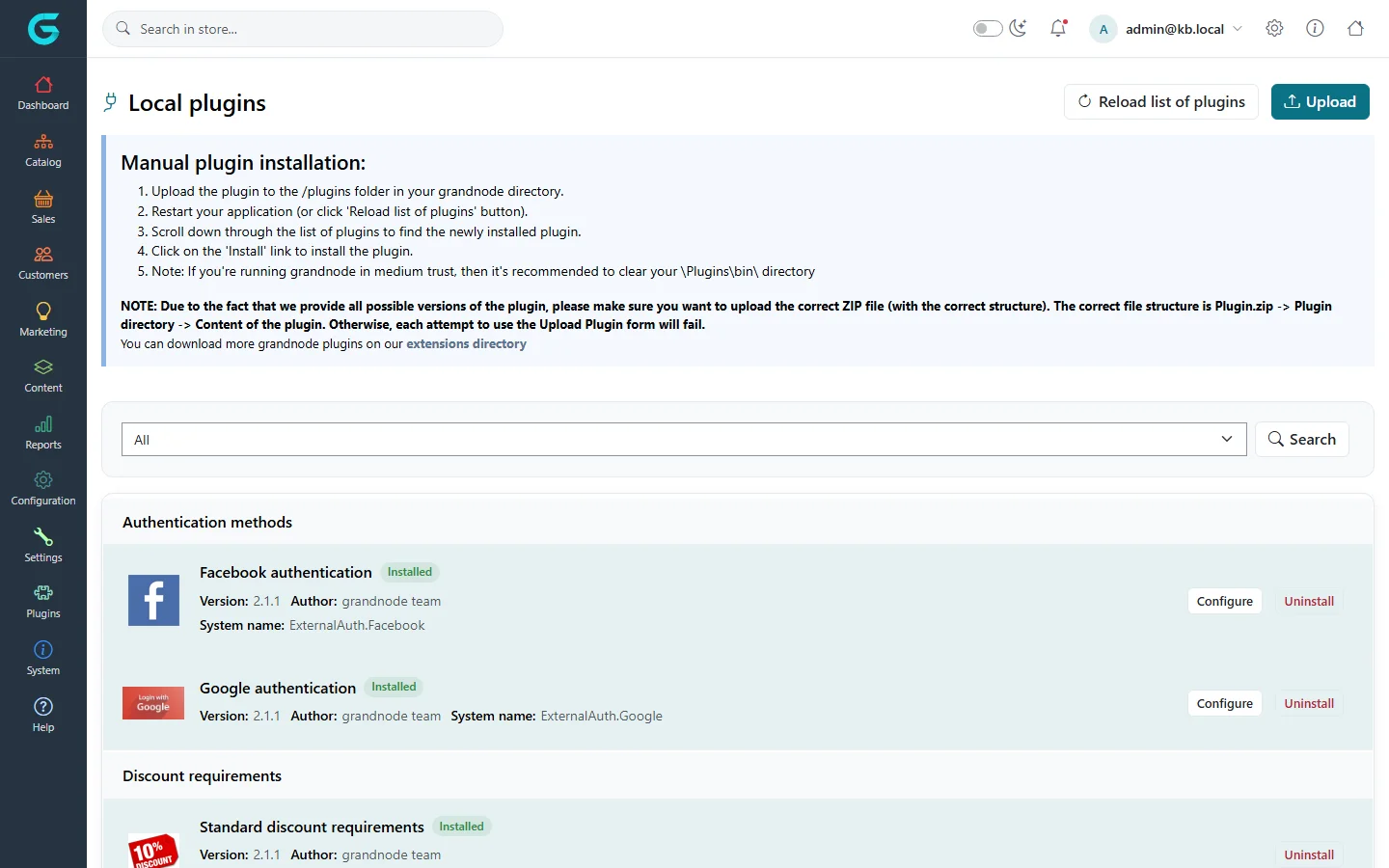
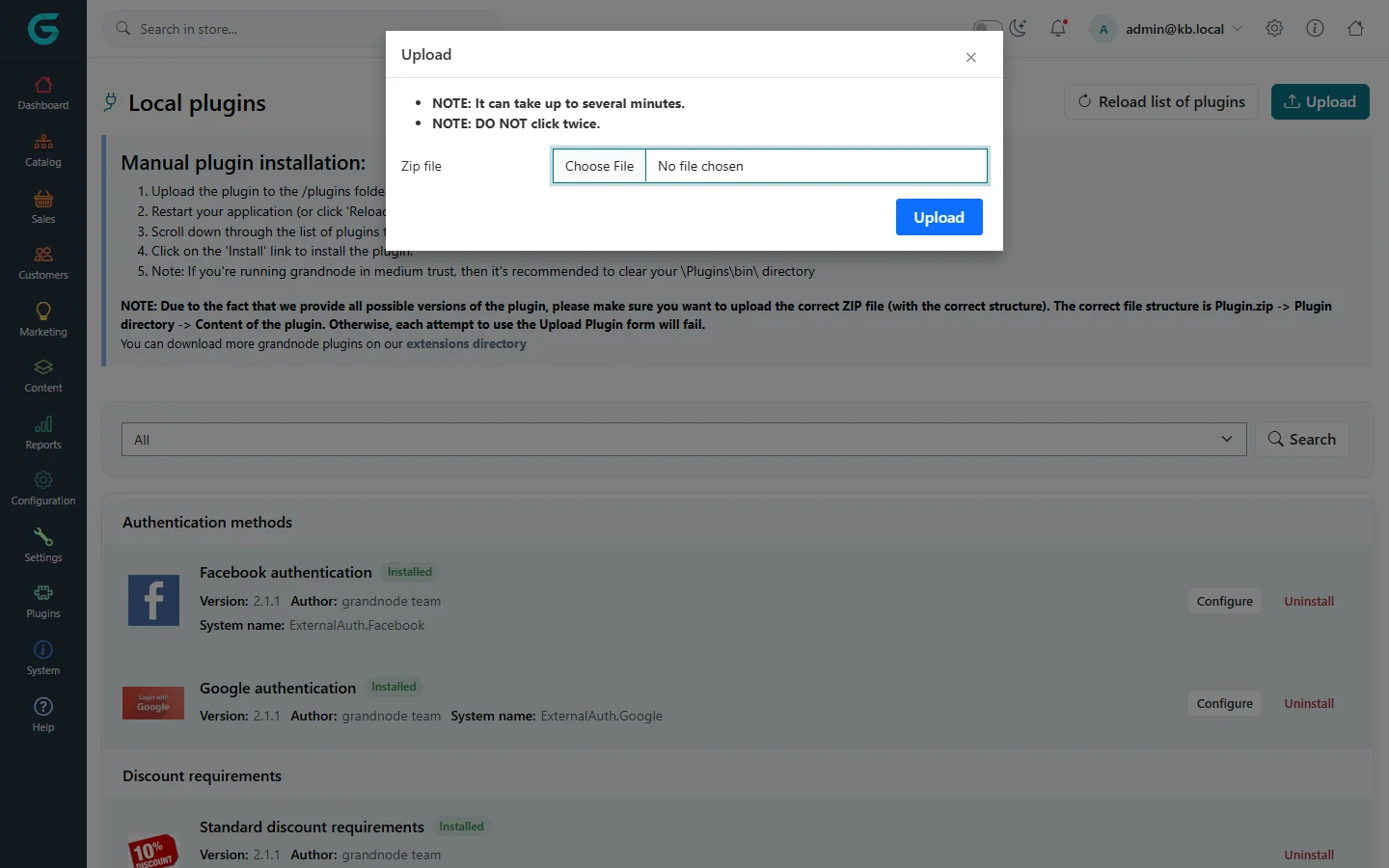
{"ArticleId":null,"Name":"Plugins","Content":"\n\u003Cp\u003EMost optional features - payment and shipping providers, tax providers, widgets, discount rules, sign-in methods, themes - are \u003Cstrong\u003Eplugins\u003C/strong\u003E. A plugin is a folder under \u003Ccode\u003EPlugins/\u003C/code\u003E in the application directory. It is \u003Cem\u003Epresent\u003C/em\u003E when its folder is there and \u003Cem\u003Einstalled\u003C/em\u003E when you have run its installation, which creates its settings, texts and data.\u003C/p\u003E\n\n\u003Ch2 id=\u0022list\u0022\u003ELocal plugins\u003C/h2\u003E\n\u003Cp\u003E\u003Cstrong\u003EPlugins \u2192 Local plugins\u003C/strong\u003E lists every plugin found in the \u003Ccode\u003EPlugins\u003C/code\u003E folder, grouped by type, with its version, author, system name and whether it is installed.\u003C/p\u003E\n\u003Cfigure\u003E\u003Cimg src=\u0022/Plugins/Theme.GrandNodeCom/Content/kb/system/plugins-list.webp\u0022 alt=\u0022Local plugins: manual installation instructions, a group filter, and plugins such as Facebook authentication, Google authentication and Standard discount requirements with Configure and Uninstall links\u0022 width=\u00221440\u0022 height=\u0022900\u0022 loading=\u0022lazy\u0022\u003E\u003Cfigcaption\u003EPlugins \u2192 Local plugins.\u003C/figcaption\u003E\u003C/figure\u003E\n\u003Cul\u003E\n\u003Cli\u003E\u003Cstrong\u003EInstall\u003C/strong\u003E runs the plugin\u0027s installation. The application then restarts so that the plugin\u0027s services are loaded.\u003C/li\u003E\n\u003Cli\u003E\u003Cstrong\u003EConfigure\u003C/strong\u003E opens the plugin\u0027s settings.\u003C/li\u003E\n\u003Cli\u003E\u003Cstrong\u003EUninstall\u003C/strong\u003E removes the plugin\u0027s settings, texts and data. Its files stay in the folder.\u003C/li\u003E\n\u003Cli\u003E\u003Cstrong\u003EEdit\u003C/strong\u003E sets the friendly name and the display order of the plugin.\u003C/li\u003E\n\u003Cli\u003E\u003Cstrong\u003EReload list of plugins\u003C/strong\u003E rescans the folder after you have copied a plugin in.\u003C/li\u003E\n\u003C/ul\u003E\n\n\u003Ch2 id=\u0022upload\u0022\u003EUpload a plugin\u003C/h2\u003E\n\u003Cp\u003EInstead of copying files to the server, you can upload a plugin as a ZIP with \u003Cstrong\u003EUpload\u003C/strong\u003E.\u003C/p\u003E\n\u003Cfigure\u003E\u003Cimg src=\u0022/Plugins/Theme.GrandNodeCom/Content/kb/system/plugin-upload.webp\u0022 alt=\u0022The Upload dialog over the Local plugins page, with notes that it can take several minutes and must not be clicked twice, and a Zip file picker\u0022 width=\u00221440\u0022 height=\u0022900\u0022 loading=\u0022lazy\u0022\u003E\u003Cfigcaption\u003EUpload a plugin ZIP.\u003C/figcaption\u003E\u003C/figure\u003E\n\u003Cp\u003EThe ZIP must contain the plugin folder with its files. After the upload the plugin appears in the list; install it from there. Uploading can be switched off with \u003Ccode\u003EExtensions:DisableUploadExtensions\u003C/code\u003E in \u003Ccode\u003Eappsettings.json\u003C/code\u003E, which is recommended on production servers where plugins are deployed with the application.\u003C/p\u003E\n\n\u003Ch2 id=\u0022deploy\u0022\u003EDeploying plugins on a server\u003C/h2\u003E\n\u003Cul\u003E\n\u003Cli\u003EWith Docker or a CI pipeline, build the plugins into the image instead of uploading them.\u003C/li\u003E\n\u003Cli\u003EInstalled plugins are recorded in \u003Ccode\u003EApp_Data/InstalledPlugins.cfg\u003C/code\u003E (or \u003Ccode\u003EExtensions:InstalledPlugins\u003C/code\u003E); keep it when you redeploy.\u003C/li\u003E\n\u003Cli\u003EPlugins must match the GrandNode version; a plugin built for another major version is not loaded.\u003C/li\u003E\n\u003C/ul\u003E\n\n\u003Ch2 id=\u0022tips\u0022\u003ETips and common mistakes\u003C/h2\u003E\n\u003Cul\u003E\n\u003Cli\u003EUninstalling deletes the plugin\u0027s settings. Note the configuration first if you plan to reinstall.\u003C/li\u003E\n\u003Cli\u003EInstall plugins outside peak hours: the restart interrupts visitors briefly.\u003C/li\u003E\n\u003C/ul\u003E\n\n\u003Ch2 id=\u0022related\u0022\u003ERelated\u003C/h2\u003E\n\u003Cul\u003E\n\u003Cli\u003E\u003Ca href=\u0022/content-widgets\u0022\u003EWidgets\u003C/a\u003E\u003C/li\u003E\n\u003Cli\u003E\u003Ca href=\u0022/developers-writing-a-plugin\u0022\u003EWriting a plugin\u003C/a\u003E\u003C/li\u003E\n\u003C/ul\u003E\n","ParentCategoryId":"6abdec6d83d2816248229f33","SeName":"system-plugins","MetaKeywords":null,"MetaDescription":"Install, uninstall, upload and configure GrandNode plugins from the admin panel, and what happens when a plugin is installed.","MetaTitle":null,"AllowComments":false,"Captcha":{"ReCaptchaChallengeField":null,"ReCaptchaResponseField":null,"ReCaptchaResponseValue":null,"ReCaptchaResponse":null},"RelatedArticles":[],"CategoryBreadcrumb":[{"Name":"System and maintenance","Description":null,"IsCurrent":false,"Children":null,"Parent":null,"SeName":"docs-system","Id":"6abdec6d83d2816248229f33","UserFields":[]}],"AddNewComment":{"CommentText":null,"DisplayCaptcha":false,"Id":null,"UserFields":[]},"Comments":[],"Id":"6abdec6d83d2816248229f37","UserFields":[]}