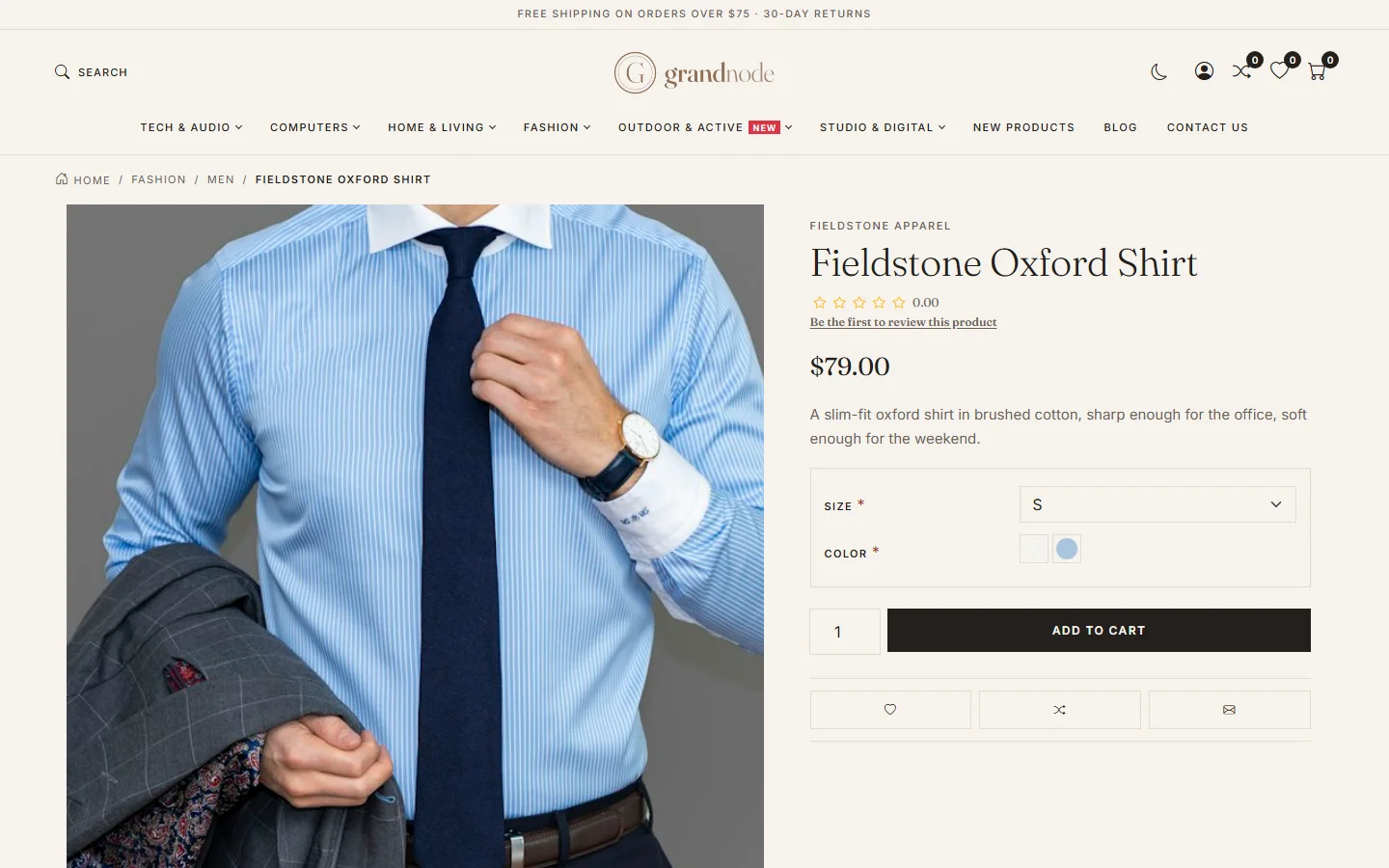
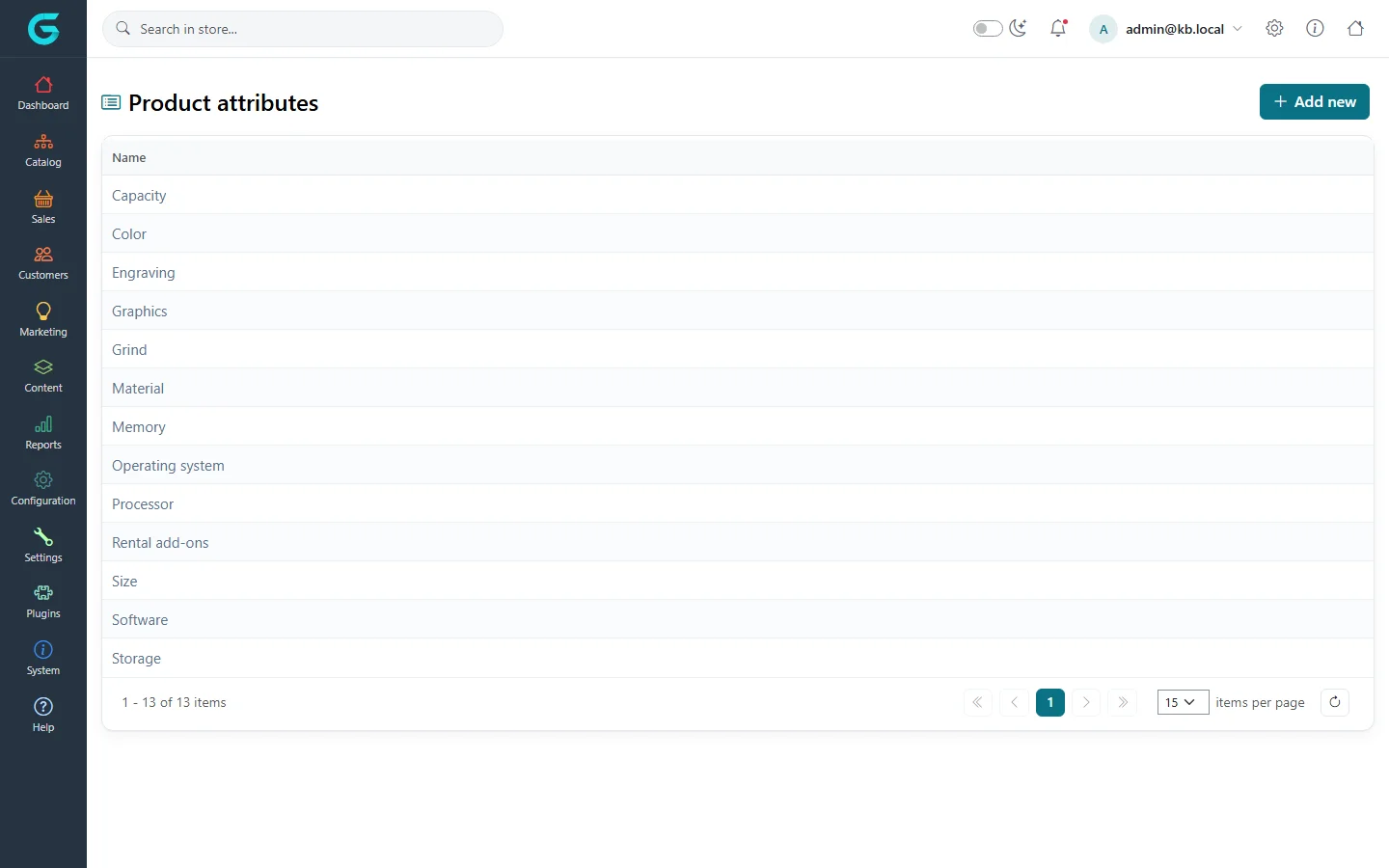
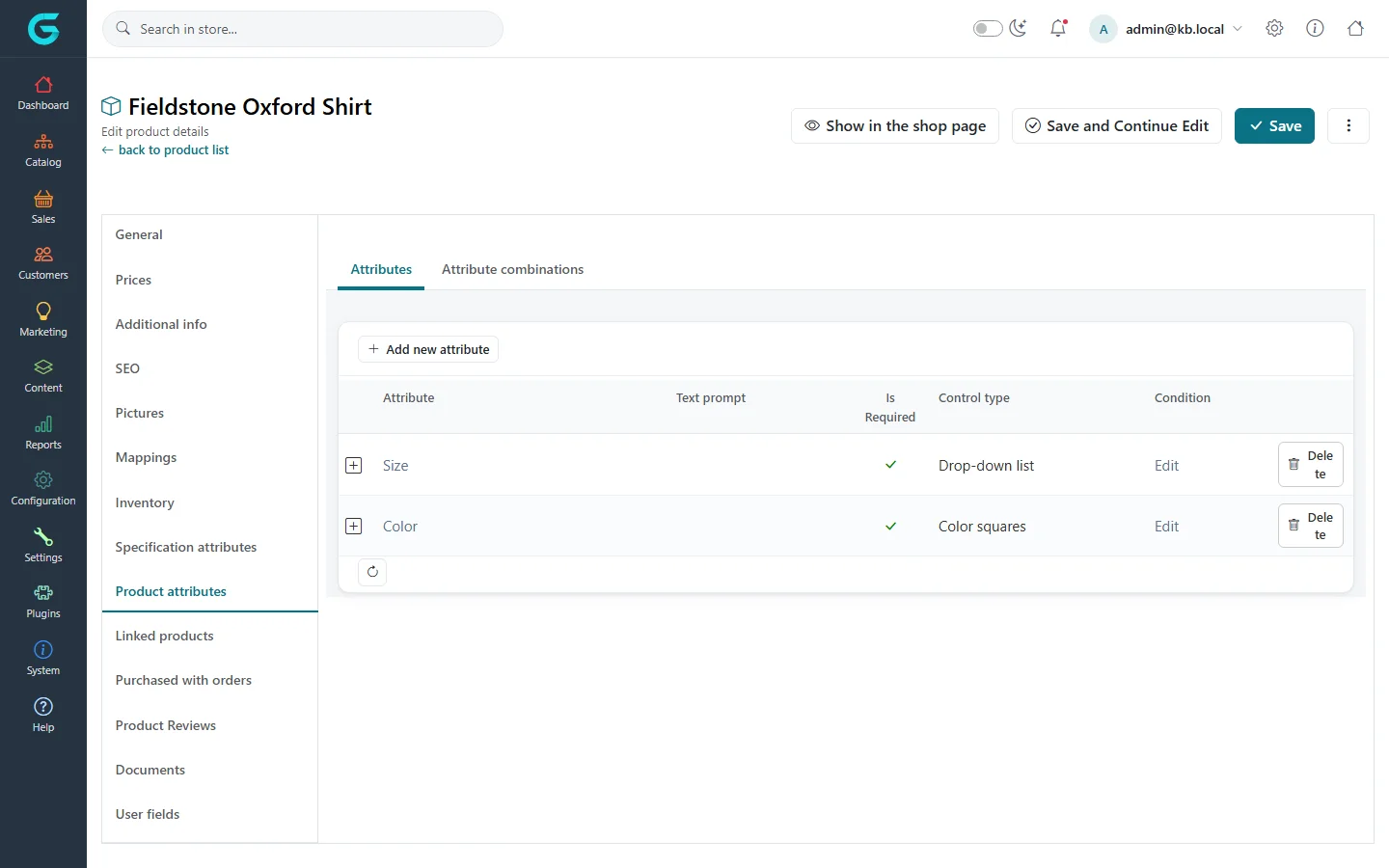
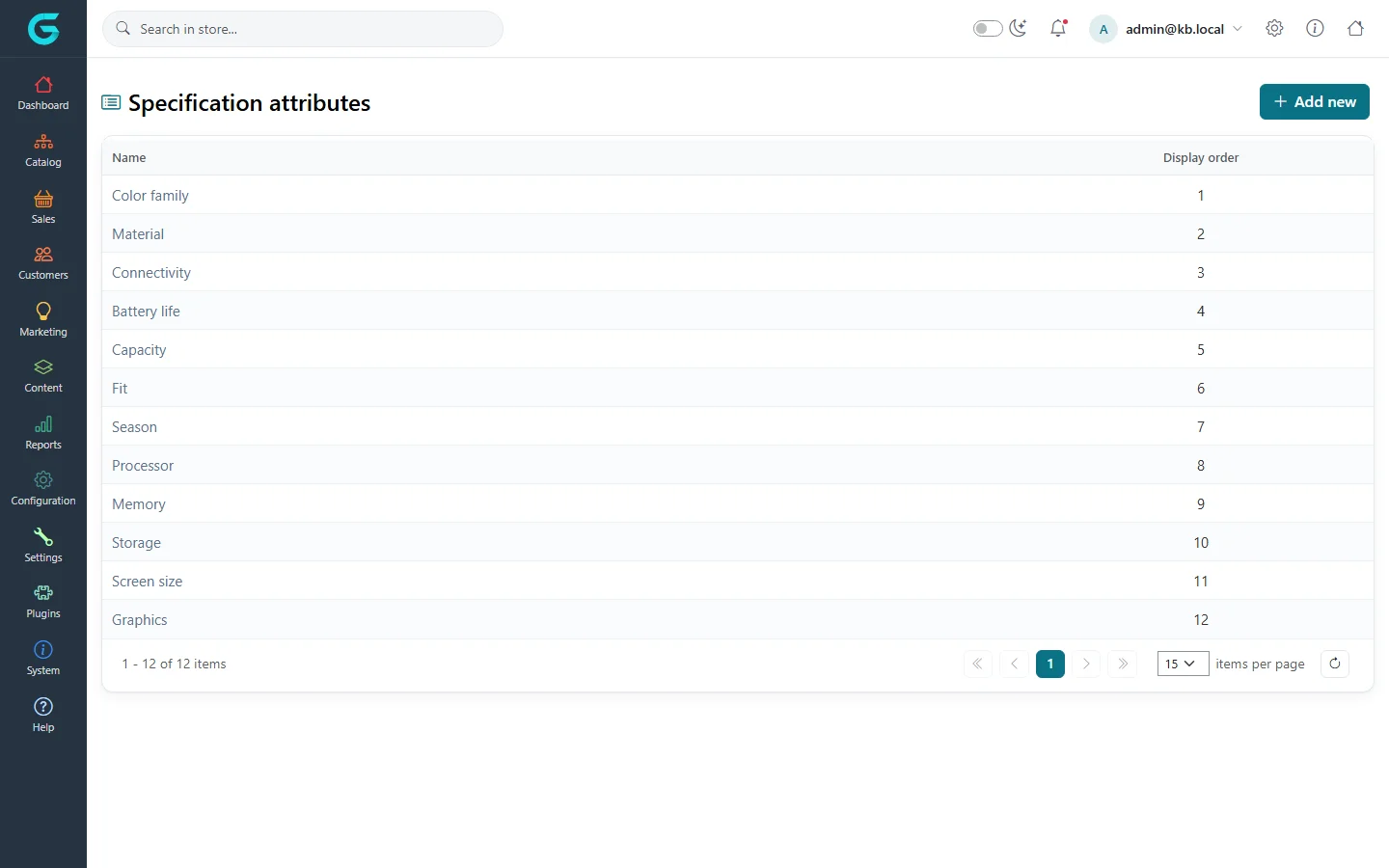
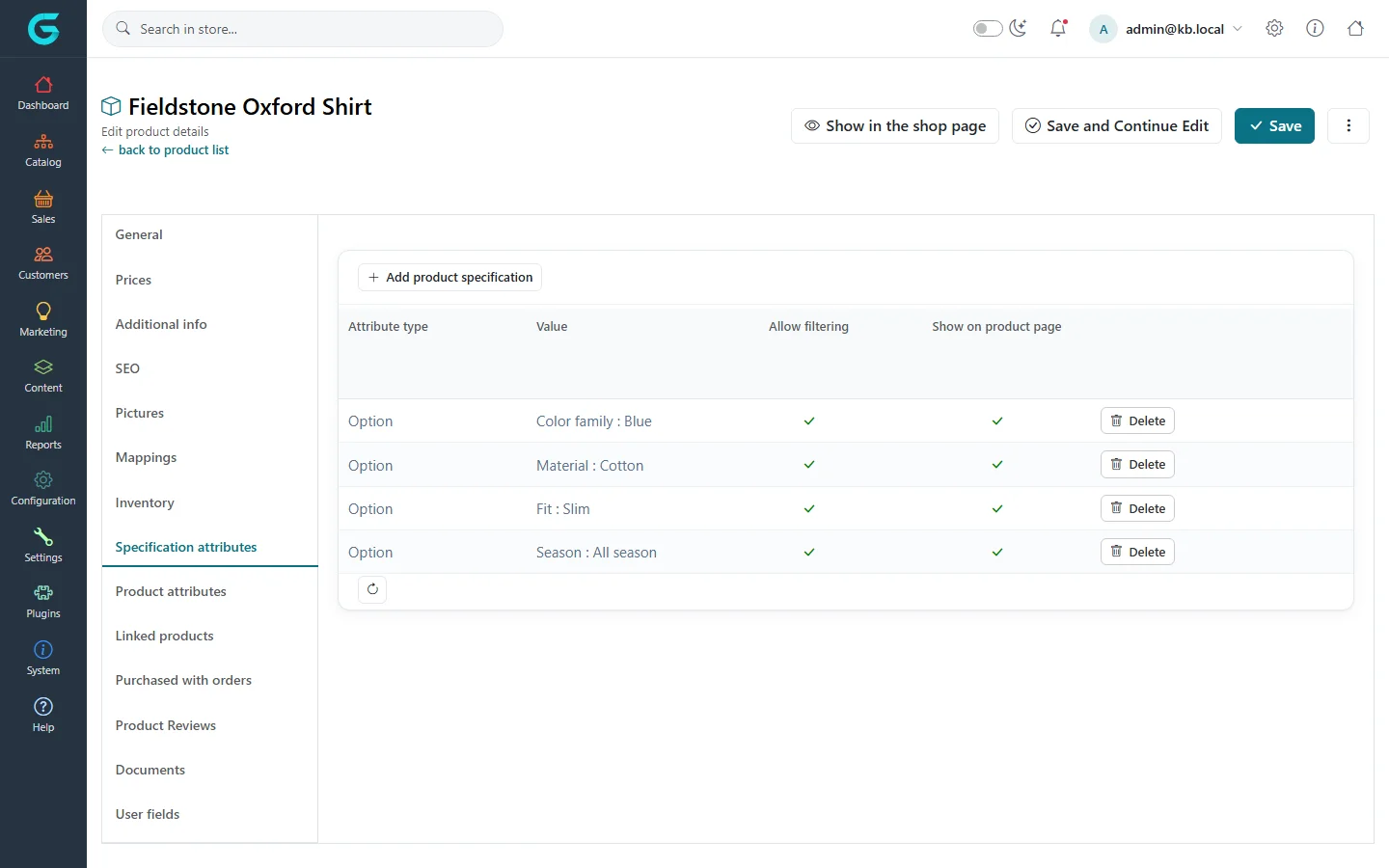
{"ArticleId":null,"Name":"Product attributes, combinations and specifications","Content":"\n\u003Cp\u003EGrandNode has two kinds of attributes, and mixing them up is the most common catalog mistake. \u003Cstrong\u003EProduct attributes\u003C/strong\u003E are choices the customer makes when buying - size, colour, engraving text, a gift wrap checkbox. They can change the price, weight and stock. \u003Cstrong\u003ESpecification attributes\u003C/strong\u003E are facts about the product - material, fit, battery life. The customer does not choose them; they are shown in a specification table and used for filtering in categories.\u003C/p\u003E\n\u003Cfigure\u003E\u003Cimg src=\u0022/Plugins/Theme.GrandNodeCom/Content/kb/catalog/sf-fieldstone-oxford-shirt.webp\u0022 alt=\u0022The Fieldstone Oxford Shirt product page with a required Size drop-down and Color squares next to the Add to cart button\u0022 width=\u00221440\u0022 height=\u0022900\u0022 loading=\u0022lazy\u0022\u003E\u003Cfigcaption\u003EOn the storefront: Size is a drop-down, Color is a set of colour squares. Both are product attributes.\u003C/figcaption\u003E\u003C/figure\u003E\n\n\u003Ch2 id=\u0022product-attributes\u0022\u003EProduct attributes\u003C/h2\u003E\n\u003Cp\u003EAttributes are defined once under \u003Cstrong\u003ECatalog \u2192 Products attributes\u003C/strong\u003E (Size, Color, Engraving...) and then added to each product that uses them.\u003C/p\u003E\n\u003Cfigure\u003E\u003Cimg src=\u0022/Plugins/Theme.GrandNodeCom/Content/kb/catalog/product-attribute-list.webp\u0022 alt=\u0022The Product attributes list with Capacity, Color, Engraving, Graphics, Grind, Material, Memory and more\u0022 width=\u00221440\u0022 height=\u0022900\u0022 loading=\u0022lazy\u0022\u003E\u003Cfigcaption\u003ECatalog \u2192 Products attributes: the shared definitions.\u003C/figcaption\u003E\u003C/figure\u003E\n\u003Ch3 id=\u0022add-to-product\u0022\u003EAdd an attribute to a product\u003C/h3\u003E\n\u003Col\u003E\n\u003Cli\u003EOpen the product and click the \u003Cstrong\u003EProduct attributes\u003C/strong\u003E tab, sub-tab \u003Cstrong\u003EAttributes\u003C/strong\u003E.\u003C/li\u003E\n\u003Cli\u003EClick \u003Cstrong\u003EAdd new attribute\u003C/strong\u003E, choose the attribute, a \u003Cstrong\u003EControl type\u003C/strong\u003E, optionally a \u003Cstrong\u003EText prompt\u003C/strong\u003E shown instead of the attribute name, and whether it \u003Cstrong\u003EIs required\u003C/strong\u003E.\u003C/li\u003E\n\u003Cli\u003ESave, then edit the row to add its values (for a drop-down, radio list, checkboxes or squares).\u003C/li\u003E\n\u003C/ol\u003E\n\u003Cfigure\u003E\u003Cimg src=\u0022/Plugins/Theme.GrandNodeCom/Content/kb/catalog/product-edit-attributes.webp\u0022 alt=\u0022The Product attributes tab of Fieldstone Oxford Shirt with Size as a required drop-down list and Color as required color squares\u0022 width=\u00221440\u0022 height=\u0022900\u0022 loading=\u0022lazy\u0022\u003E\u003Cfigcaption\u003ETwo attributes on one product: a drop-down and colour squares.\u003C/figcaption\u003E\u003C/figure\u003E\n\u003Ctable\u003E\n\u003Cthead\u003E\u003Ctr\u003E\u003Cth\u003EControl type\u003C/th\u003E\u003Cth\u003EUse it for\u003C/th\u003E\u003C/tr\u003E\u003C/thead\u003E\n\u003Ctbody\u003E\n\u003Ctr\u003E\u003Ctd\u003EDrop-down list, Radio list\u003C/td\u003E\u003Ctd\u003EOne choice from a list (size, grind).\u003C/td\u003E\u003C/tr\u003E\n\u003Ctr\u003E\u003Ctd\u003ECheckboxes, Read-only checkboxes\u003C/td\u003E\u003Ctd\u003ESeveral optional extras; read-only shows included extras that cannot be removed.\u003C/td\u003E\u003C/tr\u003E\n\u003Ctr\u003E\u003Ctd\u003EColor squares, Image squares\u003C/td\u003E\u003Ctd\u003EA visual choice; each value has an RGB colour or a picture.\u003C/td\u003E\u003C/tr\u003E\n\u003Ctr\u003E\u003Ctd\u003ETextbox, Multiline textbox\u003C/td\u003E\u003Ctd\u003EFree text such as an engraving; set minimum and maximum length in the validation rules.\u003C/td\u003E\u003C/tr\u003E\n\u003Ctr\u003E\u003Ctd\u003EDate picker\u003C/td\u003E\u003Ctd\u003EA date the customer picks, for example a delivery or event date.\u003C/td\u003E\u003C/tr\u003E\n\u003Ctr\u003E\u003Ctd\u003EFile upload\u003C/td\u003E\u003Ctd\u003EA file the customer sends (a logo to print); limit extensions and size in the validation rules.\u003C/td\u003E\u003C/tr\u003E\n\u003Ctr\u003E\u003Ctd\u003EHidden\u003C/td\u003E\u003Ctd\u003EA value set by a plugin or a default, not shown to the customer.\u003C/td\u003E\u003C/tr\u003E\n\u003C/tbody\u003E\n\u003C/table\u003E\n\u003Ch3 id=\u0022values\u0022\u003EAttribute values\u003C/h3\u003E\n\u003Cp\u003EEach value has a \u003Cstrong\u003EName\u003C/strong\u003E, a \u003Cstrong\u003EPrice adjustment\u003C/strong\u003E (added to the product price, for example \u002B5 for XXL), a \u003Cstrong\u003EWeight adjustment\u003C/strong\u003E, a \u003Cstrong\u003ECost\u003C/strong\u003E, \u003Cstrong\u003EIs pre-selected\u003C/strong\u003E, a \u003Cstrong\u003EDisplay order\u003C/strong\u003E, and for squares a colour or picture. A value can also show a different product picture when chosen, or be linked to another product (the value type \u0022associated to product\u0022), which adds that product to the cart with the chosen quantity.\u003C/p\u003E\n\u003Ch3 id=\u0022conditions\u0022\u003EConditions\u003C/h3\u003E\n\u003Cp\u003EThe \u003Cstrong\u003ECondition\u003C/strong\u003E link on an attribute makes it appear only when another attribute has a given value - for example show \u0022Engraving text\u0022 only when \u0022Engraving\u0022 is ticked.\u003C/p\u003E\n\n\u003Ch2 id=\u0022combinations\u0022\u003EAttribute combinations\u003C/h2\u003E\n\u003Cp\u003EWhen stock or the SKU differs per variant (the shirt in size M, blue), use the \u003Cstrong\u003EAttribute combinations\u003C/strong\u003E sub-tab. Mark the attributes that take part with the \u003Cstrong\u003ECombination\u003C/strong\u003E switch in their settings, then click \u003Cstrong\u003EGenerate all possible combinations\u003C/strong\u003E or add them one by one.\u003C/p\u003E\n\u003Ctable\u003E\n\u003Cthead\u003E\u003Ctr\u003E\u003Cth\u003EField\u003C/th\u003E\u003Cth\u003EWhat it does\u003C/th\u003E\u003C/tr\u003E\u003C/thead\u003E\n\u003Ctbody\u003E\n\u003Ctr\u003E\u003Ctd\u003EStock quantity\u003C/td\u003E\u003Ctd\u003EStock for this exact variant. Used when the product\u0027s inventory method is \u003Cem\u003ETrack inventory by product attributes\u003C/em\u003E (Inventory tab).\u003C/td\u003E\u003C/tr\u003E\n\u003Ctr\u003E\u003Ctd\u003EAllow out of stock orders\u003C/td\u003E\u003Ctd\u003ELets customers order this variant when it is sold out.\u003C/td\u003E\u003C/tr\u003E\n\u003Ctr\u003E\u003Ctd\u003ESKU, MPN, GTIN\u003C/td\u003E\u003Ctd\u003EIdentifiers of the variant; feeds and structured data use them.\u003C/td\u003E\u003C/tr\u003E\n\u003Ctr\u003E\u003Ctd\u003EOverridden price\u003C/td\u003E\u003Ctd\u003EA fixed price for this variant instead of price plus adjustments.\u003C/td\u003E\u003C/tr\u003E\n\u003C/tbody\u003E\n\u003C/table\u003E\n\n\u003Ch2 id=\u0022specifications\u0022\u003ESpecification attributes\u003C/h2\u003E\n\u003Cp\u003EDefine them under \u003Cstrong\u003ECatalog \u2192 Specification attributes\u003C/strong\u003E: an attribute (Material) with its options (Cotton, Wool, Linen).\u003C/p\u003E\n\u003Cfigure\u003E\u003Cimg src=\u0022/Plugins/Theme.GrandNodeCom/Content/kb/catalog/specification-attribute-list.webp\u0022 alt=\u0022The Specification attributes list: Color family, Material, Connectivity, Battery life, Capacity, Fit, Season and more\u0022 width=\u00221440\u0022 height=\u0022900\u0022 loading=\u0022lazy\u0022\u003E\u003Cfigcaption\u003ECatalog \u2192 Specification attributes.\u003C/figcaption\u003E\u003C/figure\u003E\n\u003Cp\u003EOn a product, open \u003Cstrong\u003ESpecification attributes\u003C/strong\u003E and click \u003Cstrong\u003EAdd product specification\u003C/strong\u003E. Choose the attribute type \u003Cstrong\u003EOption\u003C/strong\u003E to pick one of the defined options (filterable), or a custom text or HTML value for facts that are unique to the product.\u003C/p\u003E\n\u003Cfigure\u003E\u003Cimg src=\u0022/Plugins/Theme.GrandNodeCom/Content/kb/catalog/product-edit-specifications.webp\u0022 alt=\u0022The Specification attributes tab of Fieldstone Oxford Shirt with Color family Blue, Material Cotton, Fit Slim and Season All season, all filterable and shown on the product page\u0022 width=\u00221440\u0022 height=\u0022900\u0022 loading=\u0022lazy\u0022\u003E\u003Cfigcaption\u003EFour specifications, each allowed for filtering and shown on the product page.\u003C/figcaption\u003E\u003C/figure\u003E\n\u003Cul\u003E\n\u003Cli\u003E\u003Cstrong\u003EAllow filtering\u003C/strong\u003E - the option becomes a filter on category, brand and collection pages.\u003C/li\u003E\n\u003Cli\u003E\u003Cstrong\u003EShow on product page\u003C/strong\u003E - the value appears in the product\u0027s specification table.\u003C/li\u003E\n\u003C/ul\u003E\n\n\u003Ch2 id=\u0022tips\u0022\u003ETips and common mistakes\u003C/h2\u003E\n\u003Cul\u003E\n\u003Cli\u003EDo not use a product attribute for a fact the customer does not choose; it adds a pointless required field to the product page. Use a specification.\u003C/li\u003E\n\u003Cli\u003EIf a required attribute has no values, the product cannot be added to the cart.\u003C/li\u003E\n\u003Cli\u003ECombinations only restrict stock when the inventory method is set to track by attributes.\u003C/li\u003E\n\u003C/ul\u003E\n\n\u003Ch2 id=\u0022related\u0022\u003ERelated\u003C/h2\u003E\n\u003Cul\u003E\n\u003Cli\u003E\u003Ca href=\u0022/catalog-prices-inventory\u0022\u003EPrices and inventory\u003C/a\u003E\u003C/li\u003E\n\u003Cli\u003E\u003Ca href=\u0022/catalog-product-types\u0022\u003EProduct types\u003C/a\u003E\u003C/li\u003E\n\u003C/ul\u003E\n","ParentCategoryId":"6abdec6c83d2816248229eb1","SeName":"catalog-attributes","MetaKeywords":null,"MetaDescription":"Offer choices such as size and colour with product attributes, track stock per variant with combinations, and add filterable specification attributes.","MetaTitle":"Product attributes and specifications","AllowComments":false,"Captcha":{"ReCaptchaChallengeField":null,"ReCaptchaResponseField":null,"ReCaptchaResponseValue":null,"ReCaptchaResponse":null},"RelatedArticles":[],"CategoryBreadcrumb":[{"Name":"Catalog","Description":null,"IsCurrent":false,"Children":null,"Parent":null,"SeName":"docs-catalog","Id":"6abdec6c83d2816248229eb1","UserFields":[]}],"AddNewComment":{"CommentText":null,"DisplayCaptcha":false,"Id":null,"UserFields":[]},"Comments":[],"Id":"6abdec6c83d2816248229ebf","UserFields":[]}