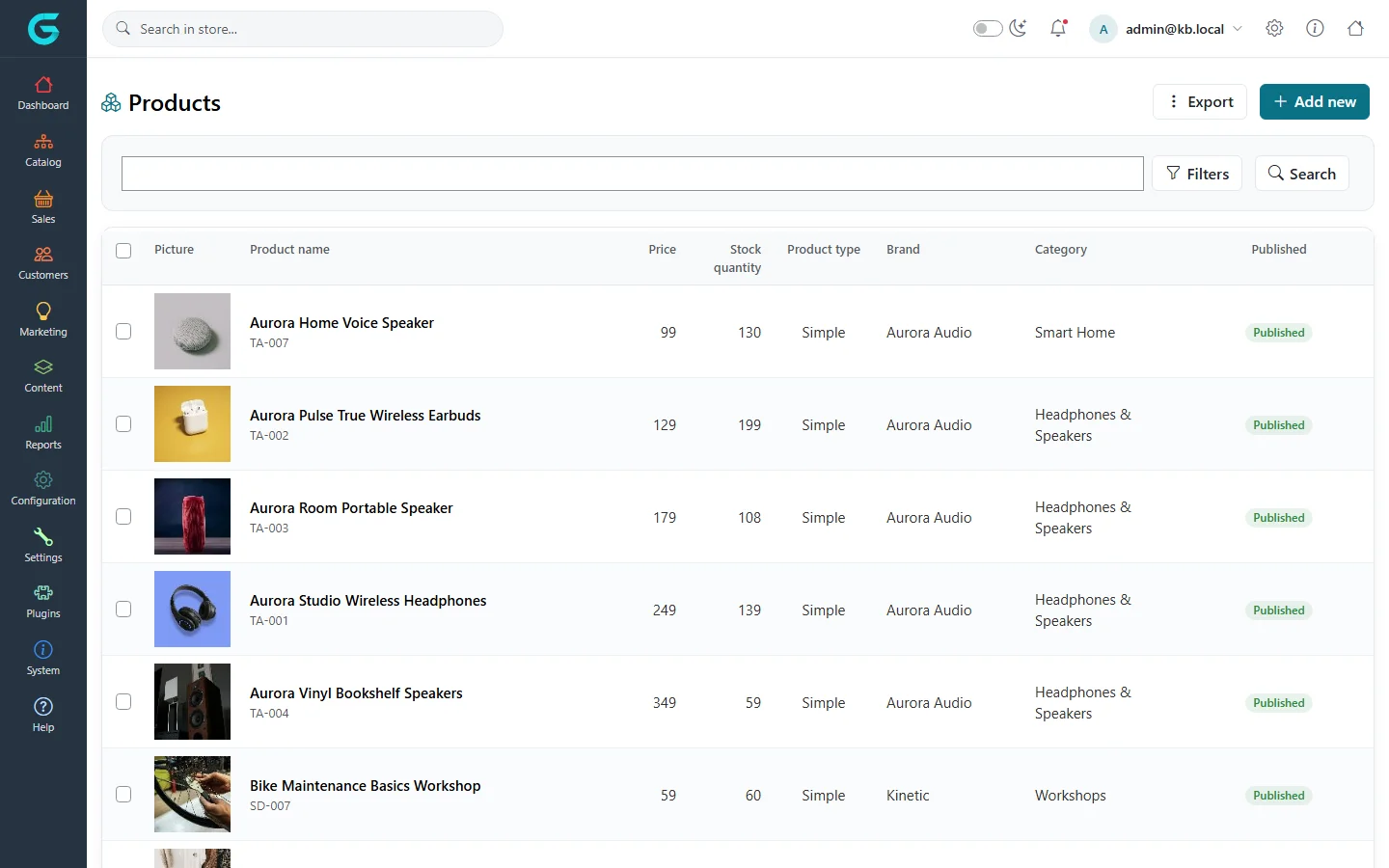
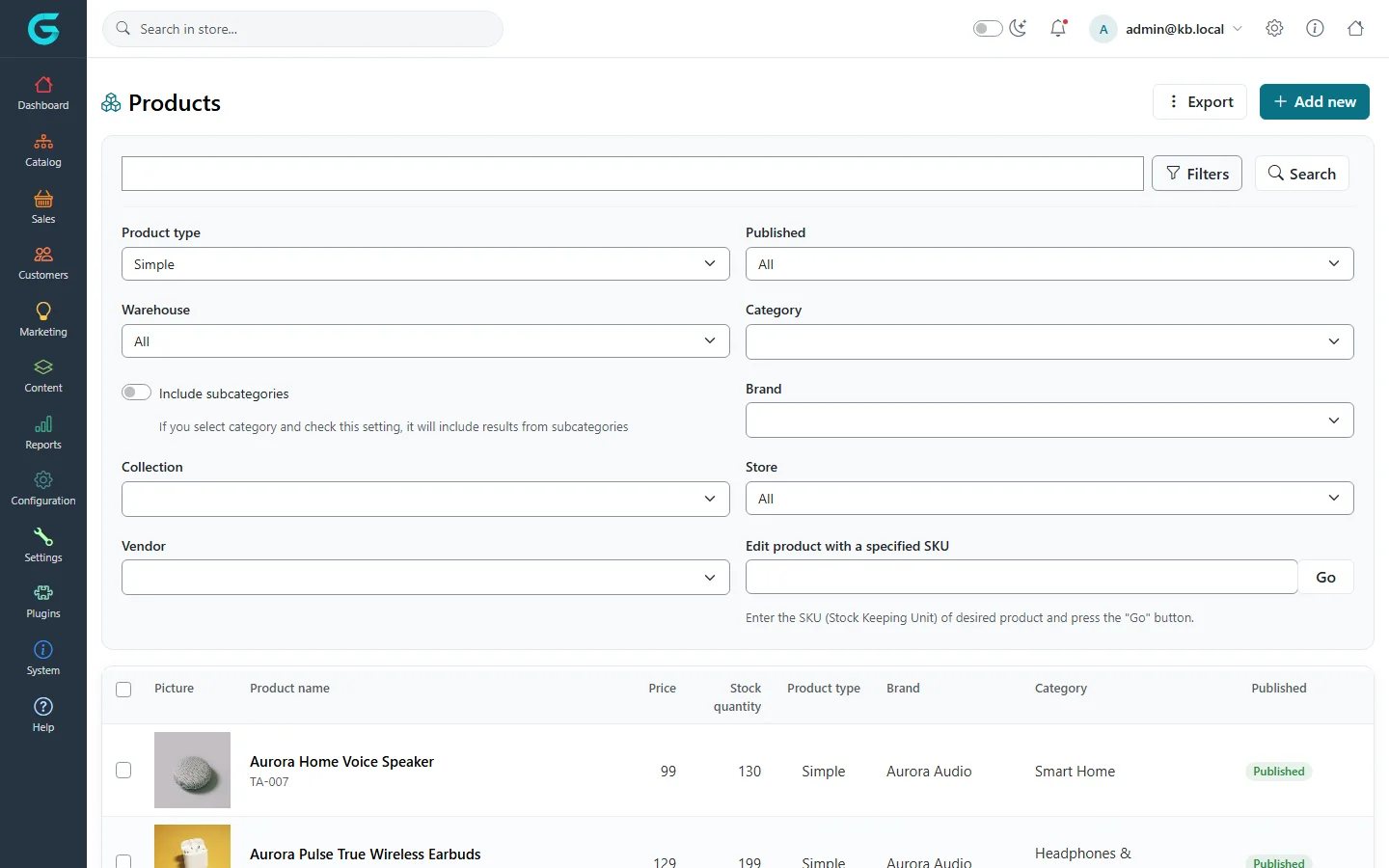
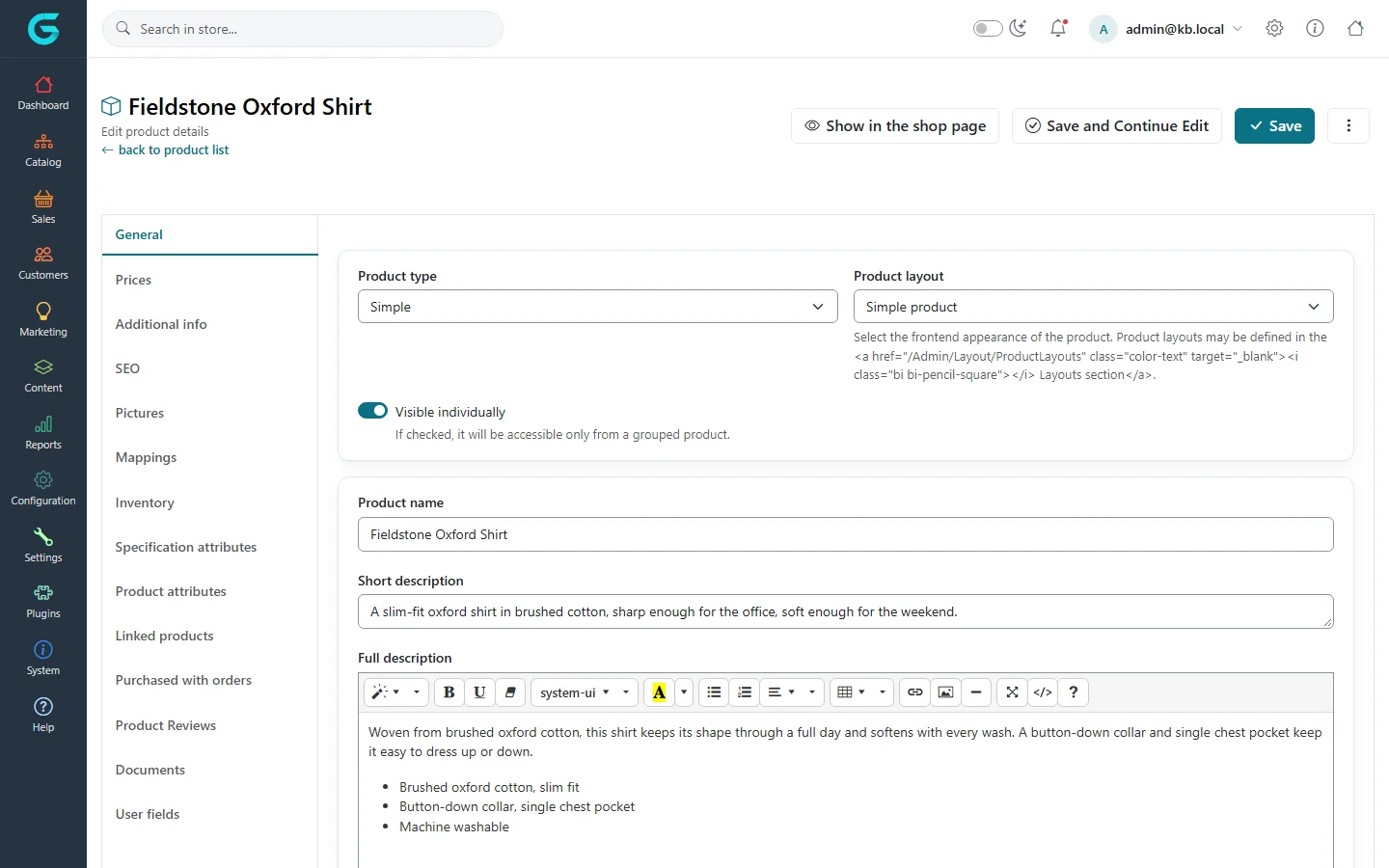
{"ArticleId":null,"Name":"Adding and editing products","Content":"\n\u003Cp\u003EProducts are managed under \u003Cstrong\u003ECatalog \u2192 Products\u003C/strong\u003E. From the list you search and filter the catalog, open a product to edit it, add a new one, copy an existing one, and delete what you no longer sell. This article covers the list and the \u003Cstrong\u003EGeneral\u003C/strong\u003E tab of the product editor, which holds the name, descriptions, brand, visibility and publishing of a product. The other tabs have articles of their own, linked at the end.\u003C/p\u003E\n\n\u003Ch2 id=\u0022the-product-list\u0022\u003EThe product list\u003C/h2\u003E\n\u003Cp\u003EThe list shows a thumbnail, the product name with its SKU underneath, price, stock quantity, product type, brand, main category and a \u003Cstrong\u003EPublished\u003C/strong\u003E badge. Click a row to open the product. Type in the search box and press \u003Cstrong\u003ESearch\u003C/strong\u003E to find products by name.\u003C/p\u003E\n\u003Cfigure\u003E\u003Cimg src=\u0022/Plugins/Theme.GrandNodeCom/Content/kb/catalog/product-list.webp\u0022 alt=\u0022The Products list in the admin panel with pictures, names, SKUs, prices, stock, type, brand, category and published status\u0022 width=\u00221440\u0022 height=\u0022900\u0022 loading=\u0022lazy\u0022\u003E\u003Cfigcaption\u003ECatalog \u2192 Products: one row per product, with its SKU under the name.\u003C/figcaption\u003E\u003C/figure\u003E\n\u003Cp\u003EClick \u003Cstrong\u003EFilters\u003C/strong\u003E to narrow the list further:\u003C/p\u003E\n\u003Ctable\u003E\n\u003Cthead\u003E\u003Ctr\u003E\u003Cth\u003EFilter\u003C/th\u003E\u003Cth\u003EWhat it does\u003C/th\u003E\u003C/tr\u003E\u003C/thead\u003E\n\u003Ctbody\u003E\n\u003Ctr\u003E\u003Ctd\u003EProduct type\u003C/td\u003E\u003Ctd\u003EOnly products of one type (grouped, reservation, bundled, auction).\u003C/td\u003E\u003C/tr\u003E\n\u003Ctr\u003E\u003Ctd\u003EPublished\u003C/td\u003E\u003Ctd\u003EAll, only published or only unpublished products.\u003C/td\u003E\u003C/tr\u003E\n\u003Ctr\u003E\u003Ctd\u003EWarehouse\u003C/td\u003E\u003Ctd\u003EProducts stocked in a given warehouse.\u003C/td\u003E\u003C/tr\u003E\n\u003Ctr\u003E\u003Ctd\u003ECategory, Include subcategories\u003C/td\u003E\u003Ctd\u003EProducts mapped to a category; with \u003Cstrong\u003EInclude subcategories\u003C/strong\u003E switched on, products of its child categories are included too.\u003C/td\u003E\u003C/tr\u003E\n\u003Ctr\u003E\u003Ctd\u003EBrand, Collection\u003C/td\u003E\u003Ctd\u003EProducts of one brand or one collection.\u003C/td\u003E\u003C/tr\u003E\n\u003Ctr\u003E\u003Ctd\u003EStore, Vendor\u003C/td\u003E\u003Ctd\u003EProducts available in one store or managed by one vendor.\u003C/td\u003E\u003C/tr\u003E\n\u003Ctr\u003E\u003Ctd\u003EEdit product with a specified SKU\u003C/td\u003E\u003Ctd\u003EType an exact SKU and click \u003Cstrong\u003EGo\u003C/strong\u003E to jump straight into that product\u0027s editor.\u003C/td\u003E\u003C/tr\u003E\n\u003C/tbody\u003E\n\u003C/table\u003E\n\u003Cfigure\u003E\u003Cimg src=\u0022/Plugins/Theme.GrandNodeCom/Content/kb/catalog/product-list-filters.webp\u0022 alt=\u0022The product list with the Filters panel open showing product type, published, warehouse, category, brand, collection, store, vendor and SKU fields\u0022 width=\u00221440\u0022 height=\u0022900\u0022 loading=\u0022lazy\u0022\u003E\u003Cfigcaption\u003EThe Filters panel. Edit product with a specified SKU opens the product directly.\u003C/figcaption\u003E\u003C/figure\u003E\n\u003Cp\u003ETick the checkboxes in the first column to act on several products: \u003Cstrong\u003EDelete (selected)\u003C/strong\u003E appears above the grid, and \u003Cstrong\u003EExport \u2192 Export to Excel (selected)\u003C/strong\u003E exports only the ticked rows. Excel import and export are described in \u003Ca href=\u0022/catalog-import-export-bulk-edit\u0022\u003EImport, export and bulk edit\u003C/a\u003E.\u003C/p\u003E\n\n\u003Ch2 id=\u0022add-a-product\u0022\u003EHow to add a product\u003C/h2\u003E\n\u003Col\u003E\n\u003Cli\u003EGo to \u003Cstrong\u003ECatalog \u2192 Products\u003C/strong\u003E and click \u003Cstrong\u003EAdd new\u003C/strong\u003E.\u003C/li\u003E\n\u003Cli\u003EOn the \u003Cstrong\u003EGeneral\u003C/strong\u003E tab choose the \u003Cstrong\u003EProduct type\u003C/strong\u003E. For an ordinary product that is shipped and stocked, keep \u003Cstrong\u003ESimple\u003C/strong\u003E; the other types are explained in \u003Ca href=\u0022/catalog-product-types\u0022\u003EProduct types\u003C/a\u003E.\u003C/li\u003E\n\u003Cli\u003EEnter the \u003Cstrong\u003EProduct name\u003C/strong\u003E, a \u003Cstrong\u003EShort description\u003C/strong\u003E (shown in lists and at the top of the product page) and a \u003Cstrong\u003EFull description\u003C/strong\u003E (the rich text body of the product page).\u003C/li\u003E\n\u003Cli\u003EPick the \u003Cstrong\u003EBrand\u003C/strong\u003E, add \u003Cstrong\u003EProduct tags\u003C/strong\u003E, and fill in \u003Cstrong\u003ESKU\u003C/strong\u003E (your stock keeping unit, needed for Excel import), and if you have them the \u003Cstrong\u003EManufacturer part number\u003C/strong\u003E and \u003Cstrong\u003EGTIN\u003C/strong\u003E.\u003C/li\u003E\n\u003Cli\u003ESwitch on \u003Cstrong\u003EPublished\u003C/strong\u003E when the product is ready to be seen.\u003C/li\u003E\n\u003Cli\u003EClick \u003Cstrong\u003ESave and Continue Edit\u003C/strong\u003E. The remaining tabs - pictures, mappings, attributes, linked products and so on - need a saved product, and several of them (reviews, documents, user fields, purchased with orders) only appear once the product exists.\u003C/li\u003E\n\u003Cli\u003ESet the price on the \u003Cstrong\u003EPrices\u003C/strong\u003E tab, map the product to categories on the \u003Cstrong\u003EMappings\u003C/strong\u003E tab, and upload pictures on the \u003Cstrong\u003EPictures\u003C/strong\u003E tab. Save again.\u003C/li\u003E\n\u003Cli\u003EClick \u003Cstrong\u003EShow in the shop page\u003C/strong\u003E to open the product on the storefront in a new tab.\u003C/li\u003E\n\u003C/ol\u003E\n\u003Cfigure\u003E\u003Cimg src=\u0022/Plugins/Theme.GrandNodeCom/Content/kb/catalog/product-edit-general.webp\u0022 alt=\u0022The product editor for Fieldstone Oxford Shirt with the General tab open: product type, product layout, visible individually, name, short and full description\u0022 width=\u00221440\u0022 height=\u0022900\u0022 loading=\u0022lazy\u0022\u003E\u003Cfigcaption\u003EThe product editor. Tabs run down the left; the General tab is open.\u003C/figcaption\u003E\u003C/figure\u003E\n\n\u003Ch2 id=\u0022general-tab-fields\u0022\u003EFields on the General tab\u003C/h2\u003E\n\u003Ctable\u003E\n\u003Cthead\u003E\u003Ctr\u003E\u003Cth\u003EField\u003C/th\u003E\u003Cth\u003EWhat it does\u003C/th\u003E\u003C/tr\u003E\u003C/thead\u003E\n\u003Ctbody\u003E\n\u003Ctr\u003E\u003Ctd\u003EProduct type\u003C/td\u003E\u003Ctd\u003ESimple, Grouped (product with variants), Reservation, Bundled product or Auction. Changing it shows and hides the tabs that apply to that type.\u003C/td\u003E\u003C/tr\u003E\n\u003Ctr\u003E\u003Ctd\u003EProduct layout\u003C/td\u003E\u003Ctd\u003EThe Razor layout used to render the product page. Layouts are defined under \u003Cstrong\u003EConfiguration \u2192 Layouts \u2192 Product layouts\u003C/strong\u003E; a standard install has one for simple and one for grouped products.\u003C/td\u003E\u003C/tr\u003E\n\u003Ctr\u003E\u003Ctd\u003EVisible individually\u003C/td\u003E\u003Ctd\u003EWhen on, the product has its own page and appears in lists and search. Switch it off for products that should be reachable only as a variant of a grouped product.\u003C/td\u003E\u003C/tr\u003E\n\u003Ctr\u003E\u003Ctd\u003EFlag\u003C/td\u003E\u003Ctd\u003EA short custom label (for example \u0022Limited\u0022) shown on catalog tiles and on the product page.\u003C/td\u003E\u003C/tr\u003E\n\u003Ctr\u003E\u003Ctd\u003EAdmin comment\u003C/td\u003E\u003Ctd\u003EAn internal note, never shown to customers.\u003C/td\u003E\u003C/tr\u003E\n\u003Ctr\u003E\u003Ctd\u003EVendor\u003C/td\u003E\u003Ctd\u003EThe vendor that manages the product in the vendor panel.\u003C/td\u003E\u003C/tr\u003E\n\u003Ctr\u003E\u003Ctd\u003EShow on home page, Mark as a bestseller\u003C/td\u003E\u003Ctd\u003EFeature the product in the home page product blocks. A display order field appears when either is on.\u003C/td\u003E\u003C/tr\u003E\n\u003Ctr\u003E\u003Ctd\u003EAllow to review this product\u003C/td\u003E\u003Ctd\u003ELets customers write reviews on the product page - see \u003Ca href=\u0022/catalog-tags-reviews\u0022\u003EProduct tags and reviews\u003C/a\u003E.\u003C/td\u003E\u003C/tr\u003E\n\u003Ctr\u003E\u003Ctd\u003ELimited to customer groups, Limited to stores\u003C/td\u003E\u003Ctd\u003ERestrict who can see and buy the product. Empty means everyone, in every store.\u003C/td\u003E\u003C/tr\u003E\n\u003Ctr\u003E\u003Ctd\u003EAvailable from, Available to\u003C/td\u003E\u003Ctd\u003EA time window in which the product can be bought.\u003C/td\u003E\u003C/tr\u003E\n\u003Ctr\u003E\u003Ctd\u003EMark as new\u003C/td\u003E\u003Ctd\u003EShows a \u0022new\u0022 badge, optionally between a start and end date.\u003C/td\u003E\u003C/tr\u003E\n\u003C/tbody\u003E\n\u003C/table\u003E\n\n\u003Ch2 id=\u0022copy-and-delete\u0022\u003ECopying and deleting a product\u003C/h2\u003E\n\u003Cp\u003EThe \u003Cstrong\u003E\u22EE\u003C/strong\u003E button next to \u003Cstrong\u003ESave\u003C/strong\u003E holds \u003Cstrong\u003ECopy product\u003C/strong\u003E and \u003Cstrong\u003EDelete\u003C/strong\u003E. Copy product asks for a new name, whether the copy should be published, and whether to copy the images. Everything else - prices, attributes, mappings, specification attributes - is copied, so this is the quickest way to create a family of similar products. The copy opens as a new product; give it its own SKU and SEO name.\u003C/p\u003E\n\n\u003Ch2 id=\u0022other-tabs\u0022\u003EThe other tabs\u003C/h2\u003E\n\u003Cul\u003E\n\u003Cli\u003E\u003Cstrong\u003EPrices\u003C/strong\u003E and \u003Cstrong\u003EInventory\u003C/strong\u003E - \u003Ca href=\u0022/catalog-prices-inventory\u0022\u003EPrices, discounts and inventory\u003C/a\u003E.\u003C/li\u003E\n\u003Cli\u003E\u003Cstrong\u003EAdditional info\u003C/strong\u003E - display order per category, brand and collection page, gift voucher, digital product, recurring product and required products settings.\u003C/li\u003E\n\u003Cli\u003E\u003Cstrong\u003ESEO\u003C/strong\u003E, \u003Cstrong\u003EPictures\u003C/strong\u003E, \u003Cstrong\u003EMappings\u003C/strong\u003E and \u003Cstrong\u003ELinked products\u003C/strong\u003E - \u003Ca href=\u0022/catalog-pictures-seo-mappings\u0022\u003EPictures, SEO, mappings and linked products\u003C/a\u003E.\u003C/li\u003E\n\u003Cli\u003E\u003Cstrong\u003ESpecification attributes\u003C/strong\u003E and \u003Cstrong\u003EProduct attributes\u003C/strong\u003E - \u003Ca href=\u0022/catalog-attributes#specifications\u0022\u003ESpecification attributes\u003C/a\u003E and \u003Ca href=\u0022/catalog-attributes\u0022\u003EProduct attributes and combinations\u003C/a\u003E.\u003C/li\u003E\n\u003Cli\u003E\u003Cstrong\u003EPurchased with orders\u003C/strong\u003E - the orders that contain this product, with links to them.\u003C/li\u003E\n\u003Cli\u003E\u003Cstrong\u003EProduct Reviews\u003C/strong\u003E - the reviews of this product.\u003C/li\u003E\n\u003Cli\u003E\u003Cstrong\u003EDocuments\u003C/strong\u003E and \u003Cstrong\u003EUser fields\u003C/strong\u003E - linked documents and free key-value data for integrations.\u003C/li\u003E\n\u003C/ul\u003E\n\n\u003Ch2 id=\u0022tips\u0022\u003ETips and common mistakes\u003C/h2\u003E\n\u003Cul\u003E\n\u003Cli\u003ERemember to save. Switching tabs does not save; \u003Cstrong\u003ESave and Continue Edit\u003C/strong\u003E keeps you on the same tab.\u003C/li\u003E\n\u003Cli\u003EIn the \u003Cstrong\u003EProduct type\u003C/strong\u003E filter of the list, \u003Cstrong\u003EAll\u003C/strong\u003E and \u003Cstrong\u003ESimple\u003C/strong\u003E currently share the same value, so the filter opens with Simple shown and choosing Simple lists products of every type. Pick another type to filter.\u003C/li\u003E\n\u003Cli\u003EKeep SKUs unique. Excel import matches existing products by SKU, and \u003Cstrong\u003EEdit product with a specified SKU\u003C/strong\u003E relies on it.\u003C/li\u003E\n\u003C/ul\u003E\n\n\u003Ch2 id=\u0022related\u0022\u003ERelated\u003C/h2\u003E\n\u003Cul\u003E\n\u003Cli\u003E\u003Ca href=\u0022/catalog-overview\u0022\u003ECatalog overview\u003C/a\u003E\u003C/li\u003E\n\u003Cli\u003E\u003Ca href=\u0022/catalog-product-types\u0022\u003EProduct types\u003C/a\u003E\u003C/li\u003E\n\u003Cli\u003E\u003Ca href=\u0022/catalog-import-export-bulk-edit\u0022\u003EImport, export and bulk edit\u003C/a\u003E\u003C/li\u003E\n\u003C/ul\u003E\n","ParentCategoryId":"6abdec6c83d2816248229eb1","SeName":"catalog-products","MetaKeywords":null,"MetaDescription":"Find, create, copy and edit products in the GrandNode admin panel: the product list, its filters, and the General tab of the product editor.","MetaTitle":null,"AllowComments":false,"Captcha":{"ReCaptchaChallengeField":null,"ReCaptchaResponseField":null,"ReCaptchaResponseValue":null,"ReCaptchaResponse":null},"RelatedArticles":[],"CategoryBreadcrumb":[{"Name":"Catalog","Description":null,"IsCurrent":false,"Children":null,"Parent":null,"SeName":"docs-catalog","Id":"6abdec6c83d2816248229eb1","UserFields":[]}],"AddNewComment":{"CommentText":null,"DisplayCaptcha":false,"Id":null,"UserFields":[]},"Comments":[],"Id":"6abdec6c83d2816248229eb5","UserFields":[]}