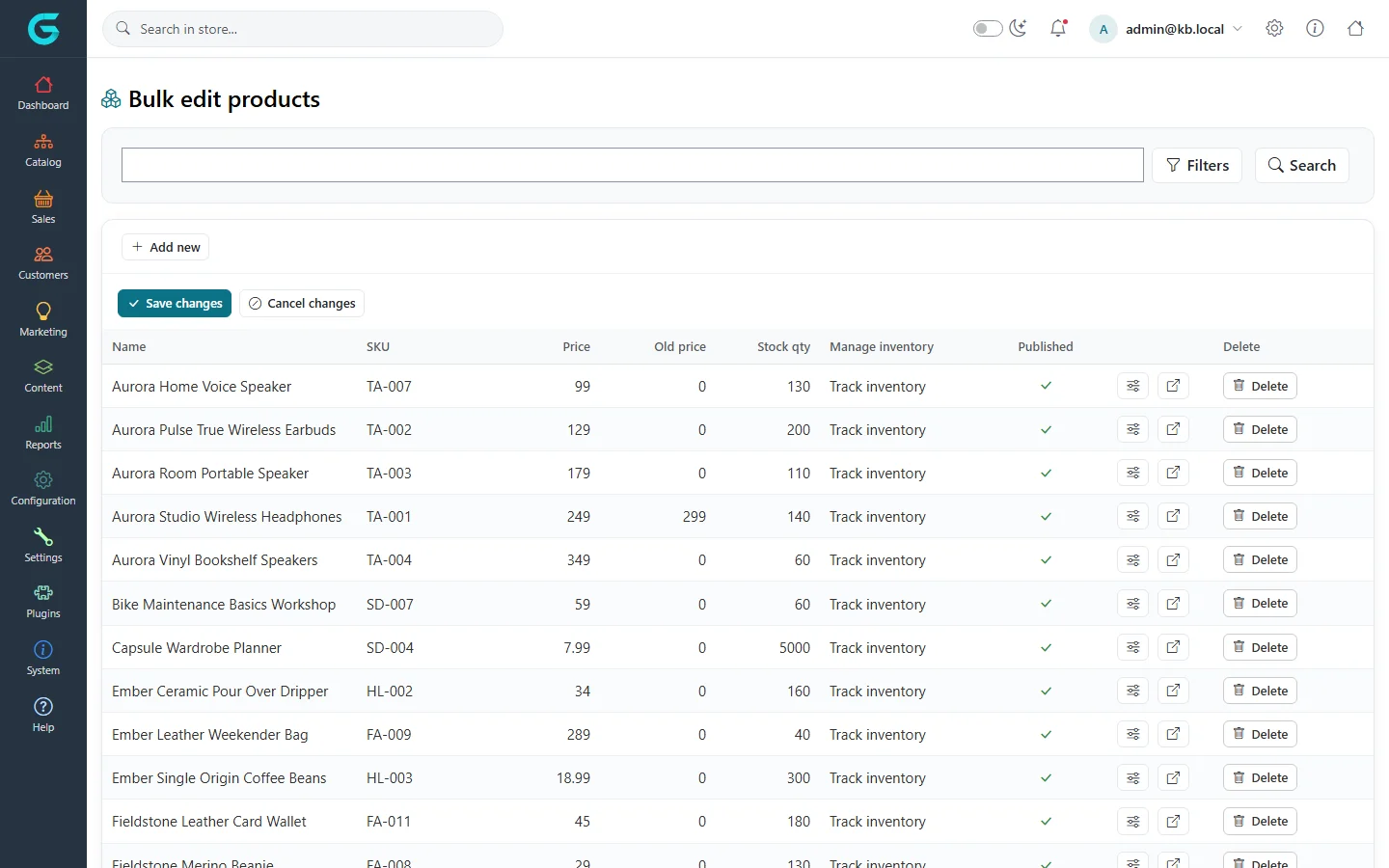
{"ArticleId":null,"Name":"Import, export and bulk edit","Content":"\n\u003Cp\u003EEditing products one by one is fine for a small shop. For hundreds of products GrandNode offers two tools: \u003Cstrong\u003EExcel import and export\u003C/strong\u003E for any field, and the \u003Cstrong\u003EBulk edit products\u003C/strong\u003E grid for the everyday numbers - price, old price, stock and whether a product is published.\u003C/p\u003E\n\n\u003Ch2 id=\u0022export\u0022\u003EExport products\u003C/h2\u003E\n\u003Col\u003E\n\u003Cli\u003EOpen \u003Cstrong\u003ECatalog \u2192 Products\u003C/strong\u003E.\u003C/li\u003E\n\u003Cli\u003ETo export everything that matches the current filters, choose \u003Cstrong\u003EExport \u2192 Export to Excel (all found)\u003C/strong\u003E. To export only some products, tick them in the grid and choose \u003Cstrong\u003EExport to Excel (selected)\u003C/strong\u003E.\u003C/li\u003E\n\u003Cli\u003EOpen the downloaded \u003Ccode\u003E.xlsx\u003C/code\u003E file. Each row is a product; the first columns are its \u003Cstrong\u003EId\u003C/strong\u003E and \u003Cstrong\u003ESku\u003C/strong\u003E.\u003C/li\u003E\n\u003C/ol\u003E\n\n\u003Ch2 id=\u0022import\u0022\u003EImport products\u003C/h2\u003E\n\u003Col\u003E\n\u003Cli\u003EPrepare an \u003Ccode\u003E.xlsx\u003C/code\u003E file with the same columns as the export. The easiest start is an export of one product.\u003C/li\u003E\n\u003Cli\u003EOn the product list choose \u003Cstrong\u003EImport from Excel\u003C/strong\u003E and pick the file.\u003C/li\u003E\n\u003Cli\u003EGrandNode processes the rows and reports the result.\u003C/li\u003E\n\u003C/ol\u003E\n\u003Cp\u003EHow a row is matched:\u003C/p\u003E\n\u003Cul\u003E\n\u003Cli\u003EIf the \u003Cstrong\u003EId\u003C/strong\u003E matches an existing product, that product is updated.\u003C/li\u003E\n\u003Cli\u003EOtherwise, if the \u003Cstrong\u003ESku\u003C/strong\u003E matches an existing product, that product is updated.\u003C/li\u003E\n\u003Cli\u003EOtherwise a new product is created.\u003C/li\u003E\n\u003C/ul\u003E\n\u003Cp\u003EOnly the columns present in the file are changed. Category and collection columns take lists of ids; the page name is generated from the name when it is empty and made unique. Missing references (a layout, tax category, warehouse or unit that does not exist) fall back to the defaults.\u003C/p\u003E\n\u003Cblockquote\u003E\u003Cp\u003EImport into a copy of your store first, or export a backup before a large import. An import cannot be undone in one click.\u003C/p\u003E\u003C/blockquote\u003E\n\n\u003Ch2 id=\u0022bulk-edit\u0022\u003EBulk edit products\u003C/h2\u003E\n\u003Cp\u003E\u003Cstrong\u003ECatalog \u2192 Bulk edit products\u003C/strong\u003E shows products in an editable grid: \u003Cstrong\u003EName\u003C/strong\u003E, \u003Cstrong\u003ESKU\u003C/strong\u003E, \u003Cstrong\u003EPrice\u003C/strong\u003E, \u003Cstrong\u003EOld price\u003C/strong\u003E, \u003Cstrong\u003EStock qty\u003C/strong\u003E, \u003Cstrong\u003EManage inventory\u003C/strong\u003E and \u003Cstrong\u003EPublished\u003C/strong\u003E.\u003C/p\u003E\n\u003Cfigure\u003E\u003Cimg src=\u0022/Plugins/Theme.GrandNodeCom/Content/kb/catalog/bulk-edit.webp\u0022 alt=\u0022The Bulk edit products grid with name, SKU, price, old price, stock quantity, manage inventory and published columns, and Save changes and Cancel changes buttons\u0022 width=\u00221440\u0022 height=\u0022900\u0022 loading=\u0022lazy\u0022\u003E\u003Cfigcaption\u003ECatalog \u2192 Bulk edit products.\u003C/figcaption\u003E\u003C/figure\u003E\n\u003Col\u003E\n\u003Cli\u003ENarrow the list with the search box and \u003Cstrong\u003EFilters\u003C/strong\u003E (category, brand, store, vendor, product type).\u003C/li\u003E\n\u003Cli\u003EClick a cell and type the new value. Changed cells are marked.\u003C/li\u003E\n\u003Cli\u003EClick \u003Cstrong\u003ESave changes\u003C/strong\u003E to write all changes at once, or \u003Cstrong\u003ECancel changes\u003C/strong\u003E to discard them.\u003C/li\u003E\n\u003C/ol\u003E\n\u003Cp\u003EThe icons at the end of each row open the full product editor or the product page, and \u003Cstrong\u003EDelete\u003C/strong\u003E removes the product.\u003C/p\u003E\n\n\u003Ch2 id=\u0022other-lists\u0022\u003EOther lists\u003C/h2\u003E\n\u003Cp\u003ECategories, brands and collections have the same Excel export and import, and orders and customers can be exported the same way. The format is always the one the export produces.\u003C/p\u003E\n\n\u003Ch2 id=\u0022tips\u0022\u003ETips and common mistakes\u003C/h2\u003E\n\u003Cul\u003E\n\u003Cli\u003EKeep the \u003Cstrong\u003EId\u003C/strong\u003E column when you re-import an export; without it rows are matched by SKU, and rows with an empty SKU become new products.\u003C/li\u003E\n\u003Cli\u003EExcel changes long numbers such as GTINs into scientific notation. Format those columns as text before saving.\u003C/li\u003E\n\u003Cli\u003EThe \u003Cstrong\u003EPicture1\u003C/strong\u003E-\u003Cstrong\u003EPicture3\u003C/strong\u003E columns take a file path on the server or an http(s) address; each picture is read and stored, so large imports with pictures take a while.\u003C/li\u003E\n\u003C/ul\u003E\n\n\u003Ch2 id=\u0022related\u0022\u003ERelated\u003C/h2\u003E\n\u003Cul\u003E\n\u003Cli\u003E\u003Ca href=\u0022/catalog-products\u0022\u003EProducts\u003C/a\u003E\u003C/li\u003E\n\u003Cli\u003E\u003Ca href=\u0022/catalog-prices-inventory\u0022\u003EPrices and inventory\u003C/a\u003E\u003C/li\u003E\n\u003C/ul\u003E\n","ParentCategoryId":"6abdec6c83d2816248229eb1","SeName":"catalog-import-export-bulk-edit","MetaKeywords":null,"MetaDescription":"Export products to Excel, change them and import them back, create products from a spreadsheet, and edit prices and stock of many products in the bulk editor.","MetaTitle":null,"AllowComments":false,"Captcha":{"ReCaptchaChallengeField":null,"ReCaptchaResponseField":null,"ReCaptchaResponseValue":null,"ReCaptchaResponse":null},"RelatedArticles":[],"CategoryBreadcrumb":[{"Name":"Catalog","Description":null,"IsCurrent":false,"Children":null,"Parent":null,"SeName":"docs-catalog","Id":"6abdec6c83d2816248229eb1","UserFields":[]}],"AddNewComment":{"CommentText":null,"DisplayCaptcha":false,"Id":null,"UserFields":[]},"Comments":[],"Id":"6abdec6c83d2816248229ec3","UserFields":[]}