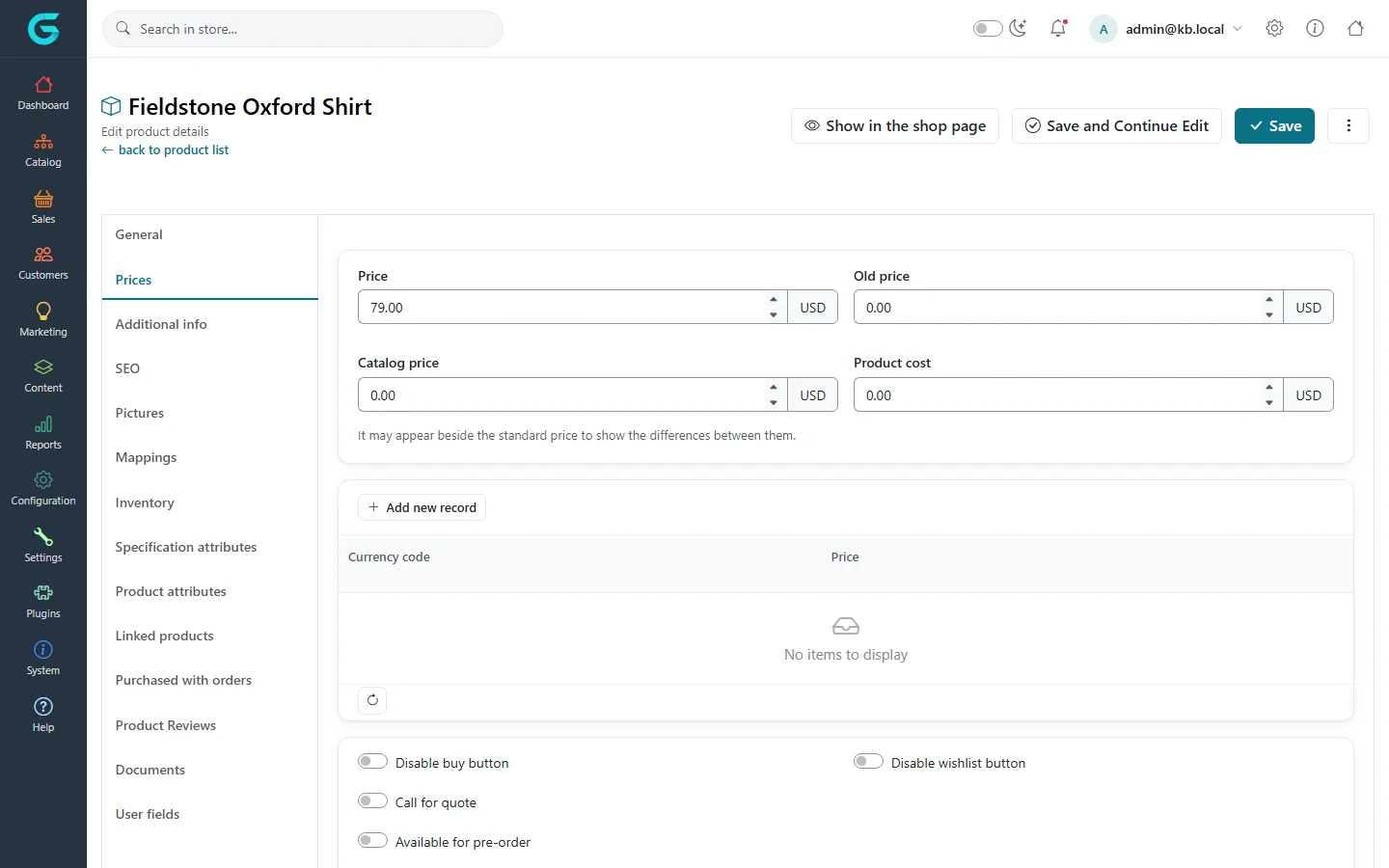
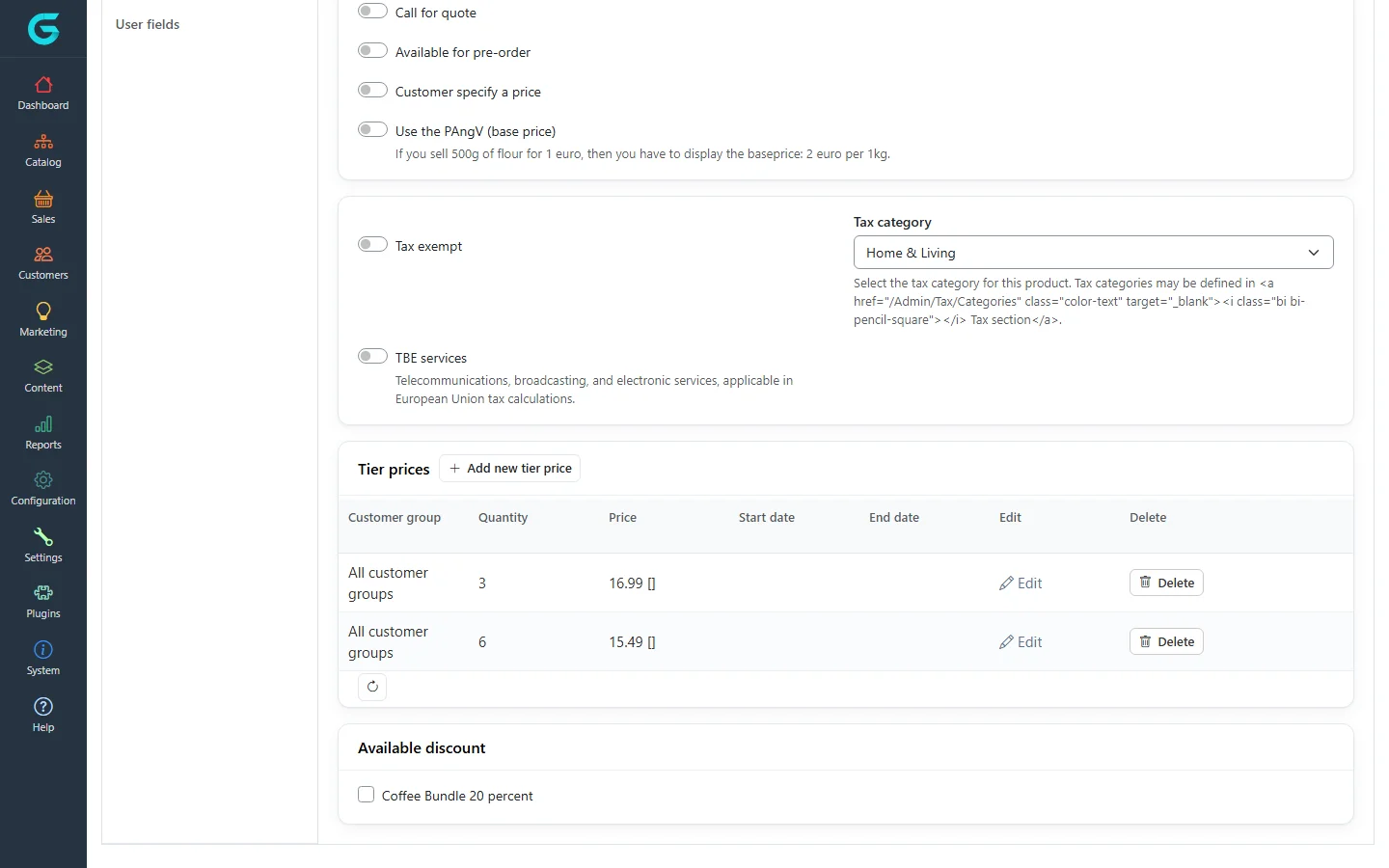
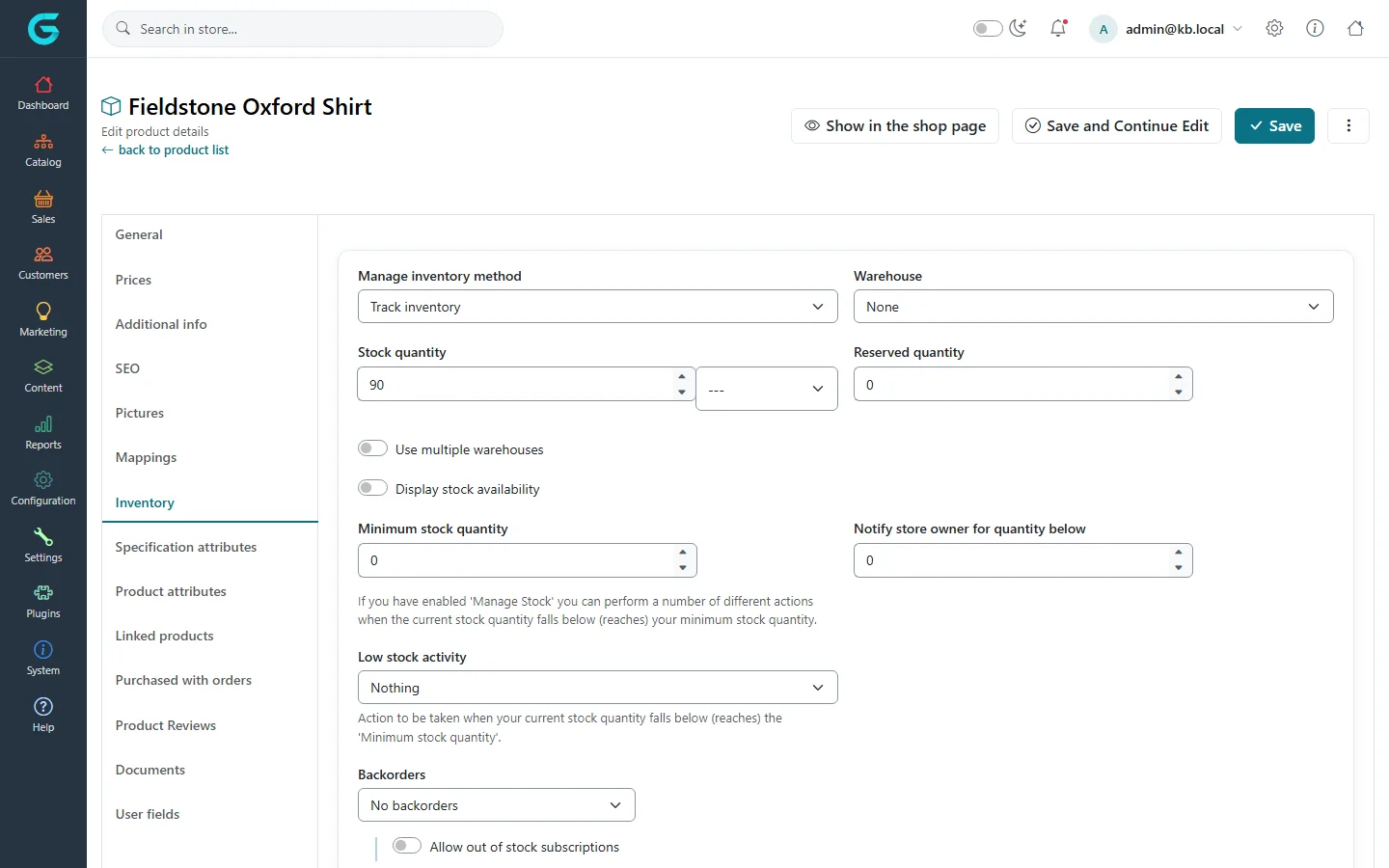
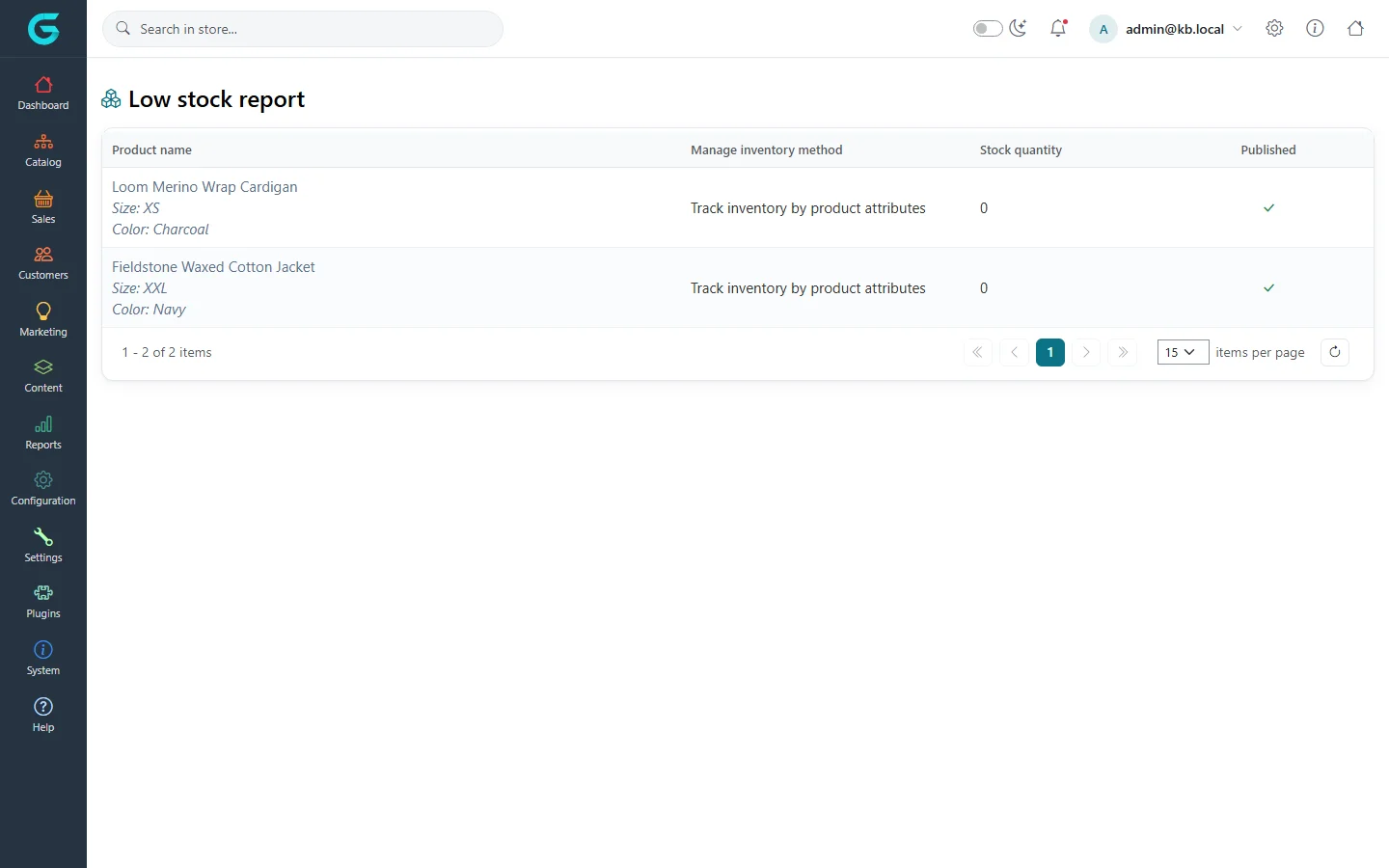
{"ArticleId":null,"Name":"Prices, discounts and inventory","Content":"\n\u003Cp\u003EWhat a product costs and whether it can be bought are set on two tabs of the product editor: \u003Cstrong\u003EPrices\u003C/strong\u003E and \u003Cstrong\u003EInventory\u003C/strong\u003E. This article walks through both, including quantity-based tier prices, product discounts, stock tracking, the automatic low stock actions and the \u003Cstrong\u003ELow stock report\u003C/strong\u003E.\u003C/p\u003E\n\n\u003Ch2 id=\u0022prices-tab\u0022\u003EThe Prices tab\u003C/h2\u003E\n\u003Cp\u003EOpen a product under \u003Cstrong\u003ECatalog \u2192 Products\u003C/strong\u003E and click \u003Cstrong\u003EPrices\u003C/strong\u003E. Amounts are entered in the store\u0027s primary currency, shown beside each field.\u003C/p\u003E\n\u003Cfigure\u003E\u003Cimg src=\u0022/Plugins/Theme.GrandNodeCom/Content/kb/catalog/product-edit-prices.webp\u0022 alt=\u0022The Prices tab of Fieldstone Oxford Shirt with price 79, old price, catalog price, product cost, a currency price grid and switches for disable buy button, call for quote and pre-order\u0022 width=\u00221440\u0022 height=\u0022900\u0022 loading=\u0022lazy\u0022\u003E\u003Cfigcaption\u003EThe top of the Prices tab.\u003C/figcaption\u003E\u003C/figure\u003E\n\u003Ctable\u003E\n\u003Cthead\u003E\u003Ctr\u003E\u003Cth\u003EField\u003C/th\u003E\u003Cth\u003EWhat it does\u003C/th\u003E\u003C/tr\u003E\u003C/thead\u003E\n\u003Ctbody\u003E\n\u003Ctr\u003E\u003Ctd\u003EPrice\u003C/td\u003E\u003Ctd\u003EThe selling price. Taxes are added or included according to your tax settings.\u003C/td\u003E\u003C/tr\u003E\n\u003Ctr\u003E\u003Ctd\u003EOld price\u003C/td\u003E\u003Ctd\u003EA previous price, shown struck through next to the current one to signal a reduction. Leave 0 to hide it.\u003C/td\u003E\u003C/tr\u003E\n\u003Ctr\u003E\u003Ctd\u003ECatalog price\u003C/td\u003E\u003Ctd\u003EA reference price (for example a list or RRP price) that may be shown beside the standard price.\u003C/td\u003E\u003C/tr\u003E\n\u003Ctr\u003E\u003Ctd\u003EProduct cost\u003C/td\u003E\u003Ctd\u003EWhat the product costs you. Never shown to customers; used for your own margin reporting.\u003C/td\u003E\u003C/tr\u003E\n\u003Ctr\u003E\u003Ctd\u003ECurrency code / Price grid\u003C/td\u003E\u003Ctd\u003EClick \u003Cstrong\u003EAdd new record\u003C/strong\u003E to set a fixed price in another currency. When a customer shops in that currency, this price is used instead of converting the main price.\u003C/td\u003E\u003C/tr\u003E\n\u003Ctr\u003E\u003Ctd\u003EDisable buy button, Disable wishlist button\u003C/td\u003E\u003Ctd\u003EHide the add-to-cart or add-to-wishlist button, for example for products shown only for information.\u003C/td\u003E\u003C/tr\u003E\n\u003Ctr\u003E\u003Ctd\u003ECall for quote\u003C/td\u003E\u003Ctd\u003EReplaces the price with a request to contact you.\u003C/td\u003E\u003C/tr\u003E\n\u003Ctr\u003E\u003Ctd\u003EAvailable for pre-order\u003C/td\u003E\u003Ctd\u003ELets customers order before the product is in stock; an optional start date controls when the pre-order button turns into a normal one.\u003C/td\u003E\u003C/tr\u003E\n\u003Ctr\u003E\u003Ctd\u003ECustomer specify a price\u003C/td\u003E\u003Ctd\u003EThe customer types the amount (donations, pay-what-you-want), within a minimum and maximum you set.\u003C/td\u003E\u003C/tr\u003E\n\u003Ctr\u003E\u003Ctd\u003EUse the PAngV (base price)\u003C/td\u003E\u003Ctd\u003EShows a unit price such as \u00222 euro per 1 kg\u0022, required for some goods in Germany and other EU countries.\u003C/td\u003E\u003C/tr\u003E\n\u003Ctr\u003E\u003Ctd\u003ETax exempt, Tax category\u003C/td\u003E\u003Ctd\u003EExclude the product from tax, or pick the tax category whose rates apply. Tax categories are managed under \u003Cstrong\u003EConfiguration \u2192 Tax \u2192 Tax categories\u003C/strong\u003E.\u003C/td\u003E\u003C/tr\u003E\n\u003Ctr\u003E\u003Ctd\u003ETBE services\u003C/td\u003E\u003Ctd\u003EMarks telecommunications, broadcasting and electronic services for EU VAT rules.\u003C/td\u003E\u003C/tr\u003E\n\u003C/tbody\u003E\n\u003C/table\u003E\n\n\u003Ch2 id=\u0022tier-prices\u0022\u003ETier prices\u003C/h2\u003E\n\u003Cp\u003ETier prices lower the unit price when a customer buys more. Lower on the \u003Cstrong\u003EPrices\u003C/strong\u003E tab, click \u003Cstrong\u003EAdd new tier price\u003C/strong\u003E and enter:\u003C/p\u003E\n\u003Cul\u003E\n\u003Cli\u003E\u003Cstrong\u003EQuantity\u003C/strong\u003E - the minimum quantity in the cart from which this price applies;\u003C/li\u003E\n\u003Cli\u003E\u003Cstrong\u003EPrice\u003C/strong\u003E - the unit price at that quantity;\u003C/li\u003E\n\u003Cli\u003Eoptionally a \u003Cstrong\u003Ecurrency\u003C/strong\u003E, a \u003Cstrong\u003Estore\u003C/strong\u003E, a \u003Cstrong\u003Ecustomer group\u003C/strong\u003E and a \u003Cstrong\u003Estart\u003C/strong\u003E and \u003Cstrong\u003Eend date\u003C/strong\u003E.\u003C/li\u003E\n\u003C/ul\u003E\n\u003Cp\u003EAt checkout GrandNode keeps only the tier prices that match the current date, store, currency and the customer\u0027s groups (empty fields match everyone), and applies the one with the highest quantity the cart reaches. If two tiers have the same quantity, the lower price wins. This makes wholesale prices simple: create a customer group \u003Cem\u003EWholesale\u003C/em\u003E and add tier prices limited to it, starting at quantity 1.\u003C/p\u003E\n\u003Cfigure\u003E\u003Cimg src=\u0022/Plugins/Theme.GrandNodeCom/Content/kb/catalog/product-edit-tier-prices.webp\u0022 alt=\u0022The lower part of the Prices tab with tax settings, a tier prices grid with prices for 3 and 6 units, and the Available discount list\u0022 width=\u00221440\u0022 height=\u0022900\u0022 loading=\u0022lazy\u0022\u003E\u003Cfigcaption\u003EEmber Single Origin Coffee Beans: 16.99 from 3 bags, 15.49 from 6 bags.\u003C/figcaption\u003E\u003C/figure\u003E\n\n\u003Ch2 id=\u0022discounts\u0022\u003EDiscounts on a product\u003C/h2\u003E\n\u003Cp\u003EThe \u003Cstrong\u003EAvailable discount\u003C/strong\u003E card at the bottom of the Prices tab lists every discount whose type is \u003Cem\u003EAssigned to products\u003C/em\u003E. Tick a discount to apply it to this product and save. Discounts themselves - amount or percentage, dates, coupon codes and rules - are created under \u003Cstrong\u003EMarketing \u2192 Discounts\u003C/strong\u003E; see \u003Ca href=\u0022/docs-sales\u0022\u003ESales and orders\u003C/a\u003E and the marketing articles for how they are calculated. A discount can also be assigned to whole categories, brands or collections, which is quicker than ticking it on every product.\u003C/p\u003E\n\n\u003Ch2 id=\u0022inventory-tab\u0022\u003EThe Inventory tab\u003C/h2\u003E\n\u003Cp\u003EThe \u003Cstrong\u003EManage inventory method\u003C/strong\u003E decides how stock is counted:\u003C/p\u003E\n\u003Ctable\u003E\n\u003Cthead\u003E\u003Ctr\u003E\u003Cth\u003EMethod\u003C/th\u003E\u003Cth\u003EWhen to use it\u003C/th\u003E\u003C/tr\u003E\u003C/thead\u003E\n\u003Ctbody\u003E\n\u003Ctr\u003E\u003Ctd\u003EDon\u0027t track inventory\u003C/td\u003E\u003Ctd\u003EServices, digital goods, made-to-order items. The product can always be bought.\u003C/td\u003E\u003C/tr\u003E\n\u003Ctr\u003E\u003Ctd\u003ETrack inventory\u003C/td\u003E\u003Ctd\u003EOne stock number for the product. Orders reserve and reduce it.\u003C/td\u003E\u003C/tr\u003E\n\u003Ctr\u003E\u003Ctd\u003ETrack inventory by product attributes\u003C/td\u003E\u003Ctd\u003EStock per combination of attributes, such as size M in navy. Quantities are kept on the attribute combinations - see \u003Ca href=\u0022/catalog-attributes\u0022\u003EProduct attributes and combinations\u003C/a\u003E.\u003C/td\u003E\u003C/tr\u003E\n\u003Ctr\u003E\u003Ctd\u003ETrack inventory by bundle products\u003C/td\u003E\u003Ctd\u003EFor bundles: availability follows the stock of the bundled items.\u003C/td\u003E\u003C/tr\u003E\n\u003C/tbody\u003E\n\u003C/table\u003E\n\u003Cfigure\u003E\u003Cimg src=\u0022/Plugins/Theme.GrandNodeCom/Content/kb/catalog/product-edit-inventory.webp\u0022 alt=\u0022The Inventory tab with manage inventory method Track inventory, warehouse, stock quantity 90, reserved quantity, minimum stock quantity, notify store owner, low stock activity and backorders\u0022 width=\u00221440\u0022 height=\u0022900\u0022 loading=\u0022lazy\u0022\u003E\u003Cfigcaption\u003EThe Inventory tab with stock tracking switched on.\u003C/figcaption\u003E\u003C/figure\u003E\n\u003Ctable\u003E\n\u003Cthead\u003E\u003Ctr\u003E\u003Cth\u003EField\u003C/th\u003E\u003Cth\u003EWhat it does\u003C/th\u003E\u003C/tr\u003E\u003C/thead\u003E\n\u003Ctbody\u003E\n\u003Ctr\u003E\u003Ctd\u003EWarehouse, Use multiple warehouses\u003C/td\u003E\u003Ctd\u003EWhere the stock is kept. With multiple warehouses you enter the quantity per warehouse and the product\u0027s total is their sum.\u003C/td\u003E\u003C/tr\u003E\n\u003Ctr\u003E\u003Ctd\u003EStock quantity, Reserved quantity\u003C/td\u003E\u003Ctd\u003EUnits on hand and units already reserved by placed orders that have not shipped yet.\u003C/td\u003E\u003C/tr\u003E\n\u003Ctr\u003E\u003Ctd\u003EDisplay stock availability\u003C/td\u003E\u003Ctd\u003EShows \u0022in stock\u0022 or \u0022out of stock\u0022 on the product page; optionally also the exact quantity.\u003C/td\u003E\u003C/tr\u003E\n\u003Ctr\u003E\u003Ctd\u003EMinimum stock quantity, Low stock activity\u003C/td\u003E\u003Ctd\u003EWhen an order brings the stock to or below the minimum, GrandNode performs the chosen activity: \u003Cstrong\u003ENothing\u003C/strong\u003E, \u003Cstrong\u003EDisable buy button\u003C/strong\u003E or \u003Cstrong\u003EUnpublish\u003C/strong\u003E.\u003C/td\u003E\u003C/tr\u003E\n\u003Ctr\u003E\u003Ctd\u003ENotify store owner for quantity below\u003C/td\u003E\u003Ctd\u003ESends the store owner an email when an order brings the stock below this number.\u003C/td\u003E\u003C/tr\u003E\n\u003Ctr\u003E\u003Ctd\u003EBackorders\u003C/td\u003E\u003Ctd\u003E\u003Cstrong\u003ENo backorders\u003C/strong\u003E stops sales at zero; \u003Cstrong\u003EAllow qty below 0\u003C/strong\u003E keeps selling.\u003C/td\u003E\u003C/tr\u003E\n\u003Ctr\u003E\u003Ctd\u003EAllow out of stock subscriptions\u003C/td\u003E\u003Ctd\u003ECustomers can ask to be emailed when the product is back in stock.\u003C/td\u003E\u003C/tr\u003E\n\u003Ctr\u003E\u003Ctd\u003EMinimum / Maximum purchase quantity, Allowed quantities\u003C/td\u003E\u003Ctd\u003ELimits per cart line. Allowed quantities is a comma-separated list (for example 1, 6, 12) that turns the quantity box into a drop-down.\u003C/td\u003E\u003C/tr\u003E\n\u003Ctr\u003E\u003Ctd\u003EProduct is not returnable, Shippable product\u003C/td\u003E\u003Ctd\u003EExcludes the product from merchandise returns; marks it as needing shipping, with weight, dimensions, free shipping and delivery date fields.\u003C/td\u003E\u003C/tr\u003E\n\u003C/tbody\u003E\n\u003C/table\u003E\n\n\u003Ch2 id=\u0022low-stock\u0022\u003ELow stock handling\u003C/h2\u003E\n\u003Cp\u003ELow stock activities run when stock is reduced by an order. If you choose \u003Cstrong\u003EUnpublish\u003C/strong\u003E, the product disappears from the storefront the moment the minimum is reached. When stock goes back up because an order is cancelled, the product is published again (or its buy button re-enabled) only if the catalog setting that publishes products back on cancellation is switched on. Stock you raise by hand in the admin does not re-publish the product: switch \u003Cstrong\u003EPublished\u003C/strong\u003E on yourself.\u003C/p\u003E\n\u003Cp\u003ETo see what needs restocking, open \u003Cstrong\u003EReports \u2192 Low stock\u003C/strong\u003E. It lists simple and bundled products flagged as low stock, and every attribute combination with zero or less in stock, with a link to each product.\u003C/p\u003E\n\u003Cfigure\u003E\u003Cimg src=\u0022/Plugins/Theme.GrandNodeCom/Content/kb/catalog/low-stock-report.webp\u0022 alt=\u0022The Low stock report listing two attribute combinations, Loom Merino Wrap Cardigan size XS charcoal and Fieldstone Waxed Cotton Jacket size XXL navy, with zero stock\u0022 width=\u00221440\u0022 height=\u0022900\u0022 loading=\u0022lazy\u0022\u003E\u003Cfigcaption\u003EReports \u2192 Low stock shows products and attribute combinations that ran out.\u003C/figcaption\u003E\u003C/figure\u003E\n\n\u003Ch2 id=\u0022tips\u0022\u003ETips and common mistakes\u003C/h2\u003E\n\u003Cul\u003E\n\u003Cli\u003EA product with \u003Cstrong\u003ETrack inventory\u003C/strong\u003E, stock 0 and \u003Cstrong\u003ENo backorders\u003C/strong\u003E cannot be added to the cart - the most common reason for \u0022out of stock\u0022 on a new product.\u003C/li\u003E\n\u003Cli\u003EMinimum stock quantity 0 with \u003Cstrong\u003EUnpublish\u003C/strong\u003E hides the product when the last unit sells. Use a small positive number if you want a buffer.\u003C/li\u003E\n\u003Cli\u003EIn the tier price grid the price is followed by its currency in brackets; for a tier price without a currency the brackets are currently shown empty.\u003C/li\u003E\n\u003C/ul\u003E\n\n\u003Ch2 id=\u0022related\u0022\u003ERelated\u003C/h2\u003E\n\u003Cul\u003E\n\u003Cli\u003E\u003Ca href=\u0022/catalog-attributes\u0022\u003EProduct attributes and combinations\u003C/a\u003E\u003C/li\u003E\n\u003Cli\u003E\u003Ca href=\u0022/catalog-import-export-bulk-edit\u0022\u003EImport, export and bulk edit\u003C/a\u003E - change prices and stock of many products at once\u003C/li\u003E\n\u003Cli\u003E\u003Ca href=\u0022/docs-sales\u0022\u003ESales and orders\u003C/a\u003E\u003C/li\u003E\n\u003C/ul\u003E\n","ParentCategoryId":"6abdec6c83d2816248229eb1","SeName":"catalog-prices-inventory","MetaKeywords":null,"MetaDescription":"Set product prices, currency prices, tier prices and discounts, and manage stock, low stock actions and backorders in GrandNode.","MetaTitle":null,"AllowComments":false,"Captcha":{"ReCaptchaChallengeField":null,"ReCaptchaResponseField":null,"ReCaptchaResponseValue":null,"ReCaptchaResponse":null},"RelatedArticles":[],"CategoryBreadcrumb":[{"Name":"Catalog","Description":null,"IsCurrent":false,"Children":null,"Parent":null,"SeName":"docs-catalog","Id":"6abdec6c83d2816248229eb1","UserFields":[]}],"AddNewComment":{"CommentText":null,"DisplayCaptcha":false,"Id":null,"UserFields":[]},"Comments":[],"Id":"6abdec6c83d2816248229eb9","UserFields":[]}