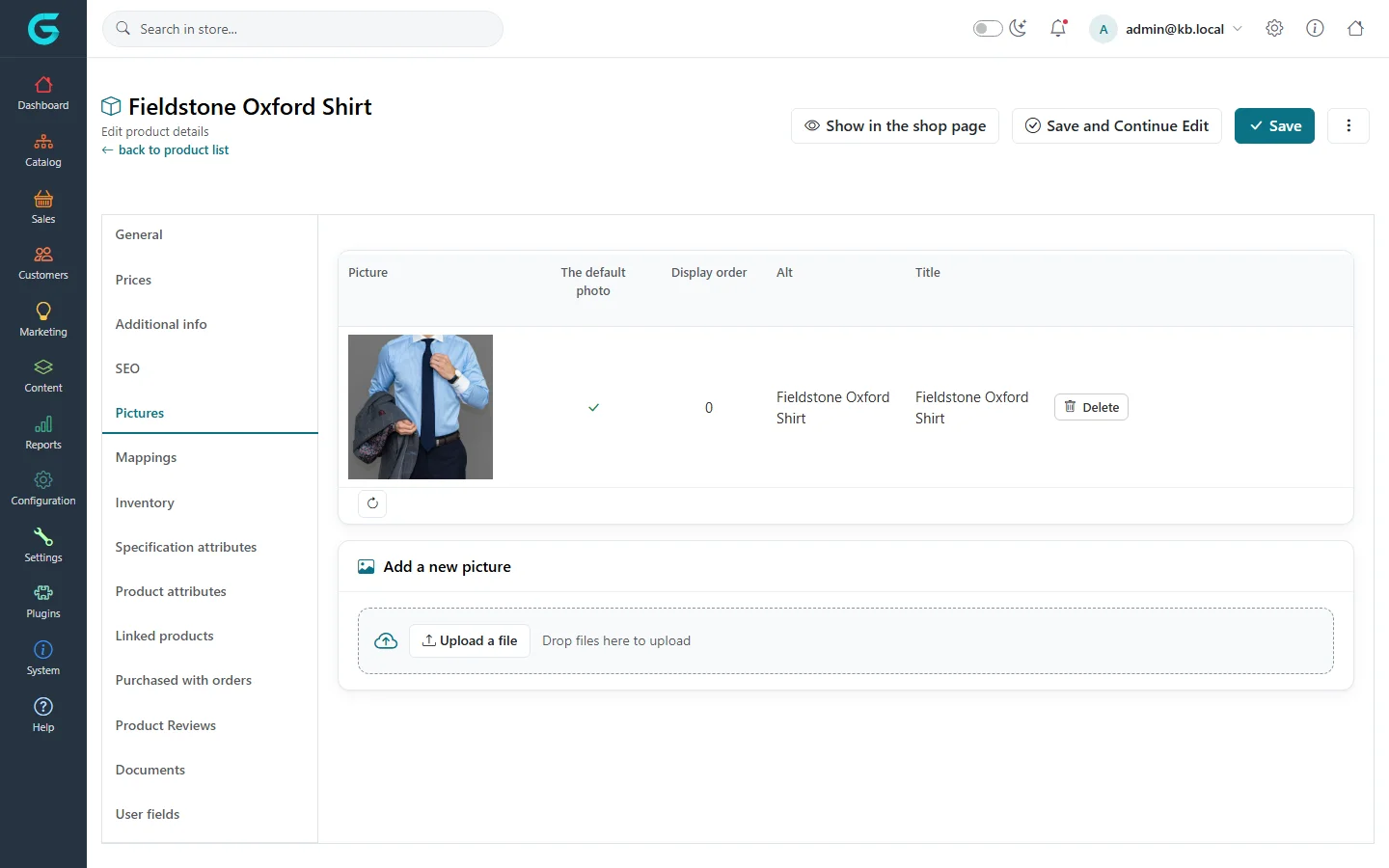
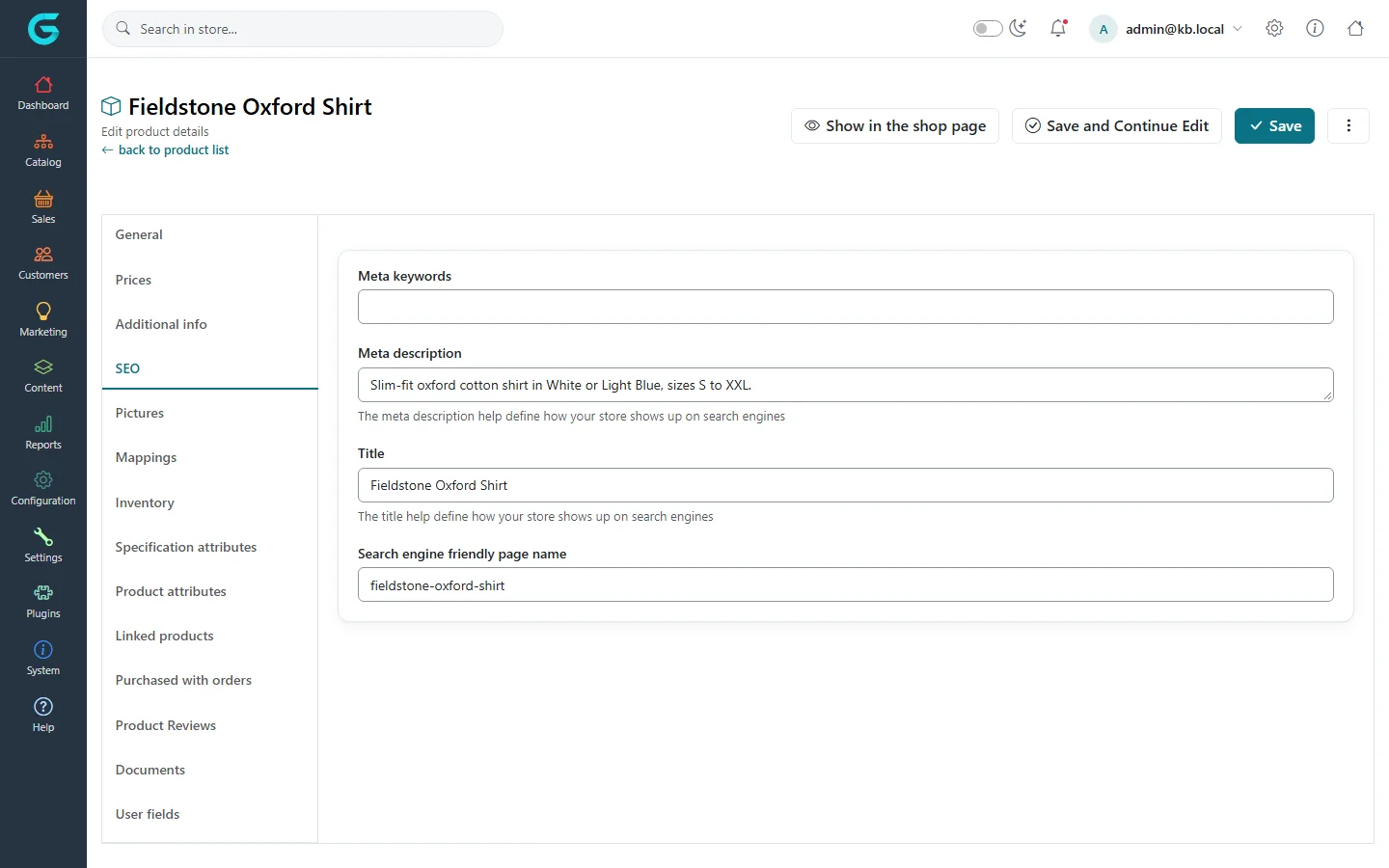
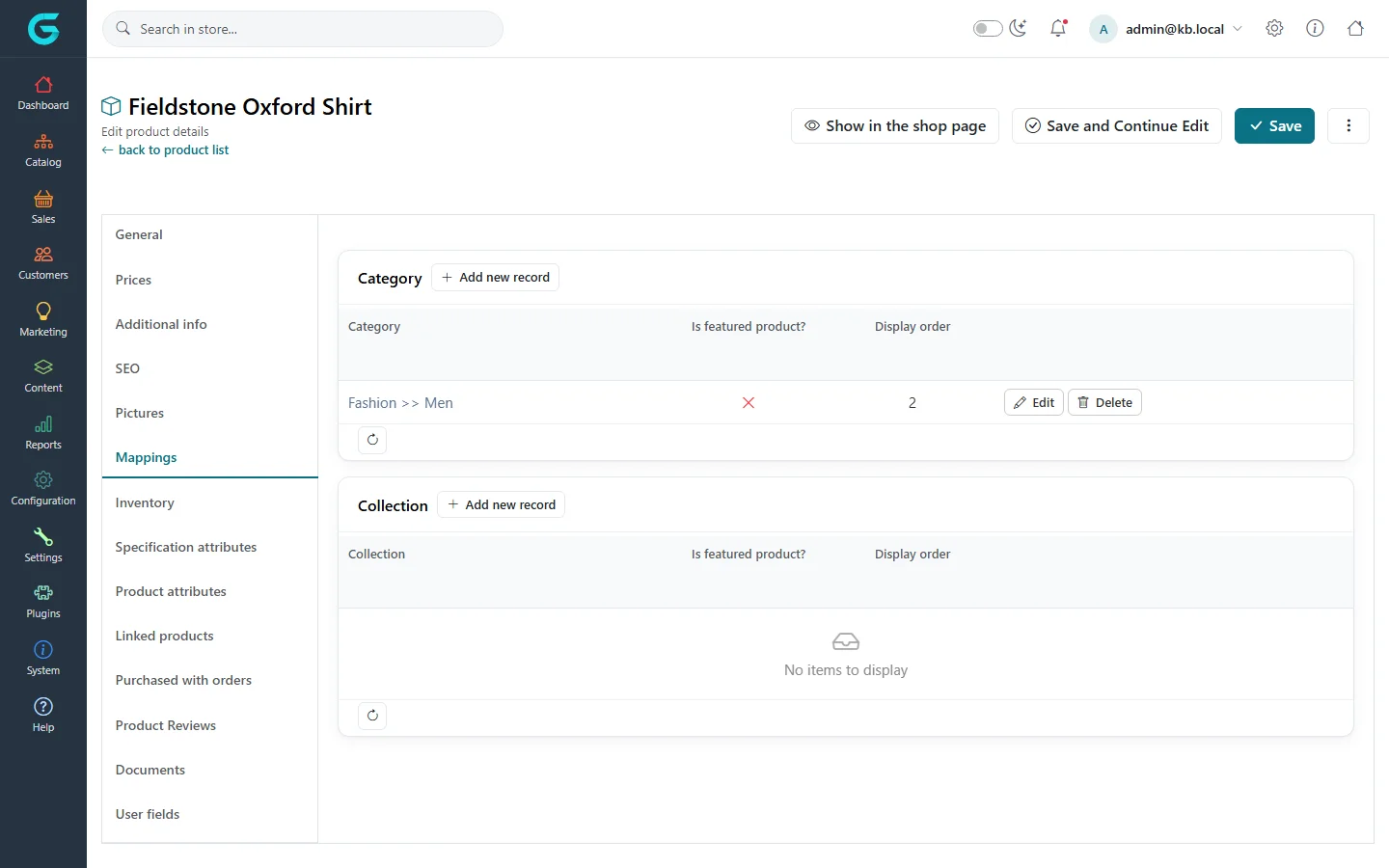
{"ArticleId":null,"Name":"Pictures, SEO and category mappings","Content":"\n\u003Cp\u003EThree tabs of the product editor decide how a product is found and how it looks: \u003Cstrong\u003EPictures\u003C/strong\u003E (the gallery), \u003Cstrong\u003ESEO\u003C/strong\u003E (the address and the text search engines show) and \u003Cstrong\u003EMappings\u003C/strong\u003E (the categories and collections the product appears in). This article covers all three. Open any product under \u003Cstrong\u003ECatalog \u2192 Products\u003C/strong\u003E to follow along.\u003C/p\u003E\n\n\u003Ch2 id=\u0022pictures\u0022\u003EPictures\u003C/h2\u003E\n\u003Cp\u003EThe \u003Cstrong\u003EPictures\u003C/strong\u003E tab lists the product\u0027s images with a thumbnail, the default-photo marker, the display order and the alt and title texts.\u003C/p\u003E\n\u003Cfigure\u003E\u003Cimg src=\u0022/Plugins/Theme.GrandNodeCom/Content/kb/catalog/product-edit-pictures.webp\u0022 alt=\u0022The Pictures tab of Fieldstone Oxford Shirt with one picture marked as the default photo, its display order, alt and title, and an upload area below\u0022 width=\u00221440\u0022 height=\u0022900\u0022 loading=\u0022lazy\u0022\u003E\u003Cfigcaption\u003EThe Pictures tab: the gallery above, the upload area below.\u003C/figcaption\u003E\u003C/figure\u003E\n\u003Col\u003E\n\u003Cli\u003EUnder \u003Cstrong\u003EAdd a new picture\u003C/strong\u003E, click \u003Cstrong\u003EUpload a file\u003C/strong\u003E or drop files onto the area. Each file becomes a picture immediately.\u003C/li\u003E\n\u003Cli\u003EClick a picture in the grid to edit it: set \u003Cstrong\u003EDisplay order\u003C/strong\u003E (the lowest number is shown first), \u003Cstrong\u003EAlt\u003C/strong\u003E (read by screen readers and search engines) and \u003Cstrong\u003ETitle\u003C/strong\u003E (the tooltip).\u003C/li\u003E\n\u003Cli\u003EUse \u003Cstrong\u003EDelete\u003C/strong\u003E to remove a picture from the product.\u003C/li\u003E\n\u003C/ol\u003E\n\u003Cp\u003EThe first picture by display order is the main image on product listings and the product page. Thumbnails in several sizes are generated on demand; their sizes and the image quality are set under \u003Cstrong\u003ESettings \u2192 Media settings\u003C/strong\u003E (see \u003Ca href=\u0022/docs-configuration\u0022\u003EConfiguration\u003C/a\u003E).\u003C/p\u003E\n\u003Cblockquote\u003E\u003Cp\u003EAlways fill in \u003Cstrong\u003EAlt\u003C/strong\u003E. It is what a blind shopper hears and what search engines and AI assistants read instead of the image.\u003C/p\u003E\u003C/blockquote\u003E\n\n\u003Ch2 id=\u0022seo\u0022\u003ESEO\u003C/h2\u003E\n\u003Cfigure\u003E\u003Cimg src=\u0022/Plugins/Theme.GrandNodeCom/Content/kb/catalog/product-edit-seo.webp\u0022 alt=\u0022The SEO tab with meta keywords, meta description, title and search engine friendly page name fields\u0022 width=\u00221440\u0022 height=\u0022900\u0022 loading=\u0022lazy\u0022\u003E\u003Cfigcaption\u003EThe SEO tab.\u003C/figcaption\u003E\u003C/figure\u003E\n\u003Ctable\u003E\n\u003Cthead\u003E\u003Ctr\u003E\u003Cth\u003EField\u003C/th\u003E\u003Cth\u003EWhat it does\u003C/th\u003E\u003C/tr\u003E\u003C/thead\u003E\n\u003Ctbody\u003E\n\u003Ctr\u003E\u003Ctd\u003ESearch engine friendly page name\u003C/td\u003E\u003Ctd\u003EThe last part of the product address, for example \u003Ccode\u003Efieldstone-oxford-shirt\u003C/code\u003E gives \u003Ccode\u003E/fieldstone-oxford-shirt\u003C/code\u003E. Leave it empty and GrandNode builds it from the product name. It must be unique across products, categories, pages and other entities with an address; a duplicate gets a number appended.\u003C/td\u003E\u003C/tr\u003E\n\u003Ctr\u003E\u003Ctd\u003ETitle\u003C/td\u003E\u003Ctd\u003EThe page title shown in the browser tab and as the headline in search results. Empty means the product name is used.\u003C/td\u003E\u003C/tr\u003E\n\u003Ctr\u003E\u003Ctd\u003EMeta description\u003C/td\u003E\u003Ctd\u003EThe snippet search engines show under the title. Aim for one or two sentences, about 150 characters.\u003C/td\u003E\u003C/tr\u003E\n\u003Ctr\u003E\u003Ctd\u003EMeta keywords\u003C/td\u003E\u003Ctd\u003EKept for completeness; major search engines ignore it.\u003C/td\u003E\u003C/tr\u003E\n\u003C/tbody\u003E\n\u003C/table\u003E\n\u003Cp\u003EWhen you change the page name, GrandNode keeps the old one as an inactive address and answers it with a permanent (301) redirect to the new one, so existing links keep working.\u003C/p\u003E\n\n\u003Ch2 id=\u0022mappings\u0022\u003EMappings: categories and collections\u003C/h2\u003E\n\u003Cp\u003EThe \u003Cstrong\u003EMappings\u003C/strong\u003E tab places the product in the catalog. It has a grid for categories and one for collections (brands are chosen on the \u003Cstrong\u003EGeneral\u003C/strong\u003E tab).\u003C/p\u003E\n\u003Cfigure\u003E\u003Cimg src=\u0022/Plugins/Theme.GrandNodeCom/Content/kb/catalog/product-edit-mappings.webp\u0022 alt=\u0022The Mappings tab with the category Fashion \u003E\u003E Men, not featured, display order 2, and an empty collection grid\u0022 width=\u00221440\u0022 height=\u0022900\u0022 loading=\u0022lazy\u0022\u003E\u003Cfigcaption\u003EThe Mappings tab: one category, no collection yet.\u003C/figcaption\u003E\u003C/figure\u003E\n\u003Col\u003E\n\u003Cli\u003EClick \u003Cstrong\u003EAdd new record\u003C/strong\u003E above the \u003Cstrong\u003ECategory\u003C/strong\u003E grid.\u003C/li\u003E\n\u003Cli\u003EPick the category, tick \u003Cstrong\u003EIs featured product?\u003C/strong\u003E if it should appear in the category\u0027s featured block, and set the \u003Cstrong\u003EDisplay order\u003C/strong\u003E of the product inside that category.\u003C/li\u003E\n\u003Cli\u003ESave the row. Repeat for more categories, and the same way for collections.\u003C/li\u003E\n\u003C/ol\u003E\n\u003Cp\u003EA product can live in any number of categories and collections. The display order is per mapping, so the same product can be first in \u0022New arrivals\u0022 and tenth in \u0022Shirts\u0022.\u003C/p\u003E\n\u003Cp\u003EYou can also map from the other side: the \u003Cstrong\u003EProducts\u003C/strong\u003E tab of a category, brand or collection lets you add several products at once with a search popup, which is quicker when you build a new category.\u003C/p\u003E\n\n\u003Ch2 id=\u0022tips\u0022\u003ETips and common mistakes\u003C/h2\u003E\n\u003Cul\u003E\n\u003Cli\u003EA product that is not mapped to any category is still reachable by its address and by search, but it will not appear in the category navigation.\u003C/li\u003E\n\u003Cli\u003EPictures are stored in the database by default; on large catalogs consider storing them on disk (Media settings).\u003C/li\u003E\n\u003Cli\u003EUpload images at least as large as your largest thumbnail size, or the storefront scales small images up and they look blurry.\u003C/li\u003E\n\u003C/ul\u003E\n\n\u003Ch2 id=\u0022related\u0022\u003ERelated\u003C/h2\u003E\n\u003Cul\u003E\n\u003Cli\u003E\u003Ca href=\u0022/catalog-products\u0022\u003EProducts\u003C/a\u003E\u003C/li\u003E\n\u003Cli\u003E\u003Ca href=\u0022/catalog-categories-brands-collections\u0022\u003ECategories, brands and collections\u003C/a\u003E\u003C/li\u003E\n\u003Cli\u003E\u003Ca href=\u0022/docs-configuration\u0022\u003EConfiguration\u003C/a\u003E - media and SEO settings\u003C/li\u003E\n\u003C/ul\u003E\n","ParentCategoryId":"6abdec6c83d2816248229eb1","SeName":"catalog-pictures-seo-mappings","MetaKeywords":null,"MetaDescription":"Add product pictures, set the search engine friendly URL and meta tags, and place a product in categories and collections in the GrandNode admin.","MetaTitle":null,"AllowComments":false,"Captcha":{"ReCaptchaChallengeField":null,"ReCaptchaResponseField":null,"ReCaptchaResponseValue":null,"ReCaptchaResponse":null},"RelatedArticles":[],"CategoryBreadcrumb":[{"Name":"Catalog","Description":null,"IsCurrent":false,"Children":null,"Parent":null,"SeName":"docs-catalog","Id":"6abdec6c83d2816248229eb1","UserFields":[]}],"AddNewComment":{"CommentText":null,"DisplayCaptcha":false,"Id":null,"UserFields":[]},"Comments":[],"Id":"6abdec6c83d2816248229ebb","UserFields":[]}