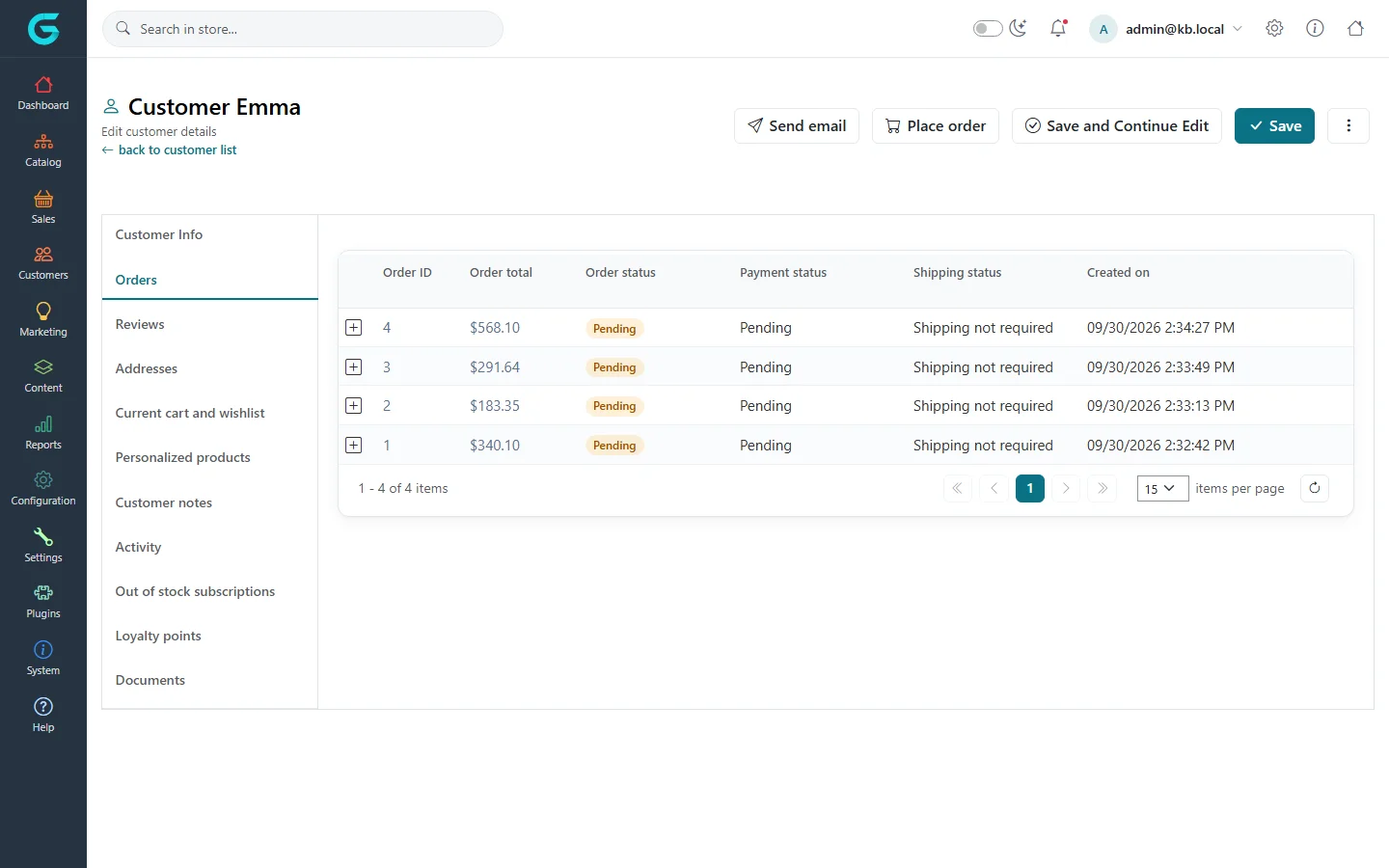
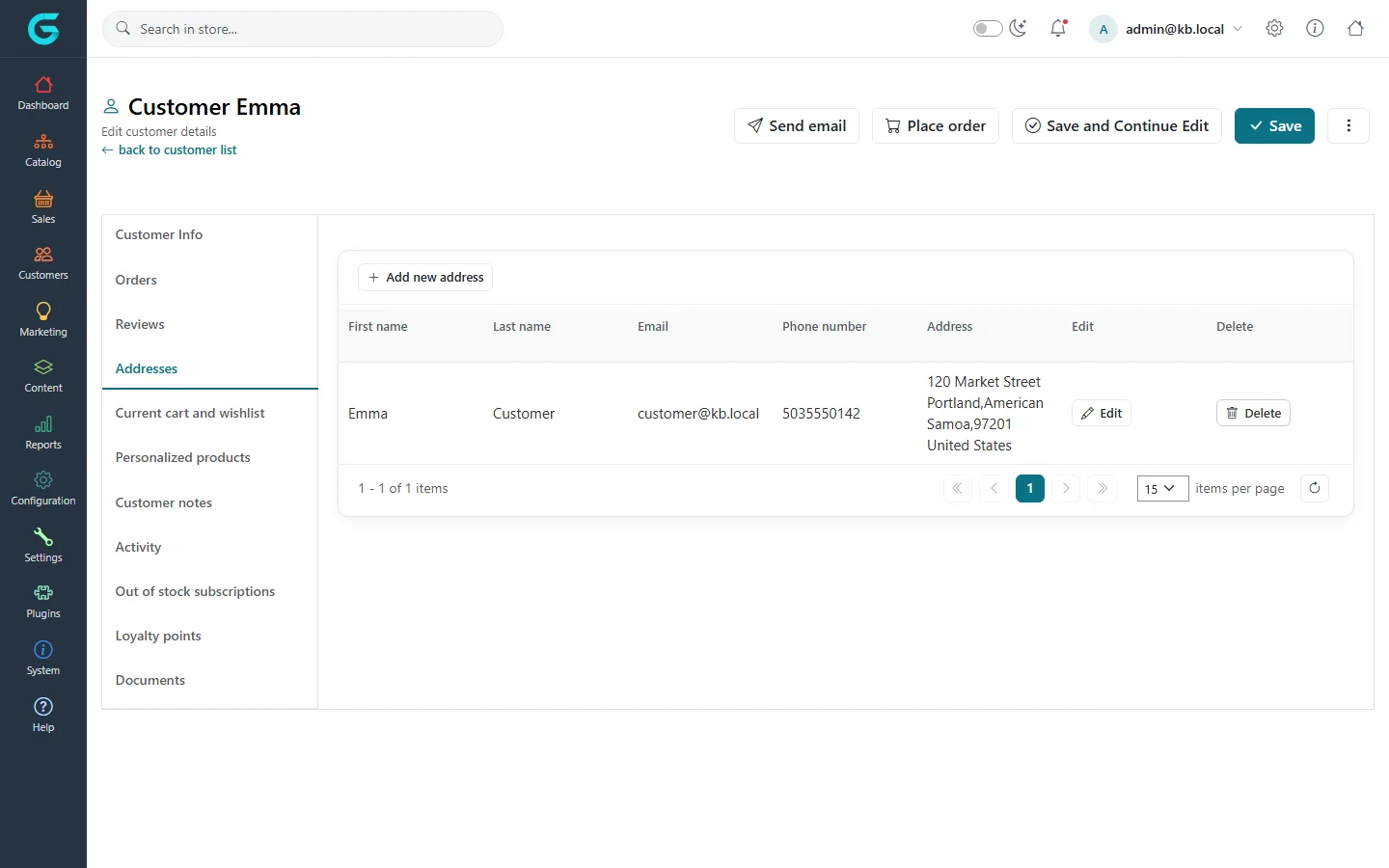
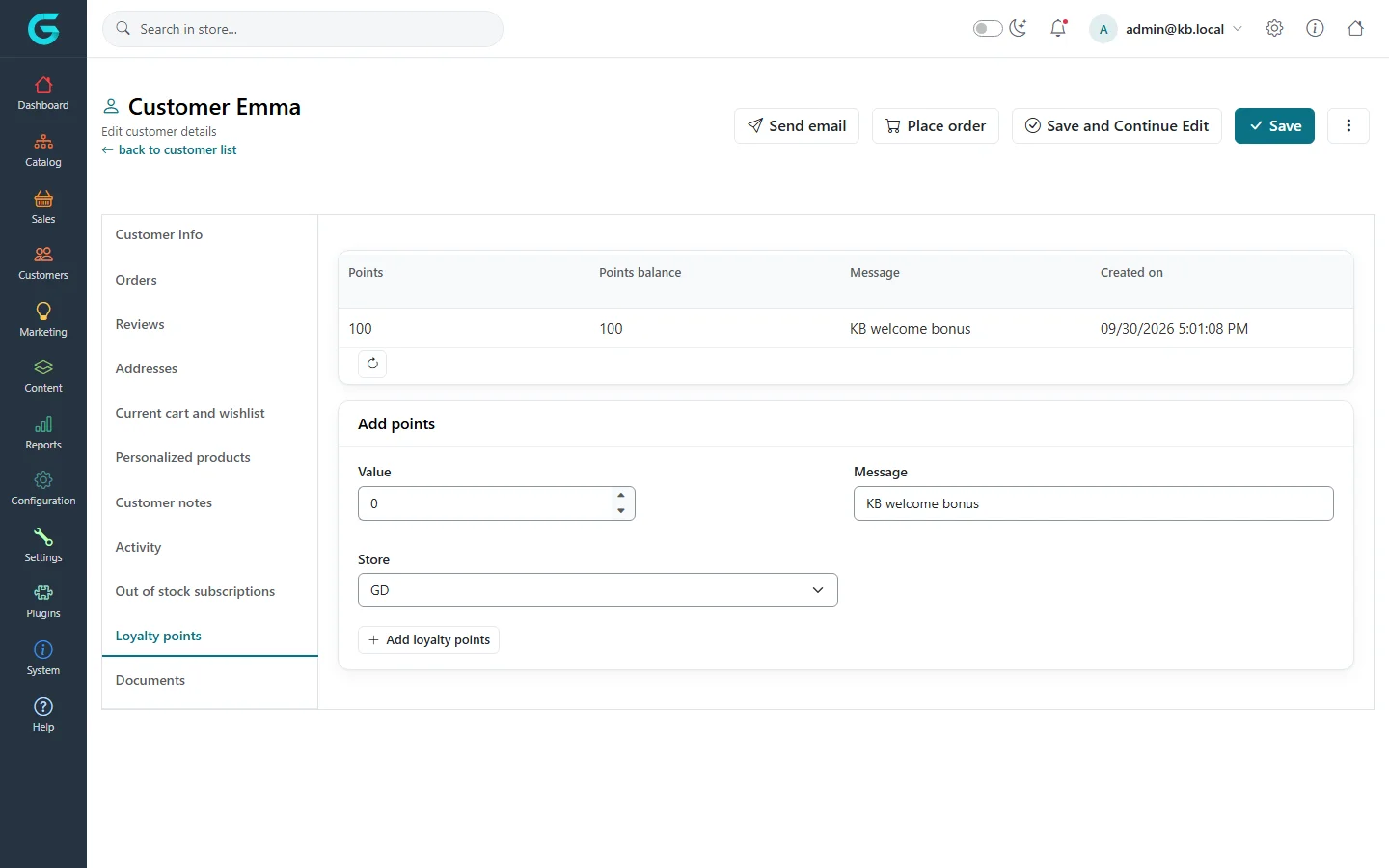
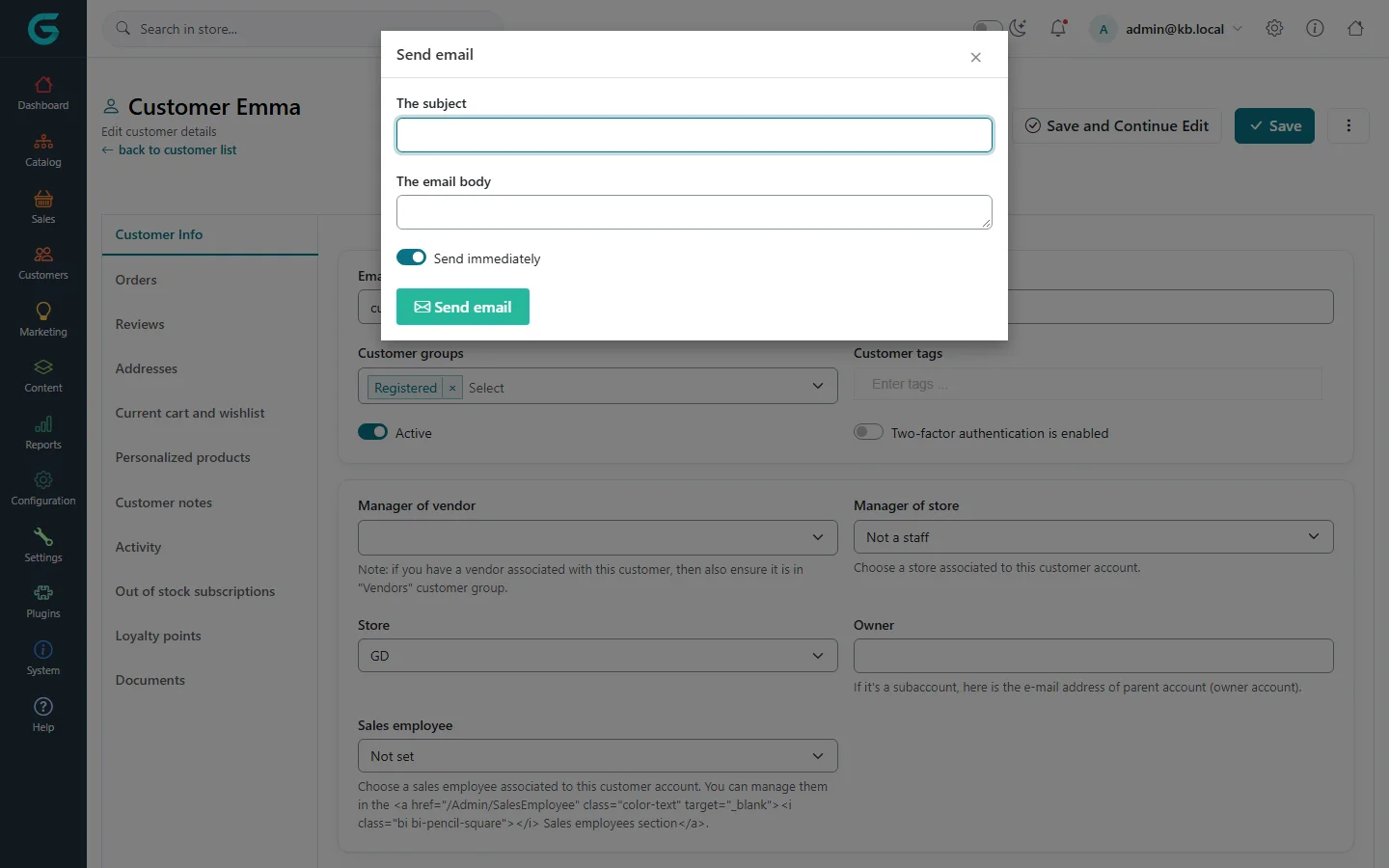
{"ArticleId":null,"Name":"The customer record: orders, carts, addresses and more","Content":"\n\u003Cp\u003EOpening a customer shows far more than the account form. The tabs on the left collect everything GrandNode knows about that person: orders, reviews, saved addresses, what is in the cart right now, individual prices, internal notes, messages and loyalty points. From the same page you can e-mail the customer or place an order in their name. The \u003Cstrong\u003ECustomer Info\u003C/strong\u003E tab is covered in \u003Ca href=\u0022/customers-manage-customers\u0022\u003EFinding and editing customers\u003C/a\u003E; this article walks through the rest.\u003C/p\u003E\n\n\u003Ch2 id=\u0022where-to-find-it\u0022\u003EWhere to find it\u003C/h2\u003E\n\u003Cp\u003EGo to \u003Cstrong\u003ECustomers \u2192 Customers\u003C/strong\u003E and click the customer\u0027s e-mail. The tabs appear once the customer has been saved - on \u003Cstrong\u003EAdd new\u003C/strong\u003E you only see \u003Cstrong\u003ECustomer Info\u003C/strong\u003E. When you use \u003Cstrong\u003ESave and Continue Edit\u003C/strong\u003E, GrandNode reopens the tab you were on.\u003C/p\u003E\n\n\u003Ch2 id=\u0022the-tabs\u0022\u003EThe tabs\u003C/h2\u003E\n\u003Ctable\u003E\n\u003Cthead\u003E\u003Ctr\u003E\u003Cth\u003ETab\u003C/th\u003E\u003Cth\u003EWhat it shows and what you can do\u003C/th\u003E\u003C/tr\u003E\u003C/thead\u003E\n\u003Ctbody\u003E\n\u003Ctr\u003E\u003Ctd\u003E\u003Cstrong\u003EOrders\u003C/strong\u003E\u003C/td\u003E\u003Ctd\u003EAll orders of the customer with total, order, payment and shipping status. Expand a row to see the items; click the order number to open the order.\u003C/td\u003E\u003C/tr\u003E\n\u003Ctr\u003E\u003Ctd\u003E\u003Cstrong\u003EReviews\u003C/strong\u003E\u003C/td\u003E\u003Ctd\u003EProduct reviews written by the customer. Open or delete a review from here.\u003C/td\u003E\u003C/tr\u003E\n\u003Ctr\u003E\u003Ctd\u003E\u003Cstrong\u003EAddresses\u003C/strong\u003E\u003C/td\u003E\u003Ctd\u003EThe customer\u0027s address book. \u003Cstrong\u003EAdd new address\u003C/strong\u003E, \u003Cstrong\u003EEdit\u003C/strong\u003E or \u003Cstrong\u003EDelete\u003C/strong\u003E - the same addresses the customer picks from at checkout.\u003C/td\u003E\u003C/tr\u003E\n\u003Ctr\u003E\u003Ctd\u003E\u003Cstrong\u003ECurrent cart and wishlist\u003C/strong\u003E\u003C/td\u003E\u003Ctd\u003EWhat is in the cart and the wishlist right now. In the cart you can change the unit price of an item or delete it and click \u003Cstrong\u003ESave changes\u003C/strong\u003E - handy when you agree a price by phone before the customer checks out.\u003C/td\u003E\u003C/tr\u003E\n\u003Ctr\u003E\u003Ctd\u003E\u003Cstrong\u003EPersonalized products\u003C/strong\u003E\u003C/td\u003E\u003Ctd\u003ETwo lists. \u003Cstrong\u003EPersonalized products\u003C/strong\u003E are shown to this customer in a block on the home page (enable \u003Cstrong\u003E\u0027Personalized products\u0027 enabled\u003C/strong\u003E in catalog settings). \u003Cstrong\u003EIndividual Product Prices\u003C/strong\u003E give this customer their own price for a product (requires \u003Cstrong\u003ECustomers have independent product price\u003C/strong\u003E in catalog settings).\u003C/td\u003E\u003C/tr\u003E\n\u003Ctr\u003E\u003Ctd\u003E\u003Cstrong\u003ECustomer notes\u003C/strong\u003E\u003C/td\u003E\u003Ctd\u003ENotes with a title, text and an optional attached file. Tick \u003Cstrong\u003EDisplay to customer\u003C/strong\u003E to show a note on the storefront under \u003Cstrong\u003EMy account \u2192 Notes\u003C/strong\u003E; otherwise it stays internal.\u003C/td\u003E\u003C/tr\u003E\n\u003Ctr\u003E\u003Ctd\u003E\u003Cstrong\u003EActivity\u003C/strong\u003E\u003C/td\u003E\u003Ctd\u003EMessages the customer sent through the contact form, and the e-mails queued for the customer\u0027s address (subject, created, sent) - useful when someone says they never got the order confirmation.\u003C/td\u003E\u003C/tr\u003E\n\u003Ctr\u003E\u003Ctd\u003E\u003Cstrong\u003EOut of stock subscriptions\u003C/strong\u003E\u003C/td\u003E\u003Ctd\u003EProducts for which the customer asked to be notified when they are back in stock.\u003C/td\u003E\u003C/tr\u003E\n\u003Ctr\u003E\u003Ctd\u003E\u003Cstrong\u003ELoyalty points\u003C/strong\u003E\u003C/td\u003E\u003Ctd\u003EPoints history per store with the balance; add or subtract points by hand. Visible when loyalty points are enabled.\u003C/td\u003E\u003C/tr\u003E\n\u003Ctr\u003E\u003Ctd\u003E\u003Cstrong\u003EDocuments\u003C/strong\u003E\u003C/td\u003E\u003Ctd\u003EDocuments (offers, contracts, invoices) linked to the customer. Visible to users with the permission to manage documents.\u003C/td\u003E\u003C/tr\u003E\n\u003C/tbody\u003E\n\u003C/table\u003E\n\u003Cfigure\u003E\u003Cimg src=\u0022/Plugins/Theme.GrandNodeCom/Content/kb/customers/customer-edit-orders.webp\u0022 alt=\u0022Orders tab of a customer with four pending orders\u0022 width=\u00221440\u0022 height=\u0022900\u0022 loading=\u0022lazy\u0022\u003E\u003Cfigcaption\u003EThe Orders tab lists every order the customer placed.\u003C/figcaption\u003E\u003C/figure\u003E\n\u003Cfigure\u003E\u003Cimg src=\u0022/Plugins/Theme.GrandNodeCom/Content/kb/customers/customer-edit-addresses.webp\u0022 alt=\u0022Addresses tab of a customer with one address and Add new address, Edit and Delete buttons\u0022 width=\u00221440\u0022 height=\u0022900\u0022 loading=\u0022lazy\u0022\u003E\u003Cfigcaption\u003EThe Addresses tab is the address book the customer picks from at checkout.\u003C/figcaption\u003E\u003C/figure\u003E\n\n\u003Ch2 id=\u0022loyalty-points\u0022\u003EHow to give a customer loyalty points\u003C/h2\u003E\n\u003Col\u003E\n\u003Cli\u003EOpen the customer and go to the \u003Cstrong\u003ELoyalty points\u003C/strong\u003E tab.\u003C/li\u003E\n\u003Cli\u003EUnder \u003Cstrong\u003EAdd points\u003C/strong\u003E enter the \u003Cstrong\u003EValue\u003C/strong\u003E. A negative number takes points away.\u003C/li\u003E\n\u003Cli\u003EWrite a \u003Cstrong\u003EMessage\u003C/strong\u003E - the customer sees it in their points history, so make it clear (\u0022Apology for the late delivery\u0022).\u003C/li\u003E\n\u003Cli\u003EChoose the \u003Cstrong\u003EStore\u003C/strong\u003E the points are for. Points are kept per store.\u003C/li\u003E\n\u003Cli\u003EClick \u003Cstrong\u003EAdd loyalty points\u003C/strong\u003E. The row appears in the history with the new balance.\u003C/li\u003E\n\u003C/ol\u003E\n\u003Cfigure\u003E\u003Cimg src=\u0022/Plugins/Theme.GrandNodeCom/Content/kb/customers/customer-edit-loyalty-points.webp\u0022 alt=\u0022Loyalty points tab with one history row of 100 points and the Add points form\u0022 width=\u00221440\u0022 height=\u0022900\u0022 loading=\u0022lazy\u0022\u003E\u003Cfigcaption\u003EAdding 100 points by hand. The balance column shows the running total.\u003C/figcaption\u003E\u003C/figure\u003E\n\n\u003Ch2 id=\u0022send-email\u0022\u003EHow to e-mail a customer\u003C/h2\u003E\n\u003Col\u003E\n\u003Cli\u003EClick \u003Cstrong\u003ESend email\u003C/strong\u003E at the top of the customer page.\u003C/li\u003E\n\u003Cli\u003EFill in \u003Cstrong\u003EThe subject\u003C/strong\u003E and \u003Cstrong\u003EThe email body\u003C/strong\u003E.\u003C/li\u003E\n\u003Cli\u003ELeave \u003Cstrong\u003ESend immediately\u003C/strong\u003E on, or switch it off and pick the \u003Cstrong\u003EPlanned date of sending\u003C/strong\u003E.\u003C/li\u003E\n\u003Cli\u003EClick \u003Cstrong\u003ESend email\u003C/strong\u003E. The message goes to the e-mail queue and is sent by the default e-mail account; you can follow it in the \u003Cstrong\u003EActivity\u003C/strong\u003E tab.\u003C/li\u003E\n\u003C/ol\u003E\n\u003Cfigure\u003E\u003Cimg src=\u0022/Plugins/Theme.GrandNodeCom/Content/kb/customers/customer-send-email.webp\u0022 alt=\u0022Send email dialog with subject, body and the Send immediately switch\u0022 width=\u00221440\u0022 height=\u0022900\u0022 loading=\u0022lazy\u0022\u003E\u003Cfigcaption\u003EThe Send email dialog. Messages are queued, not sent synchronously.\u003C/figcaption\u003E\u003C/figure\u003E\n\u003Cp\u003EThe \u003Cstrong\u003E\u22EE\u003C/strong\u003E menu next to \u003Cstrong\u003ESave\u003C/strong\u003E also offers \u003Cstrong\u003ESend welcome message\u003C/strong\u003E and \u003Cstrong\u003ERe-send activation message\u003C/strong\u003E when they apply - the welcome message for accounts that are registered and active, the activation message for accounts still waiting for e-mail validation.\u003C/p\u003E\n\n\u003Ch2 id=\u0022place-order\u0022\u003EHow to place an order for a customer (impersonation)\u003C/h2\u003E\n\u003Cp\u003E\u003Cstrong\u003EPlace order\u003C/strong\u003E lets you use the storefront as that customer - with their cart, addresses, prices and discounts - to take a phone order or to see exactly what the customer sees.\u003C/p\u003E\n\u003Col\u003E\n\u003Cli\u003EOpen the customer and click \u003Cstrong\u003EPlace order\u003C/strong\u003E.\u003C/li\u003E\n\u003Cli\u003EGrandNode opens the storefront. The header shows that you are impersonating the customer, with a \u003Cstrong\u003Efinish impersonated session\u003C/strong\u003E link.\u003C/li\u003E\n\u003Cli\u003EAdd products to the cart and go through checkout as usual. The order is created for the customer, and the order confirmation goes to the customer\u0027s e-mail.\u003C/li\u003E\n\u003Cli\u003EClick \u003Cstrong\u003Efinish impersonated session\u003C/strong\u003E to return to your own account.\u003C/li\u003E\n\u003C/ol\u003E\n\u003Cp\u003EImpersonation needs the \u003Cstrong\u003EAllow Customer Impersonation\u003C/strong\u003E permission (administrators have it by default), and only an administrator can impersonate another administrator.\u003C/p\u003E\n\n\u003Ch2 id=\u0022tips\u0022\u003ETips and common mistakes\u003C/h2\u003E\n\u003Cul\u003E\n\u003Cli\u003EIndividual prices or personalized products have no effect: check the two catalog settings named above - both features are off by default for performance.\u003C/li\u003E\n\u003Cli\u003EStore managers see a shorter set of tabs: \u003Cstrong\u003ECustomer notes\u003C/strong\u003E, \u003Cstrong\u003EActivity\u003C/strong\u003E and \u003Cstrong\u003EDocuments\u003C/strong\u003E are only in the main admin panel.\u003C/li\u003E\n\u003Cli\u003EGuest customers have tabs too. A guest\u0027s \u003Cstrong\u003ECurrent cart and wishlist\u003C/strong\u003E tab is the quickest way to see an abandoned cart.\u003C/li\u003E\n\u003C/ul\u003E\n\n\u003Ch2 id=\u0022related\u0022\u003ERelated\u003C/h2\u003E\n\u003Cul\u003E\n\u003Cli\u003E\u003Ca href=\u0022/customers-manage-customers\u0022\u003EFinding and editing customers\u003C/a\u003E\u003C/li\u003E\n\u003Cli\u003E\u003Ca href=\u0022/docs-sales\u0022\u003ESales: orders, shipments and merchandise returns\u003C/a\u003E\u003C/li\u003E\n\u003Cli\u003E\u003Ca href=\u0022/customers-online-customers-and-reports\u0022\u003EOnline customers and customer reports\u003C/a\u003E\u003C/li\u003E\n\u003C/ul\u003E\n","ParentCategoryId":"6abdec6c83d2816248229edd","SeName":"customers-customer-record","MetaKeywords":null,"MetaDescription":"Customer tabs in GrandNode admin: orders, addresses, cart, individual prices, notes, loyalty points, e-mail and placing an order as the customer.","MetaTitle":"The customer record in GrandNode","AllowComments":false,"Captcha":{"ReCaptchaChallengeField":null,"ReCaptchaResponseField":null,"ReCaptchaResponseValue":null,"ReCaptchaResponse":null},"RelatedArticles":[],"CategoryBreadcrumb":[{"Name":"Customers","Description":null,"IsCurrent":false,"Children":null,"Parent":null,"SeName":"docs-customers","Id":"6abdec6c83d2816248229edd","UserFields":[]}],"AddNewComment":{"CommentText":null,"DisplayCaptcha":false,"Id":null,"UserFields":[]},"Comments":[],"Id":"6abdec6c83d2816248229ee3","UserFields":[]}