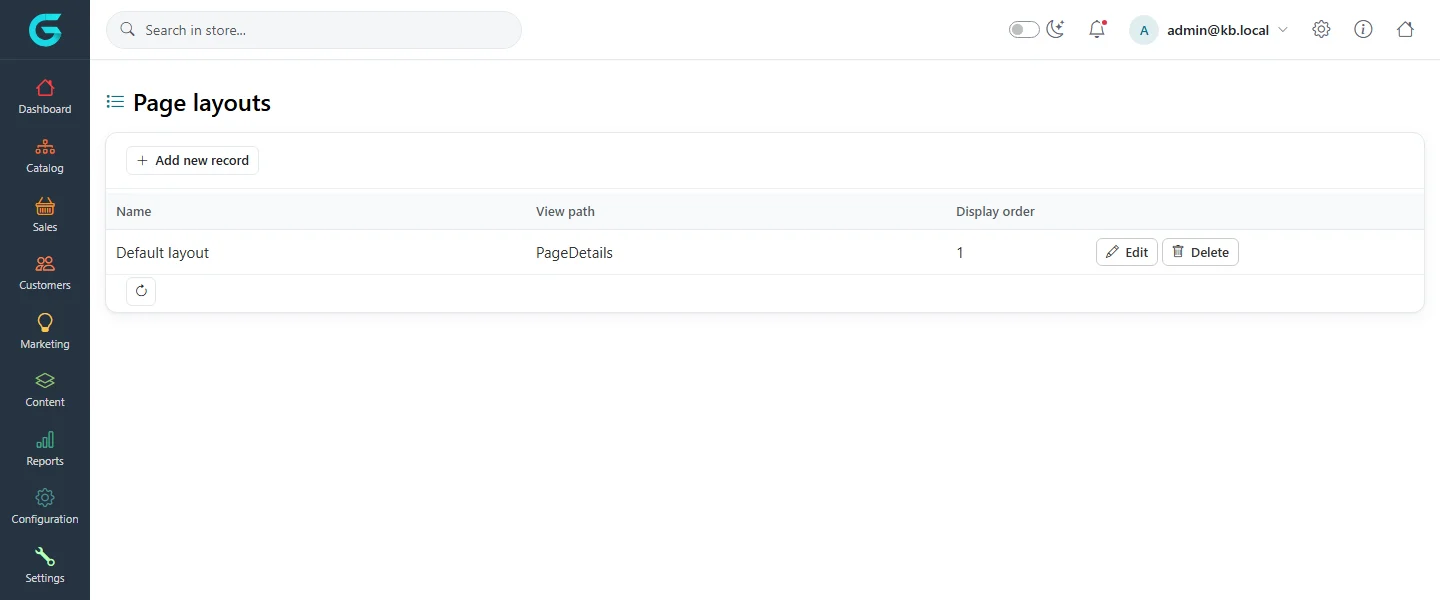
{"ArticleId":null,"Name":"Page layouts and other layouts","Content":"\n\u003Cp\u003EA layout in GrandNode is a named pointer to a Razor view. Every landing page, category, brand, collection and product has a layout field, and the storefront renders the item with the view that layout points to. Layouts let a theme or a developer offer several designs, for example a plain text page and a wide marketing page, and let the content editor pick one per item from a drop-down, without touching code.\u003C/p\u003E\n\n\u003Ch2 id=\u0022where-to-find-it\u0022\u003EWhere to find it\u003C/h2\u003E\n\u003Cp\u003EGo to \u003Cstrong\u003EConfiguration \u2192 Layouts\u003C/strong\u003E. There are five lists: \u003Cstrong\u003ECategory layouts\u003C/strong\u003E, \u003Cstrong\u003EBrand layouts\u003C/strong\u003E, \u003Cstrong\u003ECollection layouts\u003C/strong\u003E, \u003Cstrong\u003EProduct layouts\u003C/strong\u003E and \u003Cstrong\u003EPage layouts\u003C/strong\u003E. They all work the same way. This article uses page layouts, the ones that belong to content management.\u003C/p\u003E\n\u003Cfigure\u003E\u003Cimg src=\u0022/Plugins/Theme.GrandNodeCom/Content/kb/content/page-layouts.webp\u0022 alt=\u0022The Page layouts list with the single Default layout whose view path is PageDetails\u0022 width=\u00221440\u0022 height=\u0022600\u0022 loading=\u0022lazy\u0022\u003E\u003Cfigcaption\u003EConfiguration \u2192 Layouts \u2192 Page layouts on a default installation.\u003C/figcaption\u003E\u003C/figure\u003E\n\n\u003Ch2 id=\u0022default-layouts\u0022\u003ELayouts in a default installation\u003C/h2\u003E\n\u003Ctable\u003E\n\u003Cthead\u003E\u003Ctr\u003E\u003Cth\u003EList\u003C/th\u003E\u003Cth\u003EName\u003C/th\u003E\u003Cth\u003EView path\u003C/th\u003E\u003C/tr\u003E\u003C/thead\u003E\n\u003Ctbody\u003E\n\u003Ctr\u003E\u003Ctd\u003EPage layouts\u003C/td\u003E\u003Ctd\u003EDefault layout\u003C/td\u003E\u003Ctd\u003E\u003Ccode\u003EPageDetails\u003C/code\u003E\u003C/td\u003E\u003C/tr\u003E\n\u003Ctr\u003E\u003Ctd\u003ECategory layouts\u003C/td\u003E\u003Ctd\u003EGrid or Lines\u003C/td\u003E\u003Ctd\u003E\u003Ccode\u003ECategoryLayout.GridOrLines\u003C/code\u003E\u003C/td\u003E\u003C/tr\u003E\n\u003Ctr\u003E\u003Ctd\u003EBrand layouts\u003C/td\u003E\u003Ctd\u003EGrid or Lines\u003C/td\u003E\u003Ctd\u003E\u003Ccode\u003EBrandLayout.GridOrLines\u003C/code\u003E\u003C/td\u003E\u003C/tr\u003E\n\u003Ctr\u003E\u003Ctd\u003ECollection layouts\u003C/td\u003E\u003Ctd\u003EGrid or Lines\u003C/td\u003E\u003Ctd\u003E\u003Ccode\u003ECollectionLayout.GridOrLines\u003C/code\u003E\u003C/td\u003E\u003C/tr\u003E\n\u003Ctr\u003E\u003Ctd\u003EProduct layouts\u003C/td\u003E\u003Ctd\u003ESimple product; Grouped product (with variants)\u003C/td\u003E\u003Ctd\u003E\u003Ccode\u003EProductLayout.Simple\u003C/code\u003E; \u003Ccode\u003EProductLayout.Grouped\u003C/code\u003E\u003C/td\u003E\u003C/tr\u003E\n\u003C/tbody\u003E\n\u003C/table\u003E\n\n\u003Ch2 id=\u0022fields-and-settings\u0022\u003EFields and settings\u003C/h2\u003E\n\u003Ctable\u003E\n\u003Cthead\u003E\u003Ctr\u003E\u003Cth\u003EField\u003C/th\u003E\u003Cth\u003EWhat it does\u003C/th\u003E\u003C/tr\u003E\u003C/thead\u003E\n\u003Ctbody\u003E\n\u003Ctr\u003E\u003Ctd\u003E\u003Cstrong\u003EName\u003C/strong\u003E\u003C/td\u003E\u003Ctd\u003EWhat editors see in the \u003Cstrong\u003EPage layout\u003C/strong\u003E drop-down of a landing page.\u003C/td\u003E\u003C/tr\u003E\n\u003Ctr\u003E\u003Ctd\u003E\u003Cstrong\u003EView path\u003C/strong\u003E\u003C/td\u003E\u003Ctd\u003EThe name of the Razor view, without \u003Ccode\u003E.cshtml\u003C/code\u003E. For page layouts it is looked up in the \u003Ccode\u003EPage\u003C/code\u003E views folder: first in the active theme, then in the default storefront views.\u003C/td\u003E\u003C/tr\u003E\n\u003Ctr\u003E\u003Ctd\u003E\u003Cstrong\u003EDisplay order\u003C/strong\u003E\u003C/td\u003E\u003Ctd\u003EOrder in the drop-down. When a page has no layout set, or its layout was deleted, the storefront uses the first page layout.\u003C/td\u003E\u003C/tr\u003E\n\u003C/tbody\u003E\n\u003C/table\u003E\n\n\u003Ch2 id=\u0022how-to-add-a-page-layout\u0022\u003EHow to add a page layout\u003C/h2\u003E\n\u003Cp\u003EA layout record alone does nothing: the view it names must exist. The usual order is:\u003C/p\u003E\n\u003Col\u003E\n\u003Cli\u003EA developer adds the view to the theme, for example \u003Ccode\u003EViews/\u0026lt;ThemeName\u0026gt;/Page/PageLayout.Wide.cshtml\u003C/code\u003E in a theme plugin, using \u003Ccode\u003EPageDetails.cshtml\u003C/code\u003E as the starting point. It receives the same page model (title, body, SEO fields). The theme must be rebuilt and deployed.\u003C/li\u003E\n\u003Cli\u003EIn \u003Cstrong\u003EConfiguration \u2192 Layouts \u2192 Page layouts\u003C/strong\u003E click \u003Cstrong\u003EAdd new record\u003C/strong\u003E.\u003C/li\u003E\n\u003Cli\u003EEnter a \u003Cstrong\u003EName\u003C/strong\u003E such as \u003Ccode\u003EWide page\u003C/code\u003E, the \u003Cstrong\u003EView path\u003C/strong\u003E \u003Ccode\u003EPageLayout.Wide\u003C/code\u003E and a \u003Cstrong\u003EDisplay order\u003C/strong\u003E, and confirm the row.\u003C/li\u003E\n\u003Cli\u003EOpen a landing page, choose \u003Cstrong\u003EWide page\u003C/strong\u003E in \u003Cstrong\u003EPage layout\u003C/strong\u003E and save.\u003C/li\u003E\n\u003C/ol\u003E\n\u003Cp\u003EThe grandnode.com site you are reading is an example: its theme ships page layouts such as a download page, a features page and several marketing layouts, and each landing page picks one. The content stays editable in \u003Cstrong\u003EContent \u2192 Landing pages\u003C/strong\u003E; the layout supplies the design around it.\u003C/p\u003E\n\n\u003Ch2 id=\u0022tips\u0022\u003ETips and common mistakes\u003C/h2\u003E\n\u003Cul\u003E\n\u003Cli\u003EA wrong view path causes an error on every page that uses the layout. Test the layout on a hidden page first (administrators can preview hidden pages).\u003C/li\u003E\n\u003Cli\u003EIf a theme adds a view only for itself and a store switches to another theme, the view is not found. Either add the view to each theme or keep the default layout on pages that must survive a theme change.\u003C/li\u003E\n\u003Cli\u003EDo not delete \u003Cstrong\u003EDefault layout\u003C/strong\u003E: it is the fallback for pages without a layout.\u003C/li\u003E\n\u003Cli\u003EEditing or deleting layouts needs the Maintenance permission, so content editors normally only choose from the list.\u003C/li\u003E\n\u003C/ul\u003E\n\n\u003Ch2 id=\u0022related\u0022\u003ERelated\u003C/h2\u003E\n\u003Cul\u003E\n\u003Cli\u003E\u003Ca href=\u0022/content-pages\u0022\u003ELanding pages\u003C/a\u003E\u003C/li\u003E\n\u003Cli\u003E\u003Ca href=\u0022/docs-developers\u0022\u003EDevelopers\u003C/a\u003E for how theme views override the default ones\u003C/li\u003E\n\u003Cli\u003E\u003Ca href=\u0022/docs-catalog\u0022\u003ECatalog\u003C/a\u003E for category, brand, collection and product pages\u003C/li\u003E\n\u003C/ul\u003E\n","ParentCategoryId":"6abdec6c83d2816248229f03","SeName":"content-layouts","MetaKeywords":null,"MetaDescription":"How GrandNode page, category, brand, collection and product layouts map to Razor views, and how to add a layout for a landing page.","MetaTitle":null,"AllowComments":false,"Captcha":{"ReCaptchaChallengeField":null,"ReCaptchaResponseField":null,"ReCaptchaResponseValue":null,"ReCaptchaResponse":null},"RelatedArticles":[],"CategoryBreadcrumb":[{"Name":"Content management","Description":null,"IsCurrent":false,"Children":null,"Parent":null,"SeName":"docs-content","Id":"6abdec6c83d2816248229f03","UserFields":[]}],"AddNewComment":{"CommentText":null,"DisplayCaptcha":false,"Id":null,"UserFields":[]},"Comments":[],"Id":"6abdec6c83d2816248229f09","UserFields":[]}